

Who can do this: Users with Manage Referral Payouts see the Payouts tab and can change payout statuses and record milestones. Changing Payout Settings also needs Manage Referral Settings and All Referral Portals Access. Users without All Referral Portals Access only see payouts from the referral portals they’re an admin of.Availability: Referrals need to be turned on for your account. Ask your Customer Success Manager.
How payouts are created
When a candidate is referred to a job req with a reward program, the referral keeps a copy of that program’s terms. Nothing is owed yet. When the candidate is hired, Journeyfront creates one payout per installment. For example, a hire made through the Agent Referral Bonus (USD 500: $200 after 90 days and $300 after 180 days) gets two payouts: $200 and $300. Each payout’s Earned On date is worked out from its installment:
One hire pays one referral. If several people referred the same candidate to the same job req, only the referral with the credit gets payouts that can be paid. See Review, credit and Reward Status.
Payout statuses
Earned and Overdue together are what you owe right now.
Why a payout becomes Ineligible
Journeyfront checks that the hire and the referrer are both still employed on the Earned On date. A payout becomes Ineligible on its own when:
A referrer who left after a payout’s Earned On date is still owed that payout. A referrer whose employment can’t be confirmed (no linked employee record, shown as Unknown) is treated as still employed, so no payout is withheld because of missing data. Employment comes from your employee records, so an end date from your HRIS integration is picked up automatically.
Paid payouts never change on their own.
The Payouts tab
Go to Referrals, then the Payouts tab.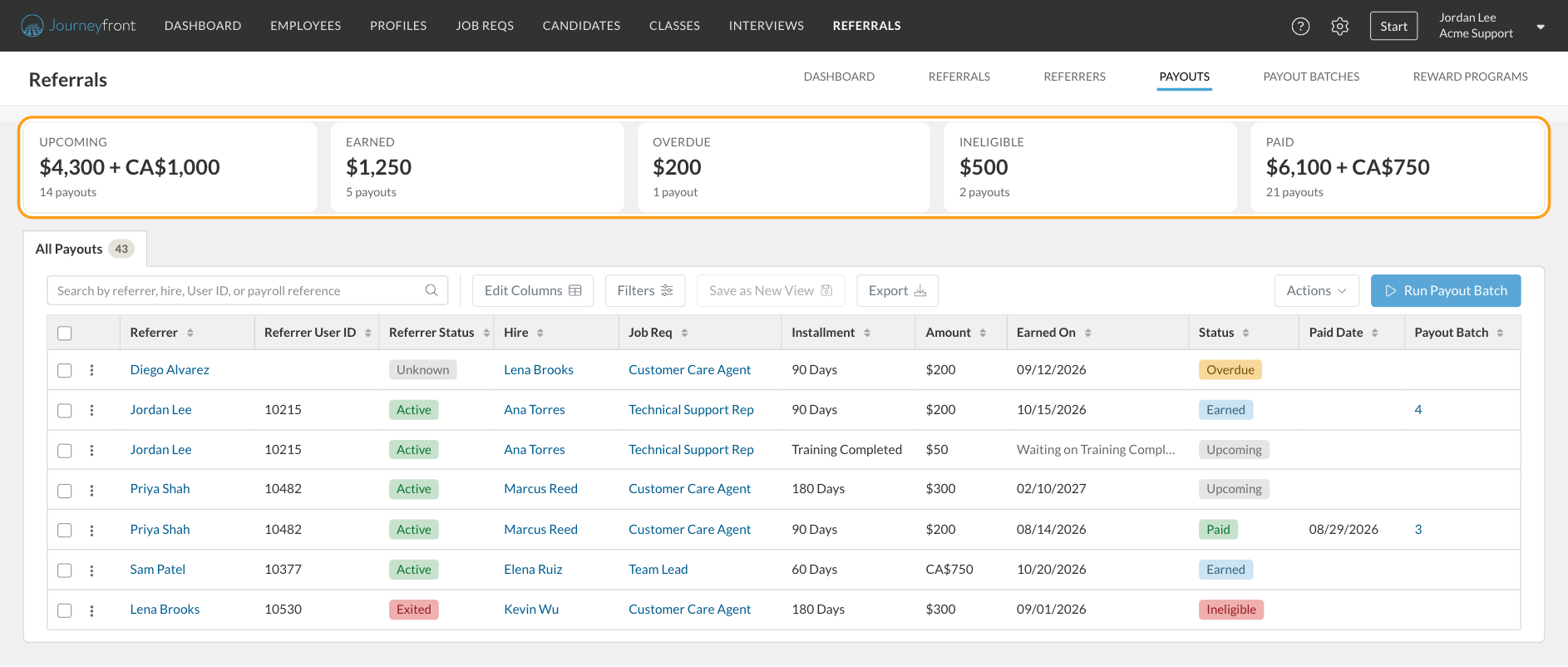
Columns
Click Edit Columns to add Payout ID, Referrer Email, Hire Email, Hire User ID, Start Date, Ineligible Reason, Payroll Reference and Note.
Search, filters and views
Search by referrer, hire, User ID or payroll reference. Click Filters to filter by Status, Earned On, Currency, Referrer Status and Payout Batch, plus Paid Date, Amount, Job Req, Installment and Ineligible Reason (any of the reasons in Why a payout becomes Ineligible, including Credited to another referral). Save a filtered list as its own tab with Save as New View, and click Export to download the list.Change a payout’s status
1
Pick the payouts
For one payout, click the menu at the start of its row and choose Mark Paid or Mark Ineligible. For several, tick their boxes and click Change Status in the bar above the list.
2
Choose the new status
The Change Payout Status window shows how many payouts you’re updating and their total. Choose a status:
3
Add the details
For Paid, enter the Paid Date (today by default) and, if you like, a Payroll Reference, such as a pay run or transaction number. Add a Note for other admins if it helps.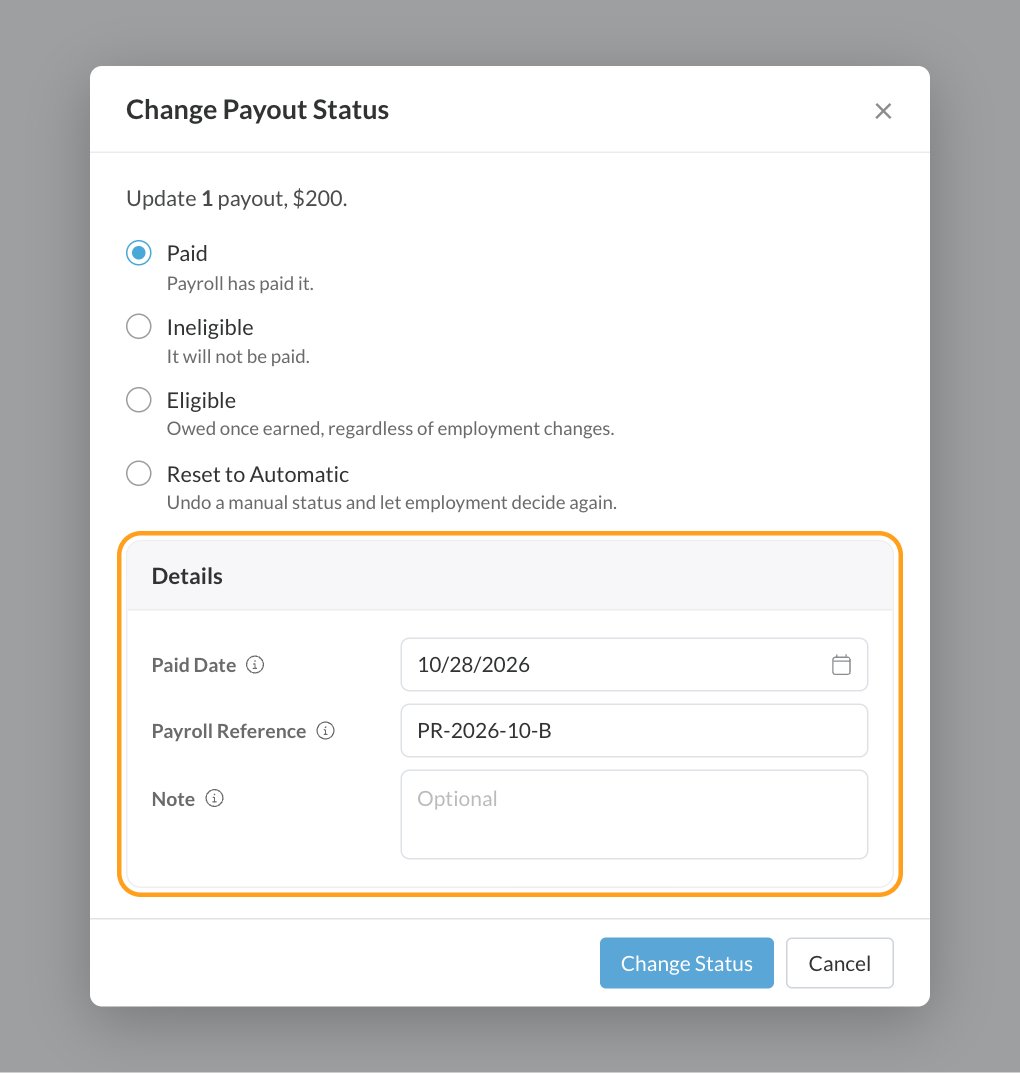
4
Save
Click Change Status. A message tells you how many payouts were updated.
Record a milestone
A milestone installment, like a $50 Training Bonus at Training Completed, stays Upcoming until you record the day the hire reached it. That day becomes its Earned On date.1
Open Record Milestone
For one payout, choose Record Milestone from its row menu. For several, tick their boxes and click Record Milestone in the bar above the list.
2
Enter the date
Enter the Reached On date. It can’t be in the future. Add a Note if you’d like, for example where the date came from.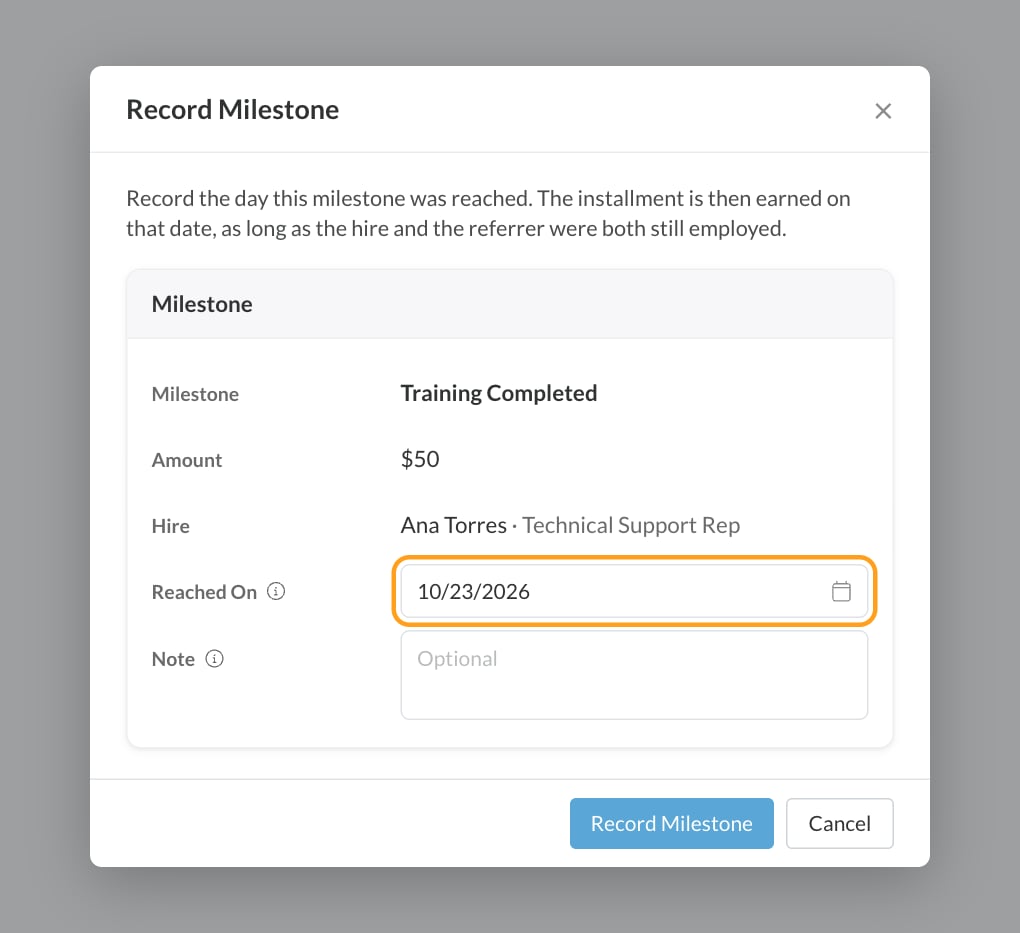
3
Save
Click Record Milestone. The payout is then earned on that date, as long as the hire and the referrer were both still employed on it.
Import milestone dates
To record many milestones at once, click Actions, then Import Milestone Dates, and upload a file with two columns: Payout ID and Milestone Reached On. Export your payouts (with the Payout ID column added) to get the IDs. If any row can’t be applied, nothing changes and the problem rows are listed so you can fix them and try again.Set when a payout is overdue
1
Open Payout Settings
On the Payouts tab, click Actions, then Payout Settings.
2
Set Overdue After
Enter a number of days from 0 to 365 in Overdue After. A payout that’s still unpaid this many days after it was earned shows as Overdue.
3
Save
Click Save. The setting applies to your whole account.
FAQ
Why doesn't a referral have any payouts?
Why doesn't a referral have any payouts?
Payouts are only created once the referred candidate is hired, and only when the referral has a reward, which comes from the reward program on its job req. Check the referral’s Reward Status on the Referrals page.
A hire's start date changed. Do I need to update the payouts?
A hire's start date changed. Do I need to update the payouts?
No. Payouts that count days from the start date follow it automatically, unless they’re already paid.
The referrer left the company. Do they still get paid?
The referrer left the company. Do they still get paid?
They’re paid for any installment earned before they left. Installments earned after their exit date become Ineligible. If you decide to pay anyway, set those payouts to Eligible or Paid.
Why is the referrer's status Unknown?
Why is the referrer's status Unknown?
The referrer isn’t linked to an employee record yet, so Journeyfront can’t confirm their employment. Their payouts are still treated as owed. Link them on the Referrers page to be sure.
Why are some totals shown with a plus sign?
Why are some totals shown with a plus sign?
Amounts in different currencies are never added together. Each currency gets its own total, joined with a plus sign.
Can employees see payout notes?
Can employees see payout notes?
No. Notes are only for admins. Employees see their payout’s status and a plain reason in the referral portal.
Related
Payout batches
Send what’s owed to payroll and record what was paid.
Reward programs
Set the amounts and installments a referral earns.
Review, credit and Reward Status
Decide which referral gets the credit for a hire.
Referrers
Link referrers to their employee records.