

Who can do this: People whose security role has Manage Referral Settings. Without All Referral Portals Access, you can only change the portals you’re an admin of.Availability: Referrals need to be turned on for your account. Ask your Customer Success Manager.
Feature a job, reward or announcement
You can feature three kinds of items:
Featured items show at the top of the portal’s Home and Jobs pages, in the order you set.
1
Open Featured
Open the portal and click Featured in the section list, then Add Featured.
2
Choose what to feature
Pick Job Req, Reward Program or Announcement. For a job req or reward program, choose it from the list. Each option shows what it pays.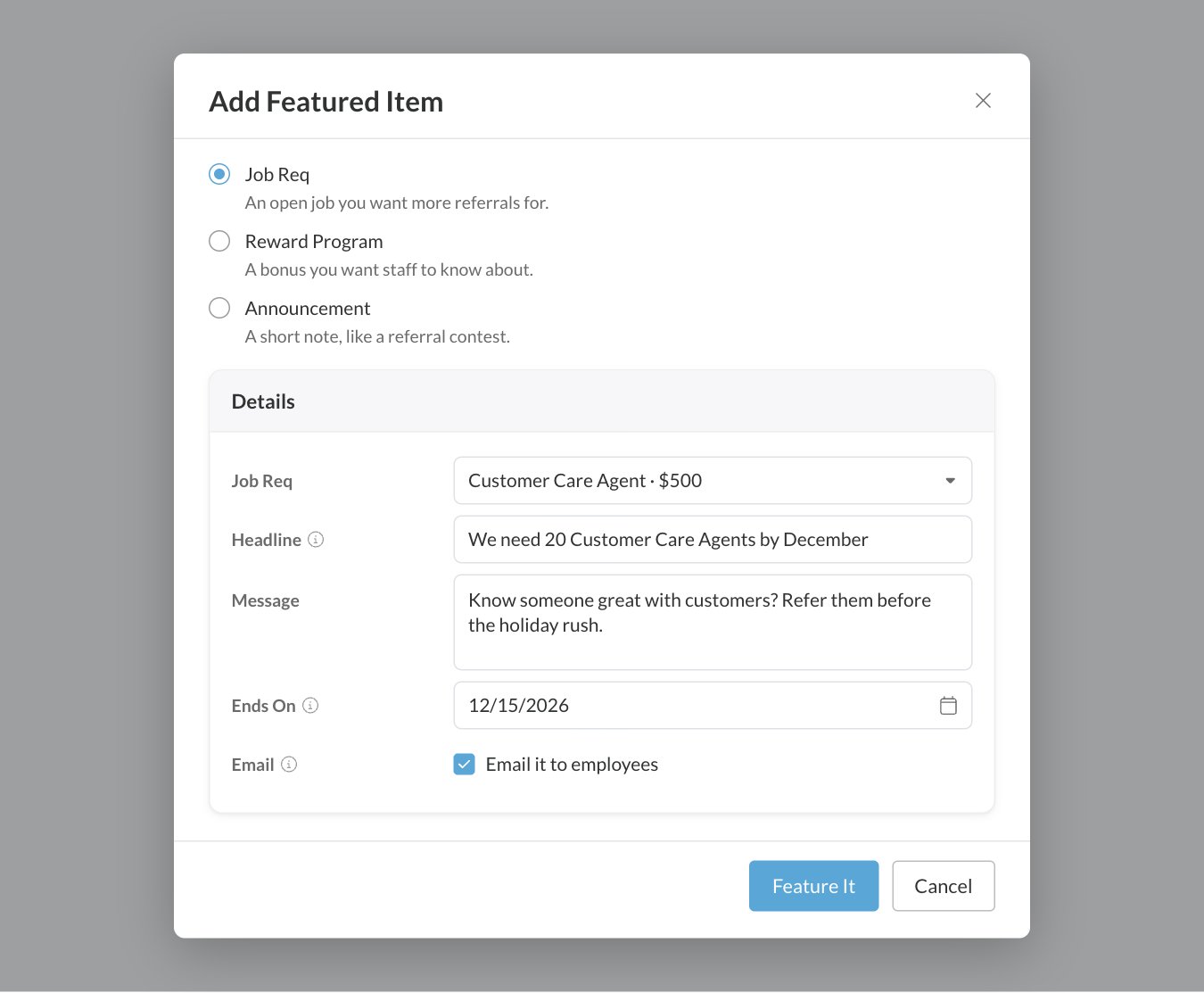
3
Write the details
4
Feature it
Click Feature It. The item is added to the end of the list and saves right away. There’s no need to click Save.
Manage featured items
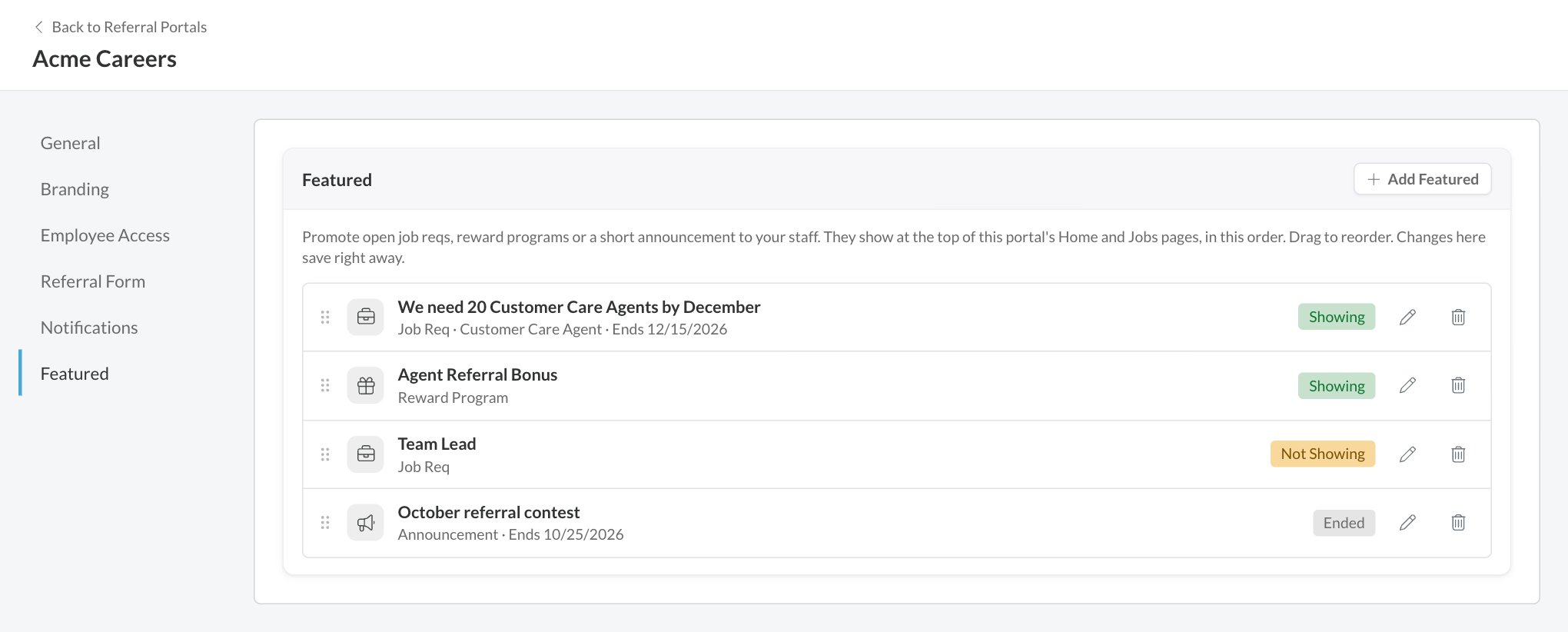
From the list you can:
- Reorder items by dragging the handle on the left. The portal shows them in this order.
- Edit an item with the pencil icon to change its Headline, Message or Ends On date. What it points at can’t change, so add a new item instead.
- Remove an item with the trash icon.
Choose which emails employees get
The portal emails employees when something happens with their referrals or payouts. Every email is on unless you turn it off. Turning one off on the Notifications section stops it for everyone on this portal. Click Save when you’re done.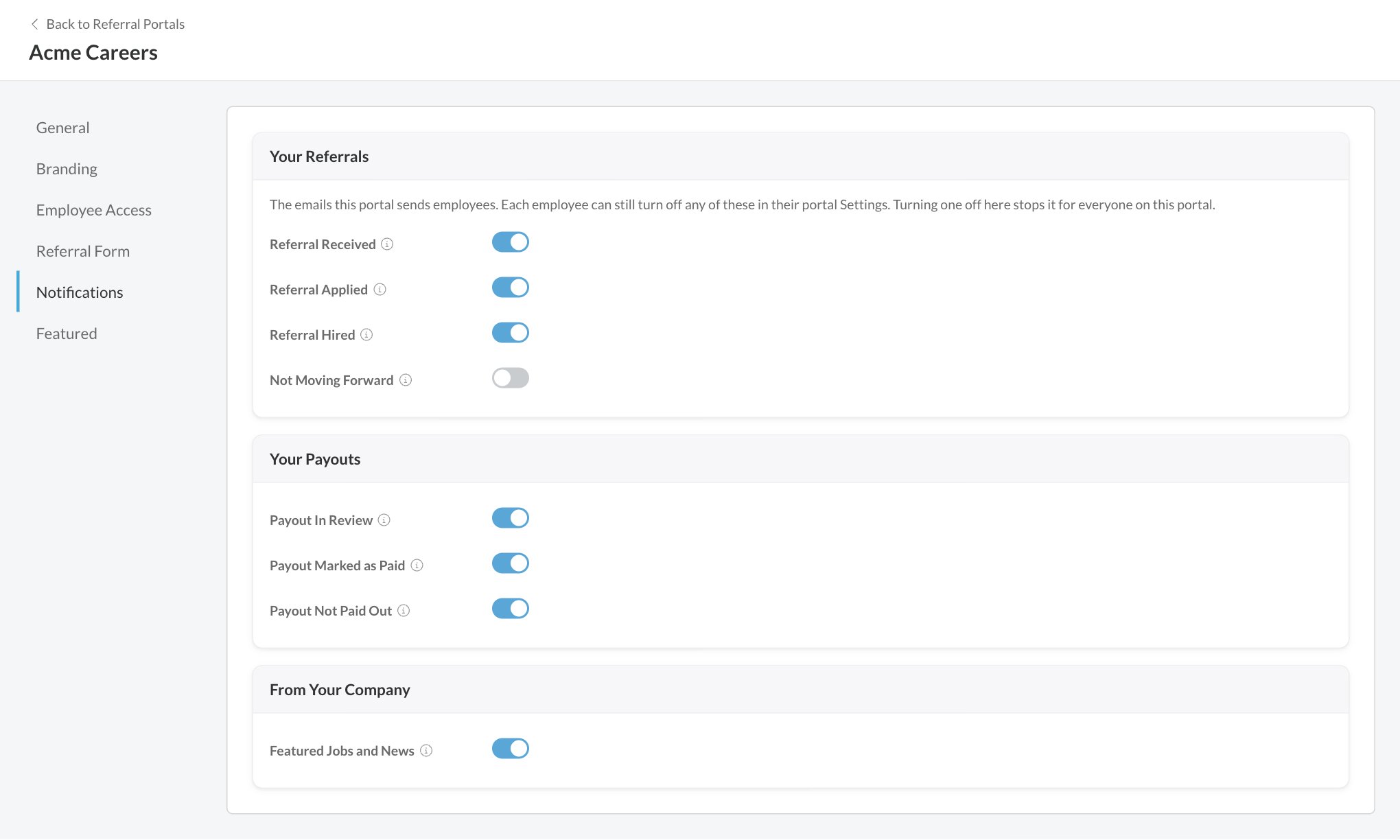
Each email carries the portal’s name, logo and brand color, with a button back to the right page on the portal. Its footer links to the employee’s portal Settings.
What employees can change
Employees can turn off any of these emails for themselves in their portal Settings. They only see the emails this portal sends, so an email you turned off here doesn’t appear for them.Who gets emails
- Emails only go to people who can sign in to the portal. A Public portal doesn’t send them. See Employee sign-in and access.
- A former employee with payouts-only access gets payout emails only.
- Not Moving Forward follows the portal’s Referral Status Shown setting. On a portal set to Accepted and Joined Only, it’s only sent when a referral itself is not approved, not when an application is rejected later.
- Each email is sent once. If the same thing happens again, the employee isn’t emailed twice.
FAQ
Can I email an item I already featured?
Can I email an item I already featured?
No. The email option is only available when you add an item, and it sends once. To send news again, add a new featured item and check Email it to employees.
Why did my featured email not go out?
Why did my featured email not go out?
The email only goes out if the item is showing when you add it. A job req that isn’t open on the portal, for example, isn’t emailed. Employees who turned off Featured Jobs and News in their portal Settings don’t get it either.
Why can't I add another featured item?
Why can't I add another featured item?
A portal can show up to 6 items at once. Remove one, or wait for one to reach its Ends On date.
Do employees get emails about referrals made on another portal?
Do employees get emails about referrals made on another portal?
Each email comes from the portal the referral was made on. If that portal is inactive, it comes from your account’s first active portal.
If I turn an email back on, will employees who turned it off get it?
If I turn an email back on, will employees who turned it off get it?
No. An employee’s own choice in their portal Settings still applies.
Related
Set up a referral portal
Create a portal and set its branding and form.
Employee sign-in and access
Who can sign in and receive portal emails.
Payouts
The installments behind the payout emails.
Using the referral portal
Where featured items appear for employees.