

Who this is for: Employees of a company that uses Journeyfront referrals. Your company shares the portal’s link with you. Admins can send this page to their employees as-is.Availability: Referrals need to be turned on for your account. Ask your Customer Success Manager.
Sign in
Some portals let anyone browse jobs and refer without signing in. Signing in adds everything that’s yours: Home, My Referrals, Payouts, the Leaderboard and Badges. If your company’s portal requires sign-in, you’ll see the sign-in page first.1
Enter your work email
Open the portal link and click Sign In. Enter your Work Email and click Send Code.
2
Enter the code or click the link
If your email can sign in to this portal, you get an email with a 6-digit code and a sign-in link. Enter the code under 6-Digit Code and click Sign In, or just click the link in the email. Both expire after 15 minutes. Wrong email? Click Use a Different Email.
Find your way around
On a computer, the portal has a sidebar on the left: Home, Jobs, Refer, My Referrals, Payouts, Rewards, Leaderboard and Badges. Click the panel icon at the top (or press Cmd+B or Ctrl+B) to shrink the sidebar to icons. At the bottom are a link to your company’s site and your name, which opens your account menu. On a phone, tap the menu icon in the top left to open the same list. Your photo or initials in the top right opens your account menu. Your account menu has your name and email, Switch Portal (when you can use more than one), Settings and Sign Out.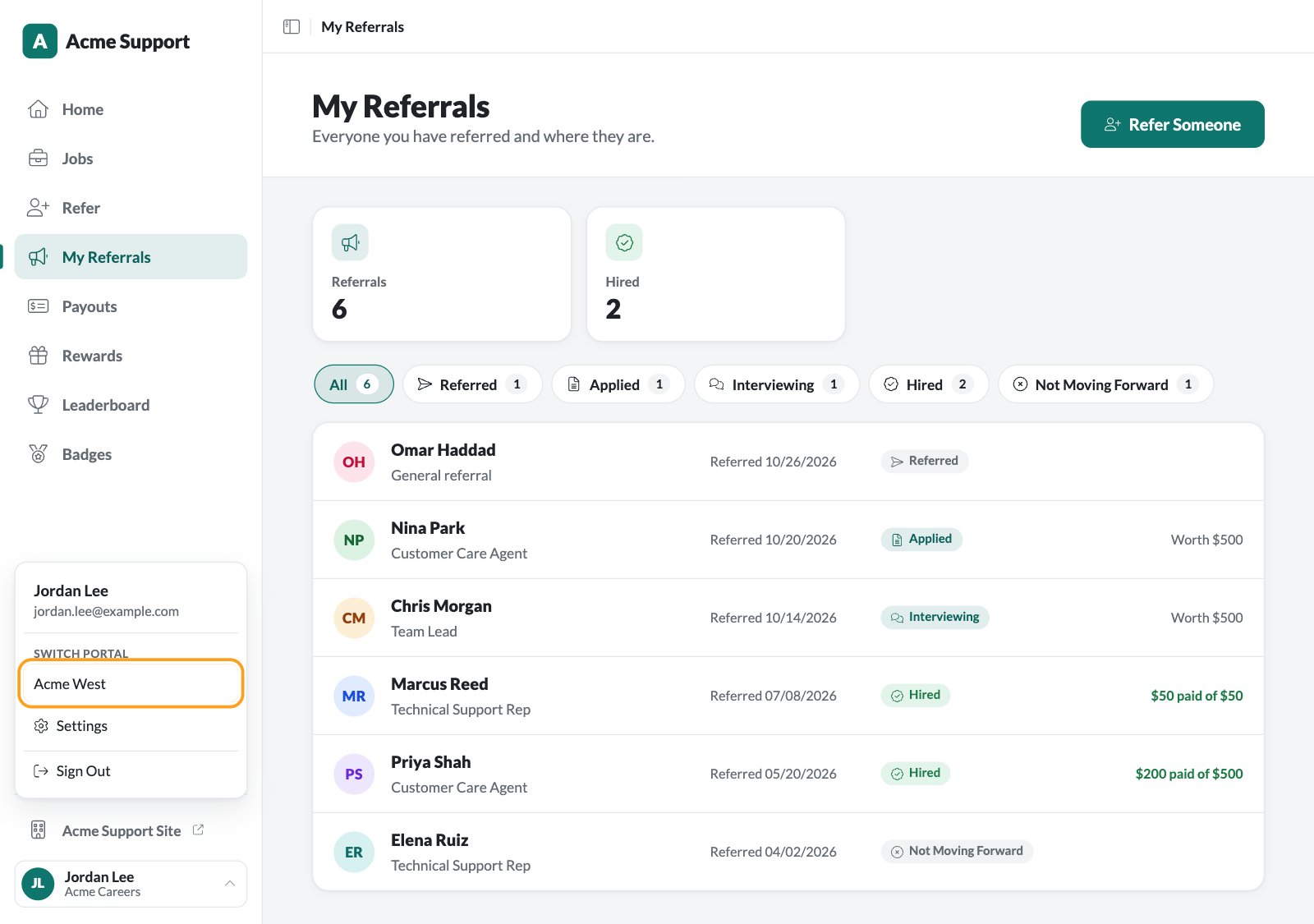
Home
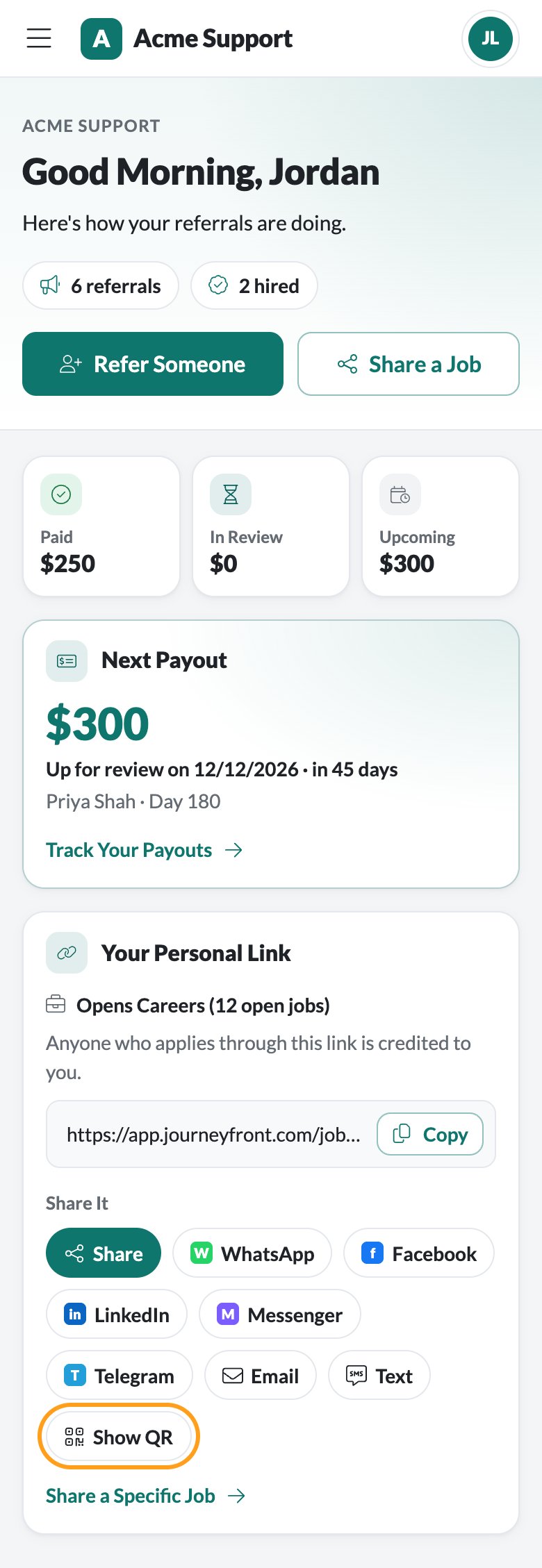
Home shows how your referrals are doing at a glance:- Paid, In Review and Upcoming: your reward money so far. If you earn rewards in more than one currency, each currency gets its own row.
- Next Payout: the next installment that’s due, when it’s due, for whom and which installment, for example “Priya Shah · Day 180”. Track Your Payouts opens Payouts.
- Your Personal Link: your own link to all open jobs, with where it opens and how many jobs are open. Anyone who applies through it is credited to you. Copy it, share it to an app, or click Show QR for a QR code you can download or copy.
- Your Referrals: how many people you Referred, how many Applied, how many were Hired and how many were Paid.
- Your Badges: your next badge and the ones you earned most recently. See Badges.
- Jobs to Share: a few open jobs, the ones with rewards first, each with a Share button.
- Leaderboard: your rank and the top five, when your company shows the leaderboard.
Find and share jobs
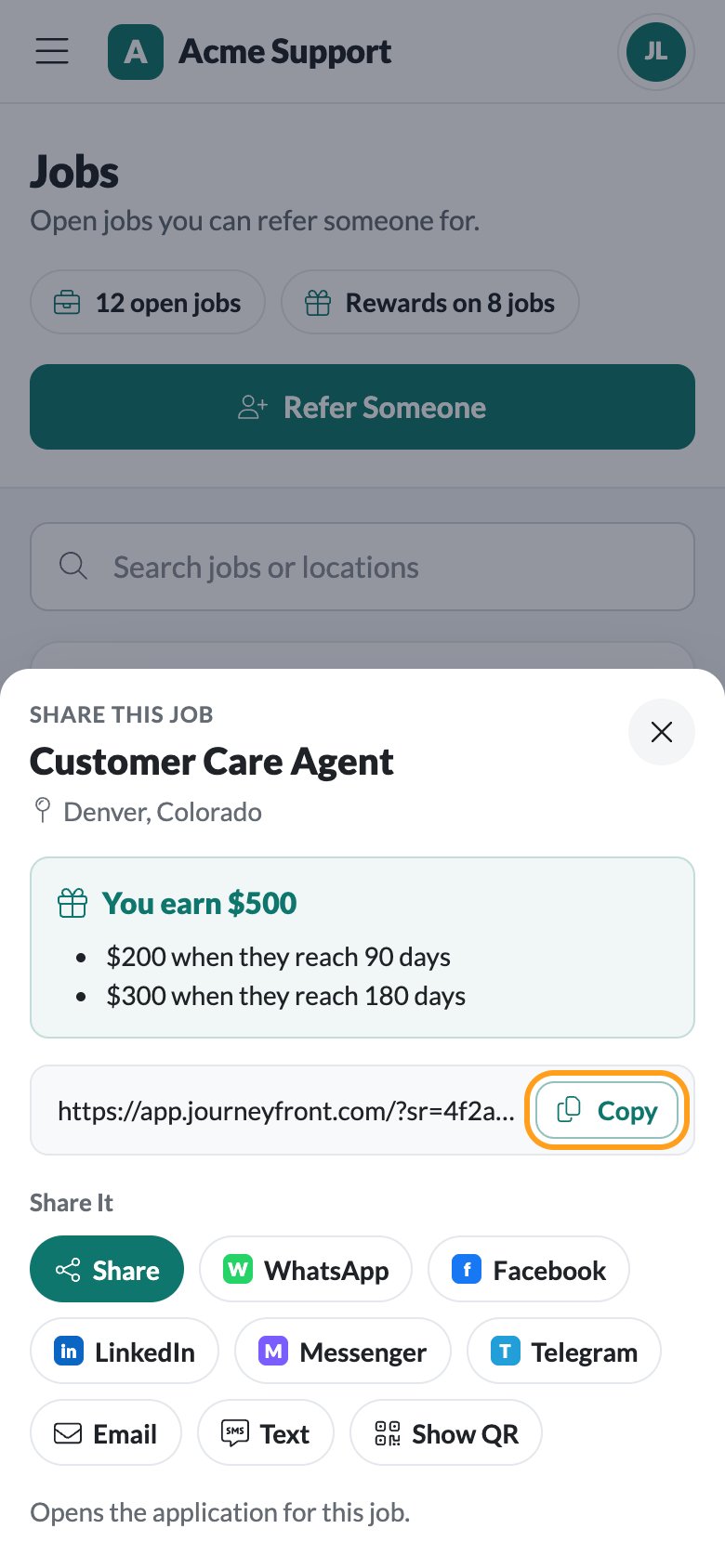
Jobs lists every open job on the portal. Search by job title or location. Each card shows the location and, when the job pays a reward, Earn and the amount. Click a card to open the job’s page, with About the Job and What It Pays (each installment and when it pays). To share a job, click Share on its card (or Share This Job on its page). The share sheet shows what you earn and your own link to that job’s application:- Click Copy to copy the link.
- Under Share It, send it with your phone’s own Share menu, WhatsApp, Facebook, LinkedIn, Messenger, Telegram, Email or Text.
- Click Show QR for a QR code.
Refer someone
Use Refer when you’d rather send the person’s details yourself.1
Open Refer
Click Refer in the menu, or Refer Someone on Home, Jobs or a job’s page. Refer Someone is selected at the top. (Share a Job next to it gives you your link to all jobs and a link for each job.)
2
Choose the job
Under Who You’re Referring, pick a Job Opening. If your company takes general referrals, you can choose General Referral (No Specific Job). When the job pays a reward, What You Could Earn shows the amount and each installment.
3
Add the people
Enter each person’s First Name, Last Name, Email and Phone. Click Add Person to refer more than one person for the same job, up to 10 at a time. Your company may also ask for their location.
4
Add a note and send
Add a Note for the Recruiting Team (Optional). If your company asks for it, check the box confirming the people you’re referring agreed to be contacted. Click Send Referral (or Send 3 Referrals and so on).
My Referrals
My Referrals lists everyone you’ve referred at your company, newest first, with the job, the date you referred them, their stage and their reward. Filter by stage with the chips at the top.
For some jobs, your company shows only whether the person applied and whether they were hired. Those referrals never show Interviewing. The reward column reads “Worth $500” until something is paid, then “$200 paid of $500”.
Payouts
Payouts tracks every reward installment, from your hire’s start date to payday. At the top are your Paid, In Review and Upcoming totals, then Rewards Over Time, a chart of your rewards by month. Under By Hire, each person you referred who was hired has a card with their job, start date and how many days they’ve been there. A track runs from Start to each installment, such as Day 90 or Training Completed, with a row below for each installment saying where it stands. Each installment is named by when it pays, such as Day 90, plus its own name when your company gave it one, for example “Day 150 · Sign-On Bonus”.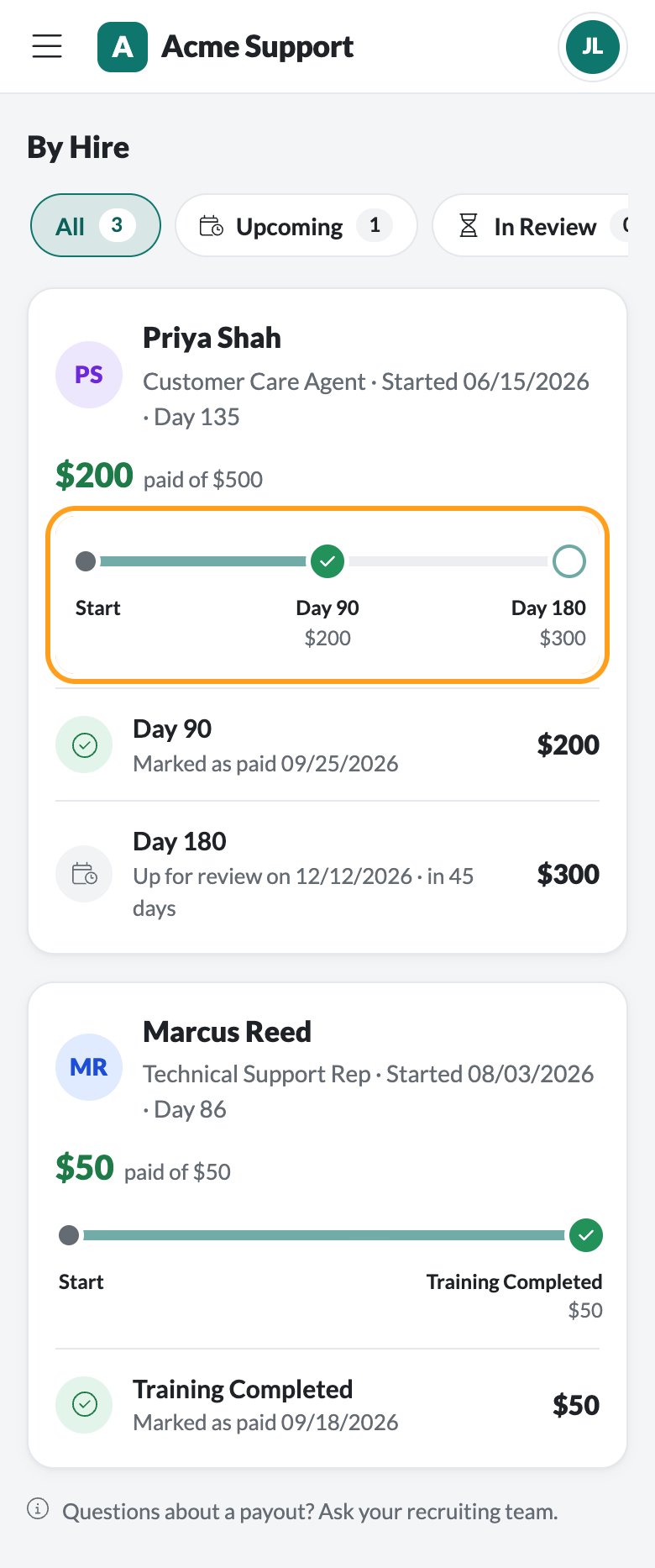
Filter the installments with All, Upcoming, In Review, Paid and Not Paid Out. Questions about a payout? Ask your recruiting team.
Rewards
When your company shows rewards on the portal, Rewards explains how referring works in three steps, then lists the Reward Programs behind the portal’s jobs. Each program shows its Total Reward, every payment and when it’s due, and its effective dates when it has them. Your company’s own rules for who is eligible are in the program’s description.Leaderboard
When your company turns it on, the Leaderboard ranks the portal’s top referrers by hires, then by referrals. Pick This Month, This Quarter, This Year or All Time at the top. This Year is selected when the page opens. Your card shows Your Rank, your Hires and Referrals, and how many more hires would move you up, like “2 more hires to pass #2”. The top three stand on a podium, and everyone else is listed below with a bar for their hires.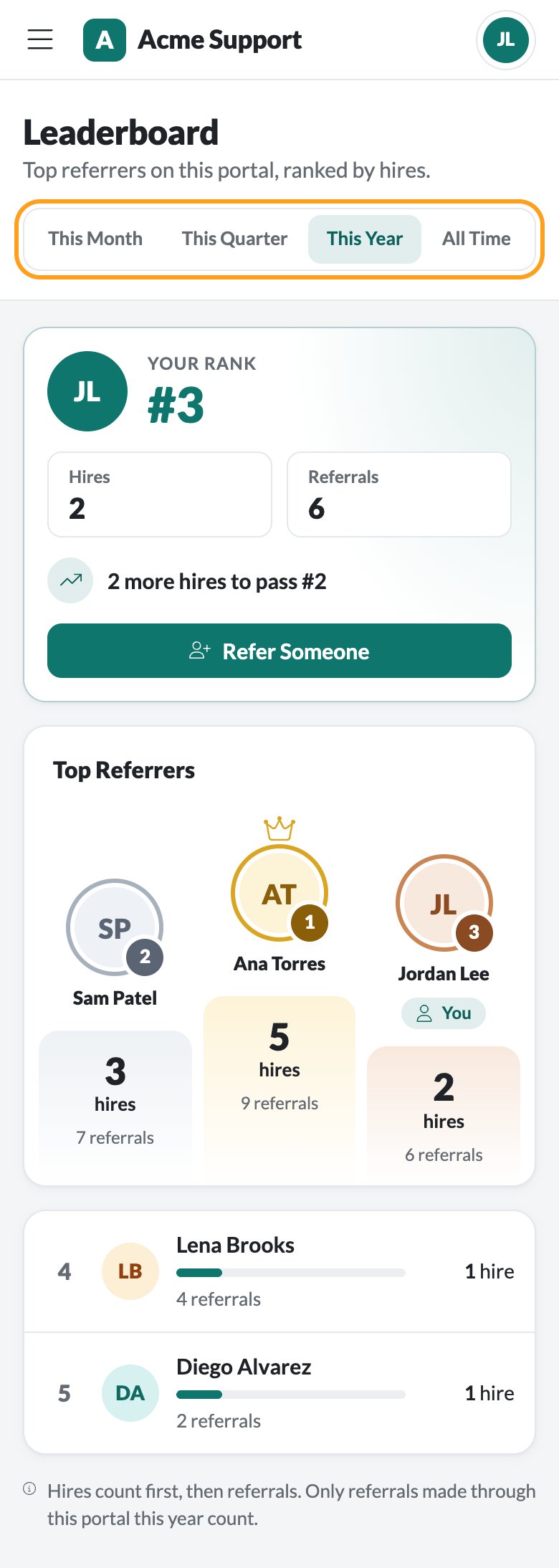
Badges
You earn Badges for referring: your first referral, people who apply, hires, hires who reach a milestone, and hires who stay. Badges are never about money. See Badges for every badge and how to earn it.Settings
Open your account menu and click Settings.- Profile Photo: click Upload Photo and choose a JPG, PNG or WebP photo. It’s cropped to a square and shown to coworkers on the leaderboard, only on your company’s referral portals. Use Replace Photo or Remove to change it. This card appears only when your company allows photos.
- Email Notifications: a switch for each email the portal sends you, grouped under Your Referrals, Your Payouts and From Your Company. Every email is on until you turn it off, and changes save right away.
You only see the emails your company sends from this portal.
Switch portals
Some companies have more than one referral portal, for example one per region. If you can use more than one, open your account menu and pick a portal under Switch Portal. You stay signed in. Your referrals, payouts and badges are the same on every portal of your company. The leaderboard counts only the portal you’re on.FAQ
I didn't get a sign-in code. What now?
I didn't get a sign-in code. What now?
Make sure you entered your work email, check your spam folder and wait a minute. If it still doesn’t arrive, ask your recruiting team to check that your email can sign in to the portal. Codes and links expire after 15 minutes, so request a new one if yours is old.
Do I have to sign in to refer someone?
Do I have to sign in to refer someone?
It depends on your company’s portal. Many let you refer or share a job without signing in, using your name and work email. Signing in lets you follow your referrals and payouts.
Does someone who applies through my link count as my referral?
Does someone who applies through my link count as my referral?
Yes. Anyone who applies through your personal link, a job link or your QR code is credited to you, and shows up in My Referrals.
Why does my payout say In Review?
Why does my payout say In Review?
It reached its date, and payroll is confirming that you and your hire both still qualify before paying it. When payroll marks it as paid, it moves to Paid and you get an email if that email is turned on.
Why does a referral show only Applied, not Interviewing?
Why does a referral show only Applied, not Interviewing?
For some jobs your company shares only whether the person applied and whether they were hired, to protect candidates’ privacy.
Can my coworkers see how much I earned?
Can my coworkers see how much I earned?
No. The leaderboard shows hires and referrals only. Your payouts are visible to you and your company’s referral team.
What happens if I leave the company?
What happens if I leave the company?
Your company decides. Often you can still sign in and see Payouts for a while, so you can follow rewards you already earned. Referring isn’t available then.
How do I stop the emails?
How do I stop the emails?
Open your account menu, click Settings, and turn off any email under Email Notifications.
Related
Badges
Every badge you can earn, and how.
How referrals work
The referral process from referral to payout.
Employee sign-in and access
How admins decide who can sign in.
Set up a referral portal
For admins: build and brand a portal.