

Who can do this: People whose security role has Manage Referral Settings. Without All Referral Portals Access, you can only change the portals you’re an admin of.Availability: Referrals need to be turned on for your account. Ask your Customer Success Manager.
Choose who can use the portal
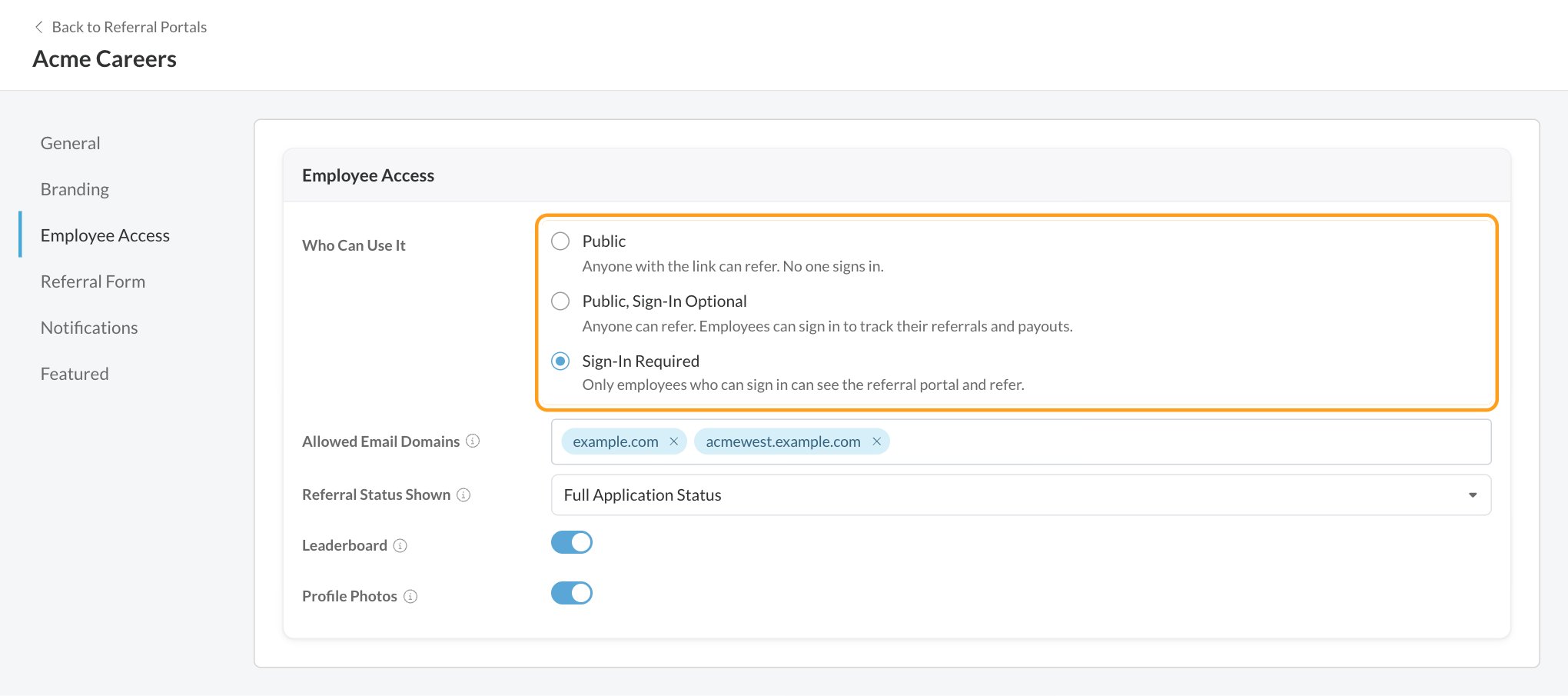
The other settings on this page only appear when the portal uses sign-in.
Who can sign in
When someone tries to sign in, Journeyfront checks these rules in order:- Specific People comes first. A person you Block can’t sign in, and a person you Allow can, whatever the other rules say.
- Active employees can sign in. That’s anyone with an employee record in your account that has no turnover date.
- Former employees follow your When an Employee Leaves setting.
- People with no employee record can sign in when their email is on one of your Allowed Email Domains.
Allowed Email Domains
Every active employee can already sign in. Add your company’s email domains to also let in people who don’t have an employee record yet, such as new hires before your HR system sync runs. Type a domain and press Enter or a comma to add it. Subdomains are included, soexample.com also covers west.example.com.
Other settings
When an employee leaves
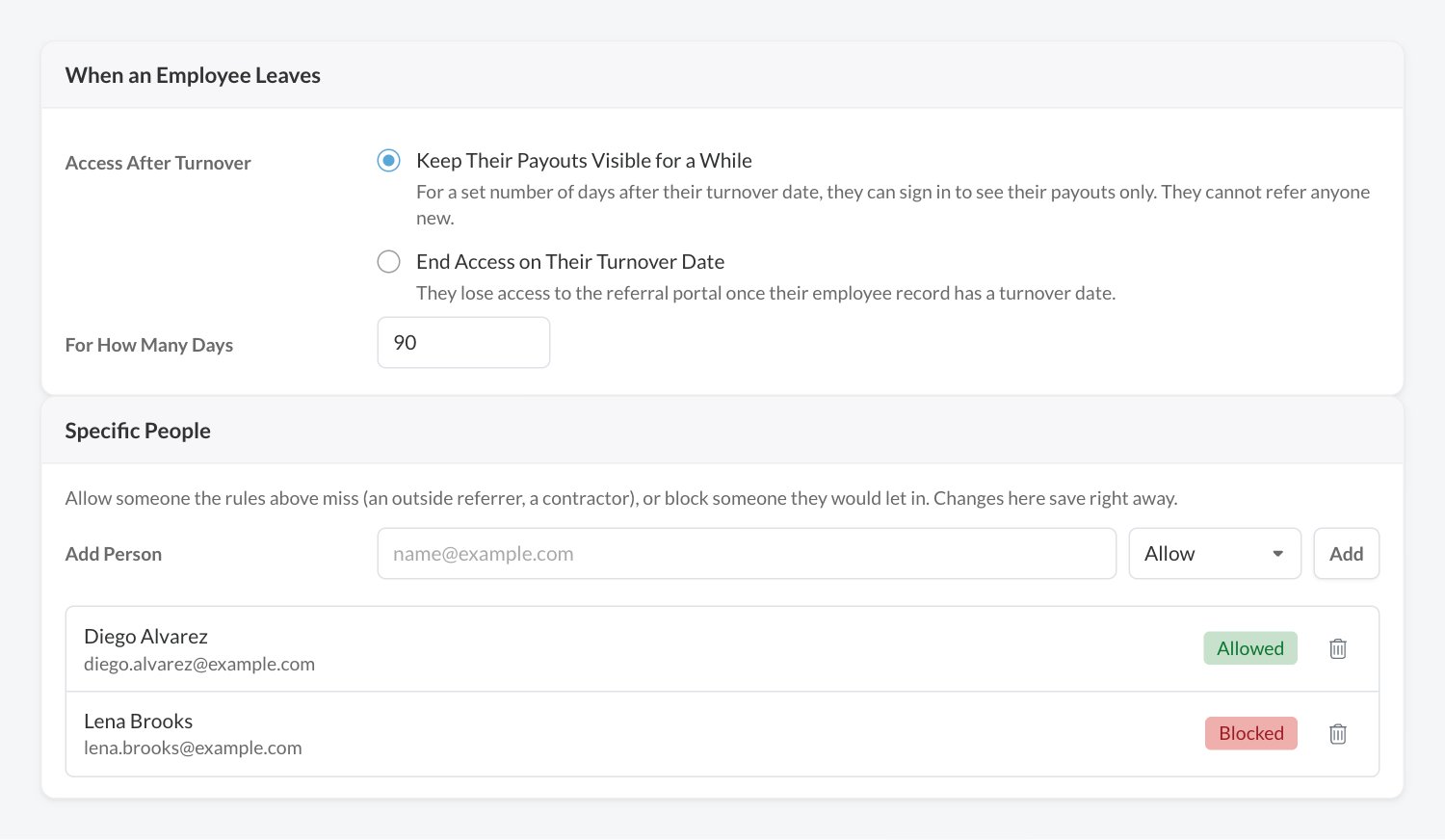
While a former employee has payouts-only access, the portal shows them just their Payouts and Settings, and they only get payout emails.
Allow or block specific people
Use Specific People for anyone the rules above miss, like an outside referrer or a contractor, or to block someone they would let in.1
Enter their email
Under Add Person, type the person’s email address.
2
Choose Allow or Block
Pick Allow or Block and click Add. The person appears in the list with an Allowed or Blocked chip.
How employees sign in
Employees sign in with their work email. There’s no password to remember.1
Enter a work email
On the portal, the employee clicks Sign In, enters their Work Email and clicks Send Code. On a Sign-In Required portal, the sign-in page is the first thing they see.
2
Get the code
If that email can sign in to the portal, Journeyfront emails a 6-digit code and a sign-in link. Both expire in 15 minutes. The page says the same thing whether or not the email can sign in, so no one can use it to find out who works for you.
3
Enter the code or click the link
The employee types the code and clicks Sign In, or clicks the link in the email. Use a Different Email starts over.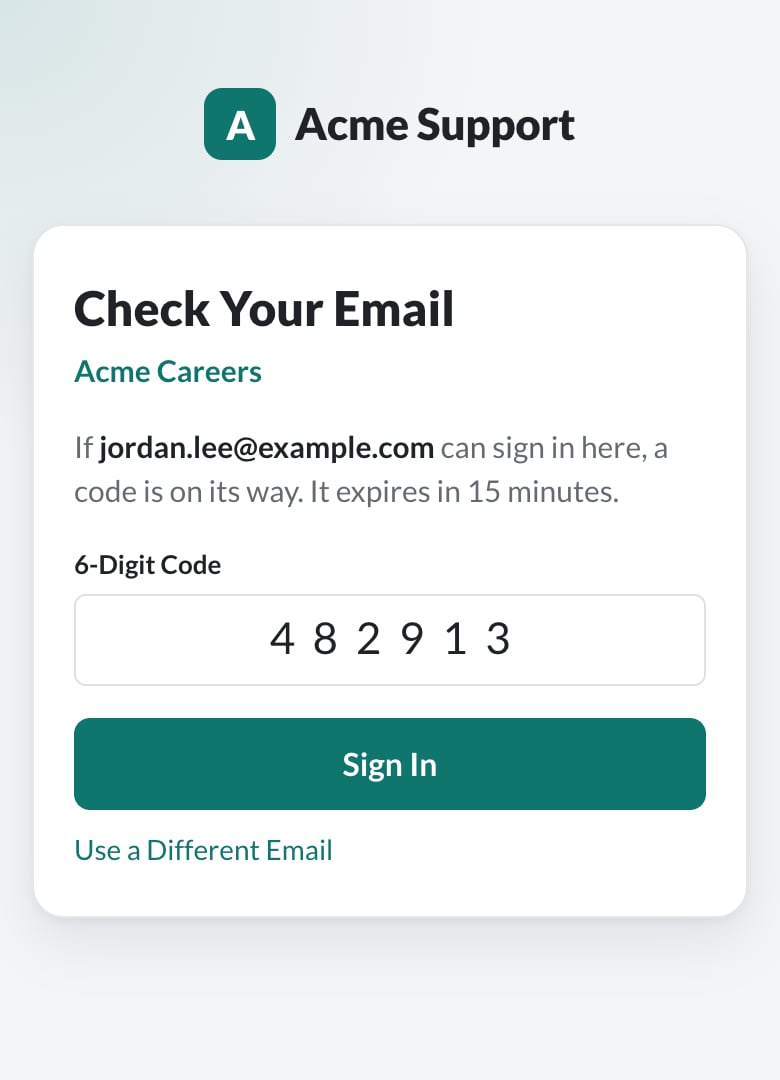
FAQ
An employee says they never got a code. What should I check?
An employee says they never got a code. What should I check?
Make sure they have an employee record with no turnover date, or that their email is on one of your Allowed Email Domains, and that they aren’t on the Specific People list as Blocked. Also check that the portal is Active and not set to Public. If they still can’t get in, add their email under Specific People with Allow.
What happens if someone types the wrong code?
What happens if someone types the wrong code?
After 5 wrong tries, that code stops working and they need to request a new one. A new code can be requested any time from the sign-in page.
Do I need to remove employees who leave?
Do I need to remove employees who leave?
No. When their employee record gets a turnover date, the portal follows your Access After Turnover setting on their next visit.
Can someone outside the company sign in?
Can someone outside the company sign in?
Yes, if you add their email under Specific People with Allow. On a Public, Sign-In Optional portal, anyone can also refer without signing in.
Do employees on a public portal get emails?
Do employees on a public portal get emails?
No. Portal emails go to people who can sign in to the portal. See Featured items and email notifications.
What does Accepted and Joined Only hide?
What does Accepted and Joined Only hide?
Employees don’t see interview stages or other steps in your hiring process. They only see whether the referral was accepted and whether the person was hired.
Related
Set up a referral portal
Create a portal, brand it and share its link.
Using the referral portal
What employees see once they sign in.
Permissions and portal admins
Who can change portal settings.
Employee records
The records and turnover dates portal access follows.