

Who can do this: View Referrals to see referrers. Manage Referrals to add, edit and upload referrers and remove portal photos. Manage Referral Payouts to see a referrer’s payouts and pay amounts.Availability: Referrals need to be turned on for your account. Ask your Customer Success Manager.
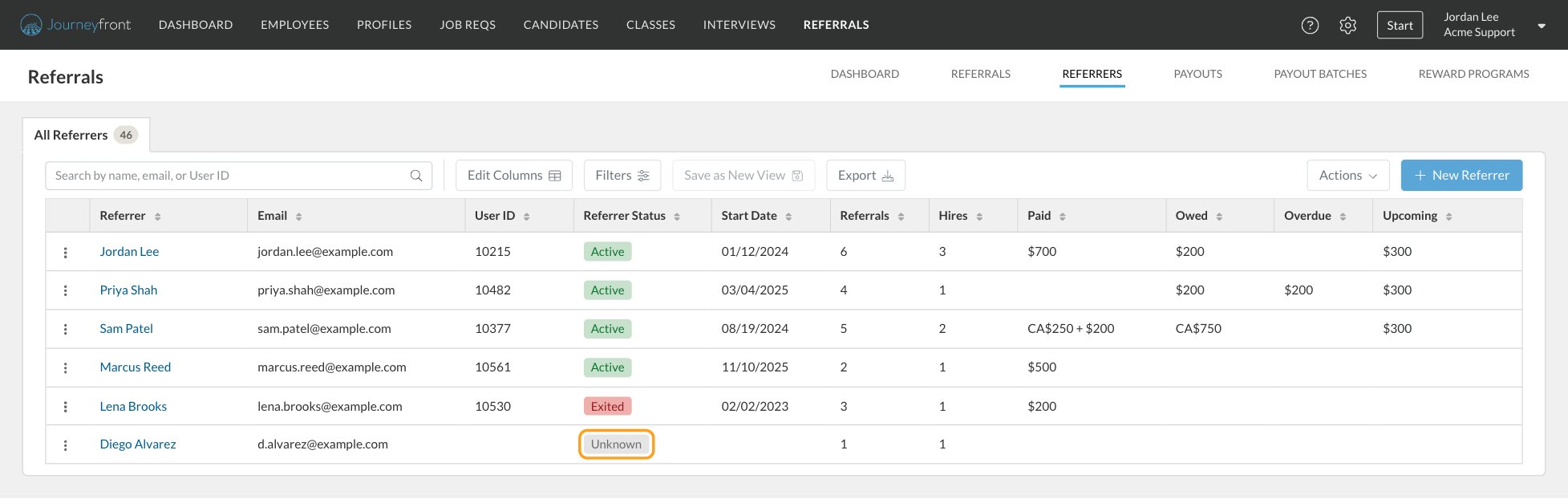
What each column shows
Paid, Owed, Overdue and Upcoming are pay data, so they only show for people who also have Manage Referral Payouts. Without it, they aren’t in the list or Edit Columns, the export leaves them out and you can’t sort by them.
Amounts in different currencies are never added together. A referrer paid in two currencies shows both, for example CA$250 + $200.
Click Edit Columns to add Turnover Date, Employee Record (Linked or Not Linked), Last Referral and Note.
Search, filter and export
- Search by name, email or User ID.
- Click Filters to filter by Referrer Status, Employee Record and, with Manage Referral Payouts, Overdue Payouts (Has Overdue Payouts). Add filters for Start Date and Turnover Date too.
- Click Save as New View to keep your columns and filters as your own tab.
- Click Export to download the list as you see it.
Referrer Status and the employee record
A referrer’s status comes from the employee record they’re linked to, so it changes on its own when your HR system or your team updates that record.
Journeyfront links a referrer to an employee record in your account:
- By User ID, when one is entered on the referrer or in an upload.
- By email otherwise, matching the referrer’s email to the person’s email.
Add a referrer
Referrers are created automatically when someone makes a referral. Add one yourself when you want to set them up ahead of time.1
Open New Referrer
On the Referrers tab, click New Referrer.
2
Enter their details
Enter First Name, Last Name and Email. Add a User ID to link them to a specific person, if their email doesn’t match, and a Note if you’d like.
3
Create the referrer
Click Create Referrer.
Upload referrers
Use an upload to add or update many referrers at once, for example people your HR system doesn’t cover.1
Open Upload Referrers
On the Referrers tab, click Actions, then Upload Referrers.
2
Choose your file
Pick a CSV or Excel file (up to 10 MB) with the columns Email, First Name, Last Name and User ID. Employment isn’t uploaded. It always comes from the linked employee record.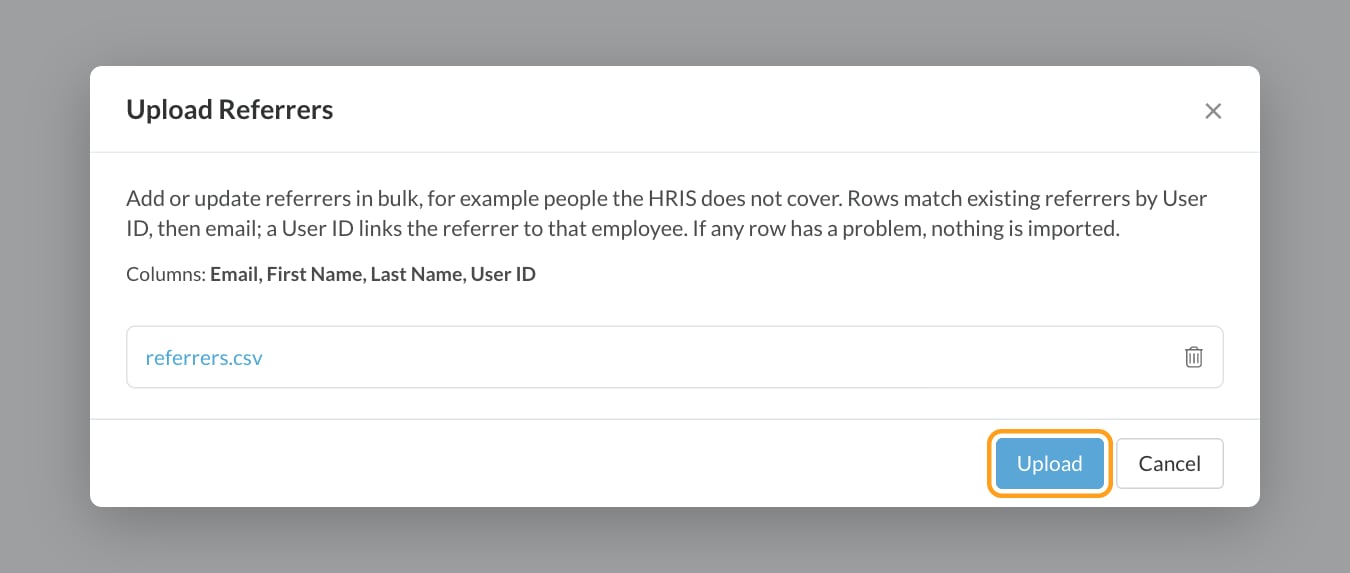
3
Upload
Click Upload. Each row updates an existing referrer with the same User ID, then the same email, or adds a new one. A User ID links the referrer to that person. When it’s done, Journeyfront shows how many referrers were added and updated.
The referrer’s details
Click a referrer’s name, or open the row’s menu and click View Details.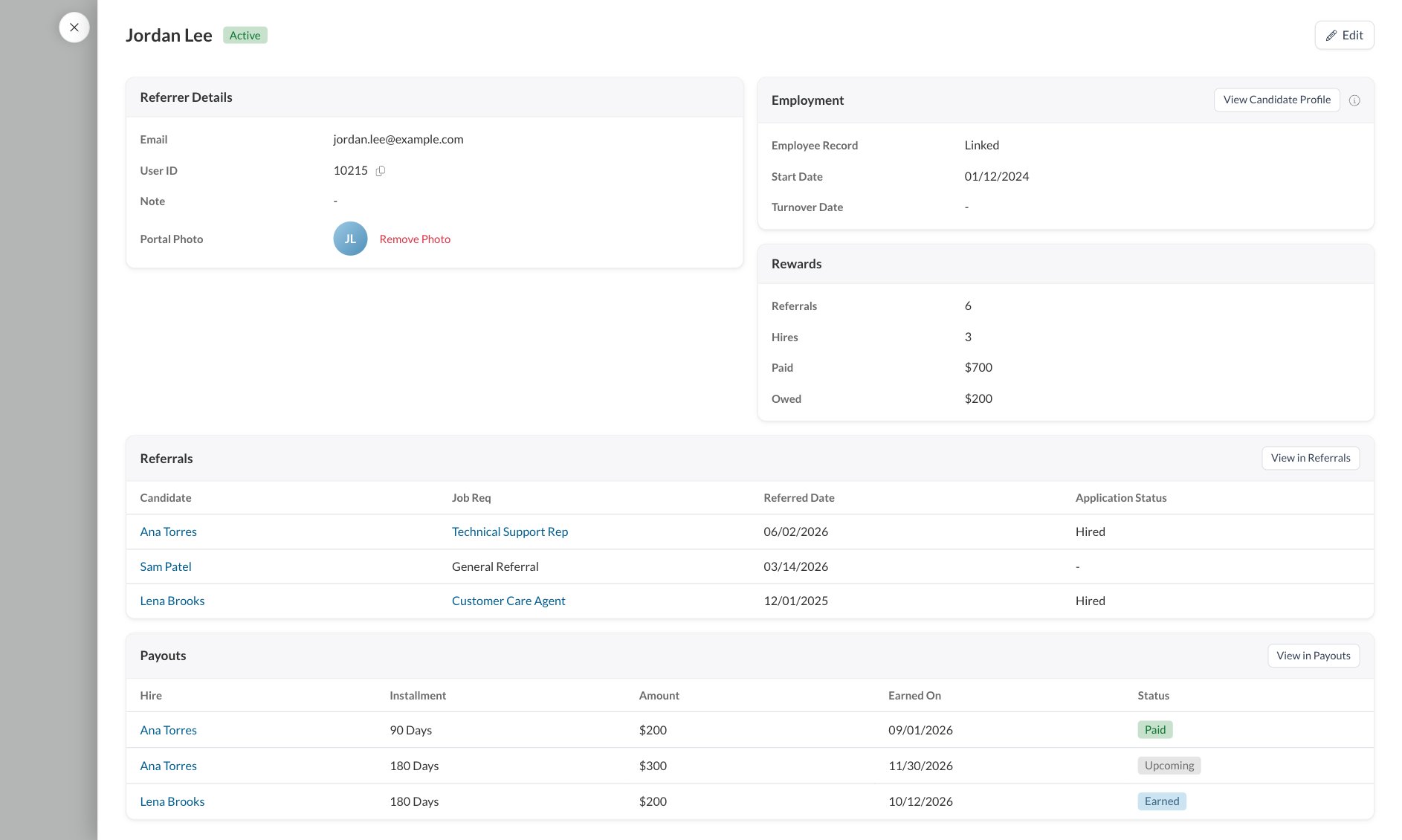
With Manage Referrals, click Edit to change their name, email, User ID or Note, then click Save.
Remove a portal photo
Employees can add a profile photo on the referral portal, and coworkers see it there, for example on the leaderboard. If a photo isn’t appropriate, click Remove Photo, then Remove to confirm. The photo is removed for everyone. Admins can remove a photo but can’t add or change one.Row actions
Open the menu at the start of a row for View Details, Edit, View Referrals (the Referrals tab filtered to this referrer) and, with Manage Referral Payouts, View Payouts.FAQ
Why does a referrer show Unknown?
Why does a referrer show Unknown?
They aren’t linked to an employee record. Usually their referral email doesn’t match the email on their employee record, or they don’t have one yet. Edit the referrer and add their User ID to link them.
Do I need to update a referrer's employment myself?
Do I need to update a referrer's employment myself?
No. Employment comes from the employee record they’re linked to. When that record ends, the referrer shows Exited and their unearned payouts are updated on their own.
Does an Unknown referrer still get paid?
Does an Unknown referrer still get paid?
Yes. Journeyfront treats them as employed, because it can’t show they left. Link them to their employee record so their payouts follow their real employment.
Can I delete a referrer?
Can I delete a referrer?
No. Referrers can’t be deleted, so their referrals and payouts always show who made them. You can edit a referrer’s details at any time.
Why are some amounts shown in two currencies?
Why are some amounts shown in two currencies?
The referrer has rewards in more than one currency. Journeyfront never adds different currencies together, so each currency gets its own total.
Why did my upload import nothing?
Why did my upload import nothing?
Uploads are all or nothing. If any row has a problem, no rows are imported. Fix the rows listed and upload the file again.
Related
The Referrals page
Every referral and who made it.
Payouts
Each installment and its status.
Employee sign-in and access
Who can sign in to the referral portal.
Badges
Recognize your top referrers.