

Who can do this: Users with Manage Referral Payouts. Users without All Referral Portals Access only see payouts from the referral portals they’re an admin of.Availability: Referrals need to be turned on for your account. Ask your Customer Success Manager.
Run a payout batch
1
Choose what to include
Go to Referrals, then the Payouts tab. Either filter the list (for example by Currency or Job Req), or tick the boxes of the payouts you want.
2
Click Run Payout Batch
With no rows ticked, click Run Payout Batch in the toolbar to use the list’s filters. With rows ticked, click Run Payout Batch in the bar above the list.
3
Name the batch and set Earned By
Give the batch a Name if you like, for example “October 2026 payroll”. If you leave it blank, it’s called “Payout Batch” plus its number.Set Earned By to your payroll cutoff. The batch includes payouts earned on or before this date. It starts as today.
4
Review the payouts
The Payouts list shows every payout the batch will include, with its referrer’s status, the hire, the installment, the amount, the Earned On date and the payout status. Includes shows how many are included and the total per currency.Untick any payout to leave it out of this batch.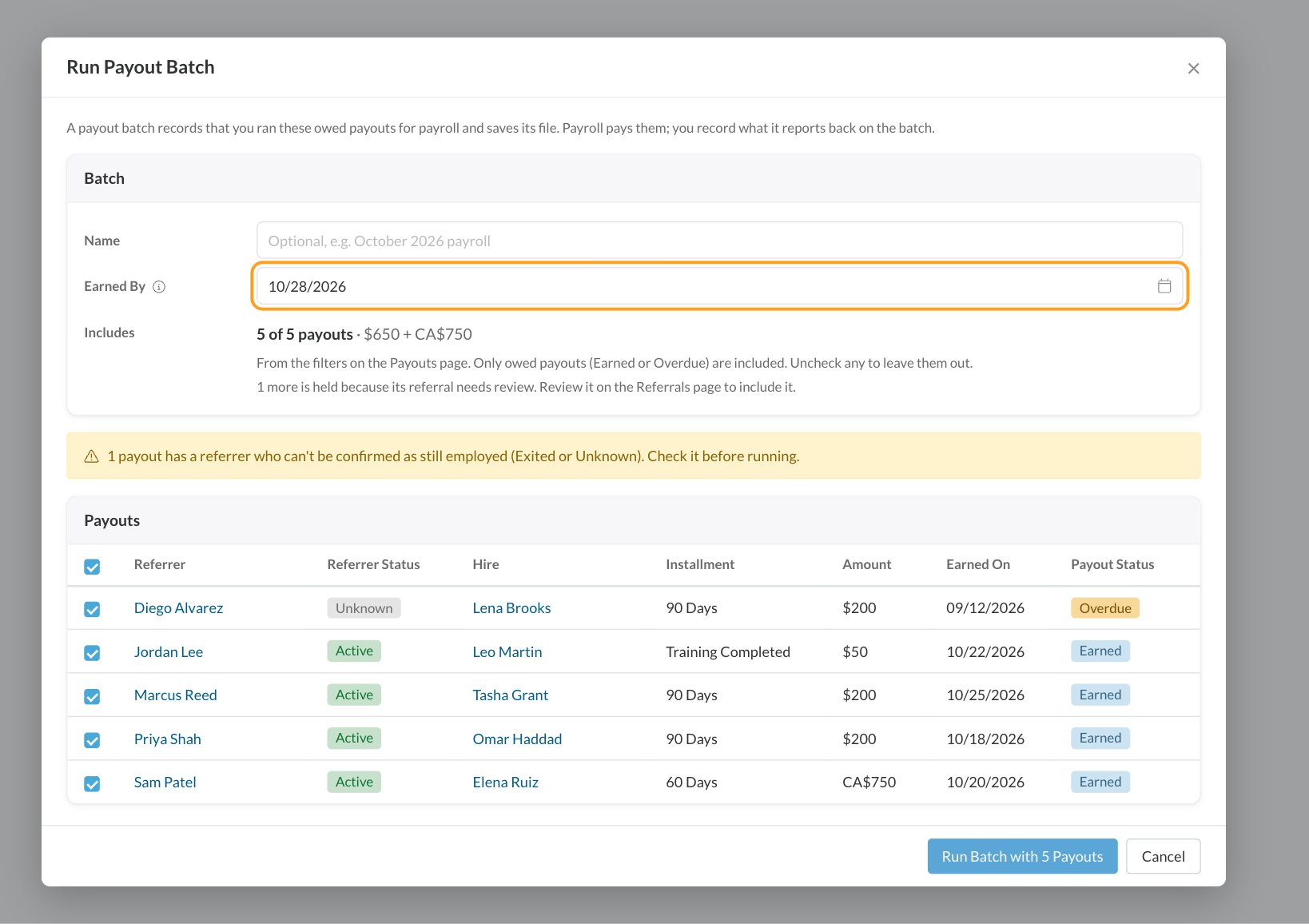
5
Run it
Click Run Batch with and the number of payouts. The batch is saved and its file downloads as a CSV for you to send to payroll.
What a batch includes
Only owed payouts (Earned or Overdue) go in a batch. A payout is left out when:
When you run a batch from the list’s filters, the window counts the owed payouts it left out because they’re already in a waiting batch or their referral needs review. When you run it from ticked rows, a Left Out list names each ticked payout that couldn’t be included and the reason. A batch can hold up to 20,000 payouts.
The batch file
The file payroll receives has one row per payout, with these columns:
The file is saved exactly as it was run, so you can download it again later.
The Payout Batches tab
Go to Referrals, then the Payout Batches tab, to see every batch your team has run.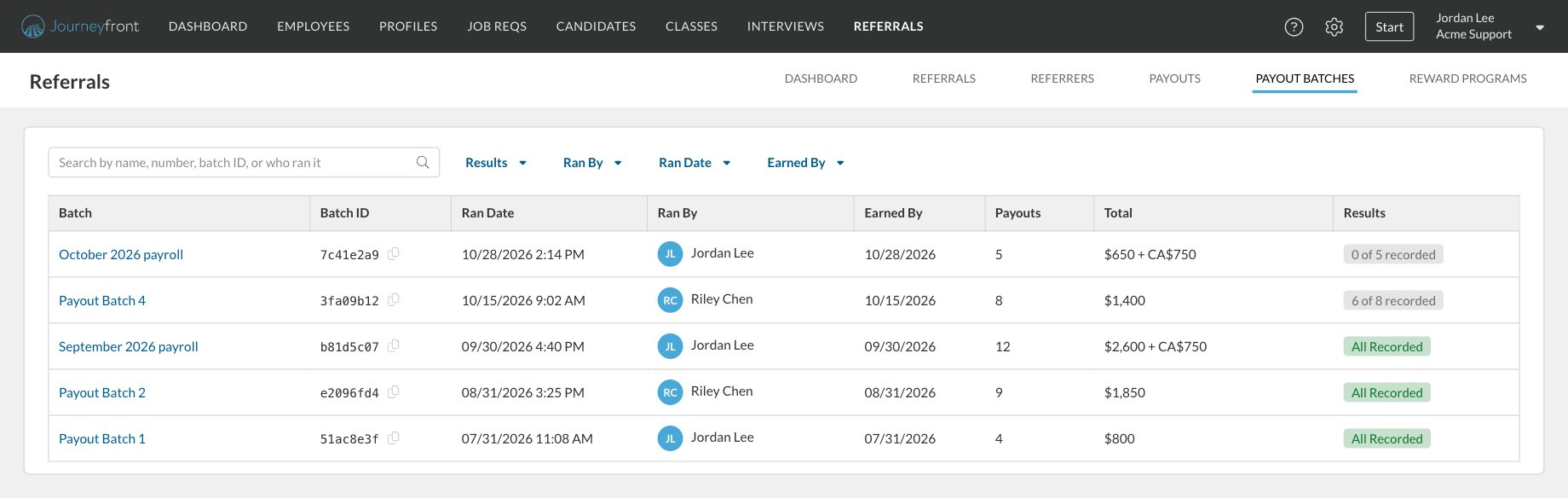
Search by name, number, batch ID or who ran it, and filter by Results (Waiting or All Recorded), Ran By, Ran Date and Earned By.
Record what payroll paid
Open a batch to see its details and its payouts. Each payout has a Result:
A payout’s result follows the payout itself, so if someone changes its status on the Payouts tab, the batch shows it too.
Record results by hand
1
Pick the payouts
Open the batch. To record the same result for everything still waiting, leave the boxes unticked. To record some, tick the waiting payouts you want.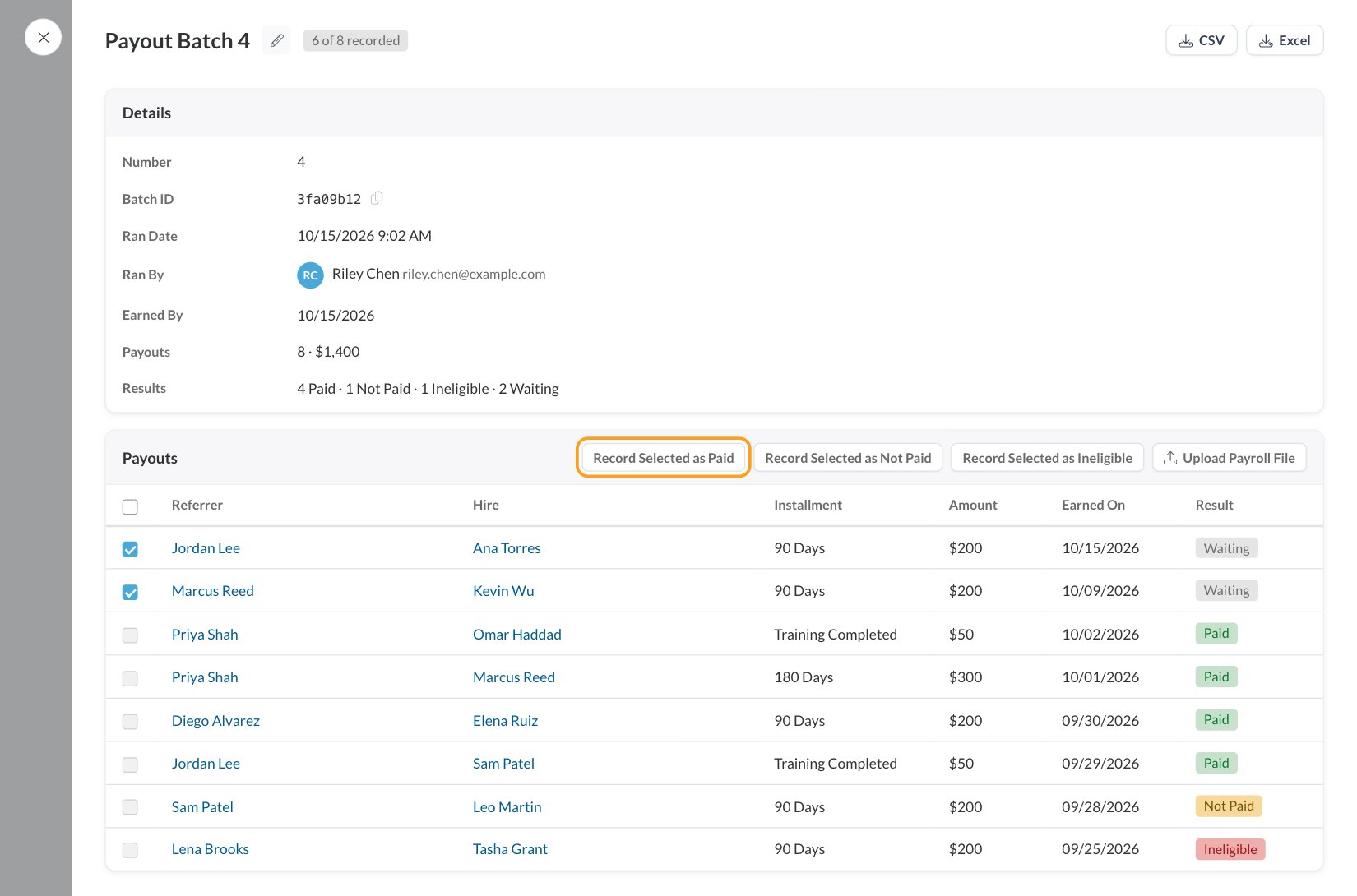
2
Choose the result
Click Record All as Paid, Record All as Not Paid or Record All as Ineligible. With payouts ticked, the buttons read Record Selected as instead.
3
Add the details
For Paid, enter the Paid Date (today by default) and an optional Payroll Reference. For any result you can add a Note, for example why payroll didn’t pay it. The note is saved on each payout, for admins only.
4
Save
Click the button at the bottom of the window to record the results.
Upload the returned file
If payroll fills in the batch file and sends it back, upload it instead of recording each result.1
Open the batch
Open the batch the file belongs to and click Upload Payroll File.
2
Upload the file
Upload the file. It needs a Payout ID and a Status column (Paid, Not Paid or Ineligible), and can include Paid Date, Payroll Reference and Note.
3
Check the summary
Journeyfront tells you how many payouts were recorded as Paid, Not Paid and Ineligible.
Every row must be a payout in this batch. If any row can’t be applied, nothing changes and the problem rows are listed, so you can fix the file and upload it again.
When payouts are recorded as Paid or Ineligible, referrers get an email about it, unless they or their portal turned that email off. See Featured items and email notifications.
Rename or download a batch
In an open batch:- Click the pencil next to the name to Rename it.
- Click CSV or Excel to download the batch file again.
- Click the Batch ID to copy it.
FAQ
Does running a batch pay anyone?
Does running a batch pay anyone?
No. Journeyfront records the batch and gives you its file. Your payroll team pays, and you record what they report back.
Why isn't a payout in my batch?
Why isn't a payout in my batch?
It may not be owed by the Earned By date, its milestone may not be recorded, it may already be waiting in another batch, or its referral may need review. The Run Payout Batch window tells you how many were left out and why.
What happens to payouts payroll didn't pay?
What happens to payouts payroll didn't pay?
Record them as Not Paid. They stay owed and show up for the next batch.
Can I put the same payout in two batches?
Can I put the same payout in two batches?
Not while it’s waiting in one. Once it’s recorded as Not Paid, it can go in a later batch.
Can I run a batch for one currency?
Can I run a batch for one currency?
Yes. Filter the Payouts tab by Currency before you click Run Payout Batch. Totals are always shown per currency.
Can I change a payout's result after recording it?
Can I change a payout's result after recording it?
Change the payout’s status on the Payouts tab. The batch picks up the change.
Related
Payouts
See what’s upcoming, owed and paid.
Referrers
Link referrers to their employee records.
Review, credit and Reward Status
Clear referrals that need review.
Permissions and portal admins
Who can see and manage payouts.