

Who can do this: Users with the Manage Job Req Settings permission add a skills test to a job req. Anyone who can open a Candidate Application can see the results.Availability: Skills tests are made available to your account by Journeyfront. Ask your Customer Success Manager which tests you can use, or to request one.
How a skills test is organized
- Type and version: each skills test has a type, the skill it covers, and one or more versions. When you add a test, its latest version is used unless you choose another.
- Sections: the test is split into sections. Each section has its own instructions and time limit.
- Practice questions: some sections start with practice questions, so candidates can get used to the format before the timed part begins.
- Difficulty and estimated time: shown for each test, so you can pick the right one and tell candidates how long it takes.
Add a skills test to a job req
1
Open the workflow editor
Open the job req and go to Setup, then Workflow. Click Create New Version (or Edit Draft if there’s already a draft).
2
Preview the tests available to you
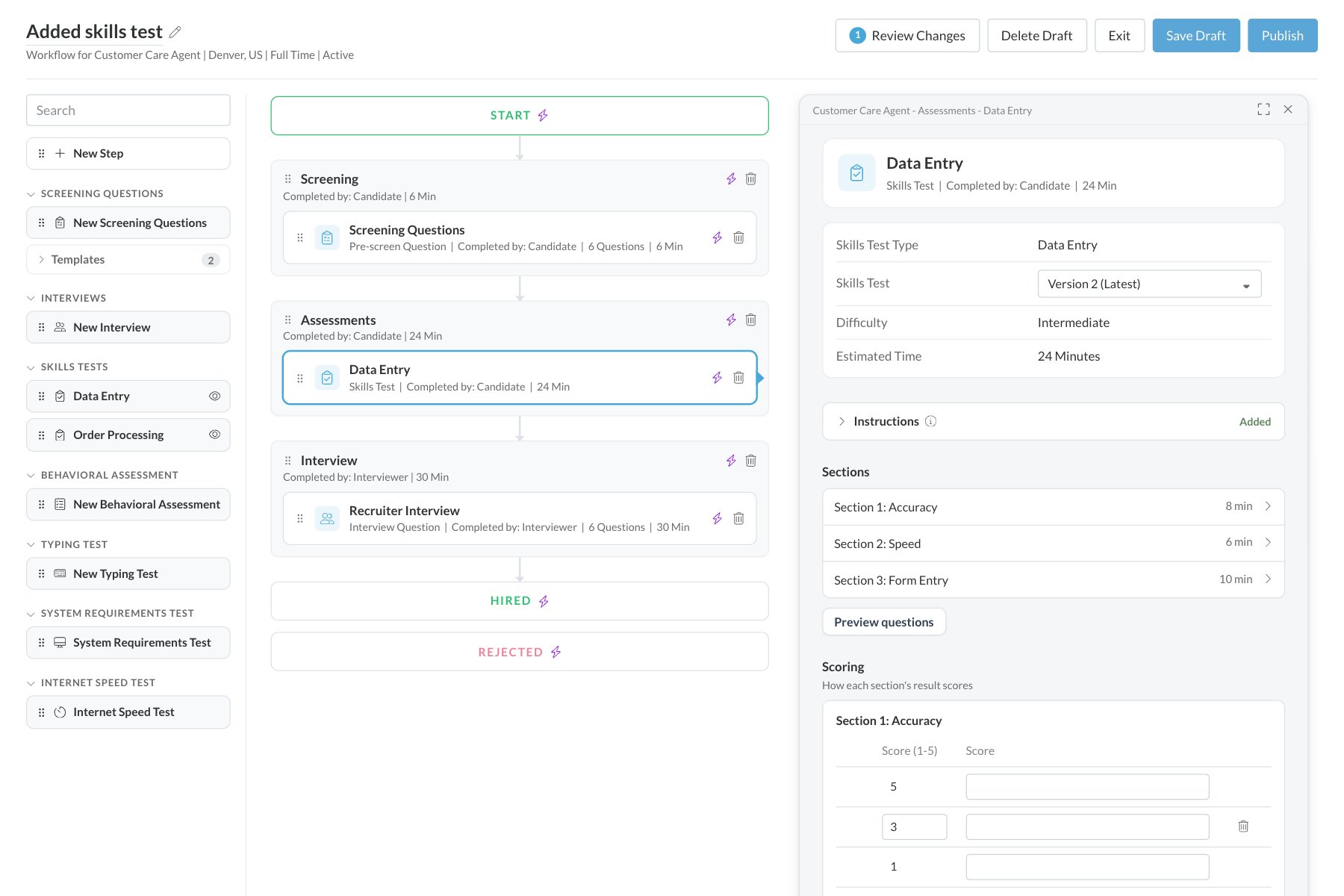
In the building blocks on the left, open SKILLS TESTS. Each skills test type available to your account is listed. Click its eye icon to see the version, difficulty, description, instructions and sections before you add it.
3
Add the test
Drag the skills test into the step where candidates should take it. Its latest version is added.
4
Check the details
Click the activity to open its settings on the right. You can rename it at the top; the name stays if you switch versions. You’ll also see the Skills Test Type, the version (labeled Version 1, Version 2 and so on; choose another here if you need to), the Difficulty, the Estimated Time, the test’s instructions (click to expand) and a list of its sections with their time limits. Under Scoring, each section has score settings for this job req.
5
Preview the questions (optional)
Click Preview questions under the sections. A panel slides out with each section’s questions as cards, the correct answers marked. Click Show instructions to read a section’s instructions.
6
Save, then publish
Click Save Draft to save your changes; you stay in the editor. When you’re ready for candidates to see it, click Publish. See Publish workflow changes.
What candidates see
- Section instructions, with the section’s time limit.
- Practice questions, if the section has them: Start Practice Question, then I’m Ready - Begin when they’re ready for the real thing.
- The timed section. When it ends, they see Section Completed and Continue to Next Section.
- A finish screen after the last section, with View Report and Continue to Next Step. The report shows their overall test score and how they did in each section.
See the results
Open the candidate’s Candidate Application and select the Steps or Score tab. The skills test’s score appears with the rest of the candidate’s results, in the Assessments column. See Reading a candidate’s scores.FAQ
Can we write our own skills test?
Can we write our own skills test?
Skills tests are built and maintained by Journeyfront. For your own questions, use screening questions. To ask about a new skills test for your roles, contact your Customer Success Manager.
Why don't I see any skills tests in the editor?
Why don't I see any skills tests in the editor?
None have been made available to your account yet. Ask your Customer Success Manager which skills tests fit your roles.
Can a candidate retake a skills test?
Can a candidate retake a skills test?
Skills test scores can’t be deleted from the Candidate Application, so the usual retake option isn’t available. Contact your Customer Success Manager if a candidate needs to take a skills test again.
Which version should I use?
Which version should I use?
The latest version, unless you need to match results from an older job req. You can switch versions in the activity’s settings in the workflow editor.
Do candidates see their results?
Do candidates see their results?
Yes. When they finish, they can open a report with their overall score and how they did in each section.
Related
Assessments overview
Every assessment and what candidates need.
Screening questions
Write your own questions and score the answers.
Build a workflow
Add steps and activities to a job req.
How scoring works
Raw results and the Job Adaptive Score.