

Who can do this: Users with the Manage Job Req Settings permission add the test to a job req. Anyone who can open a Candidate Application can see the results.
Add the test to a job req
1
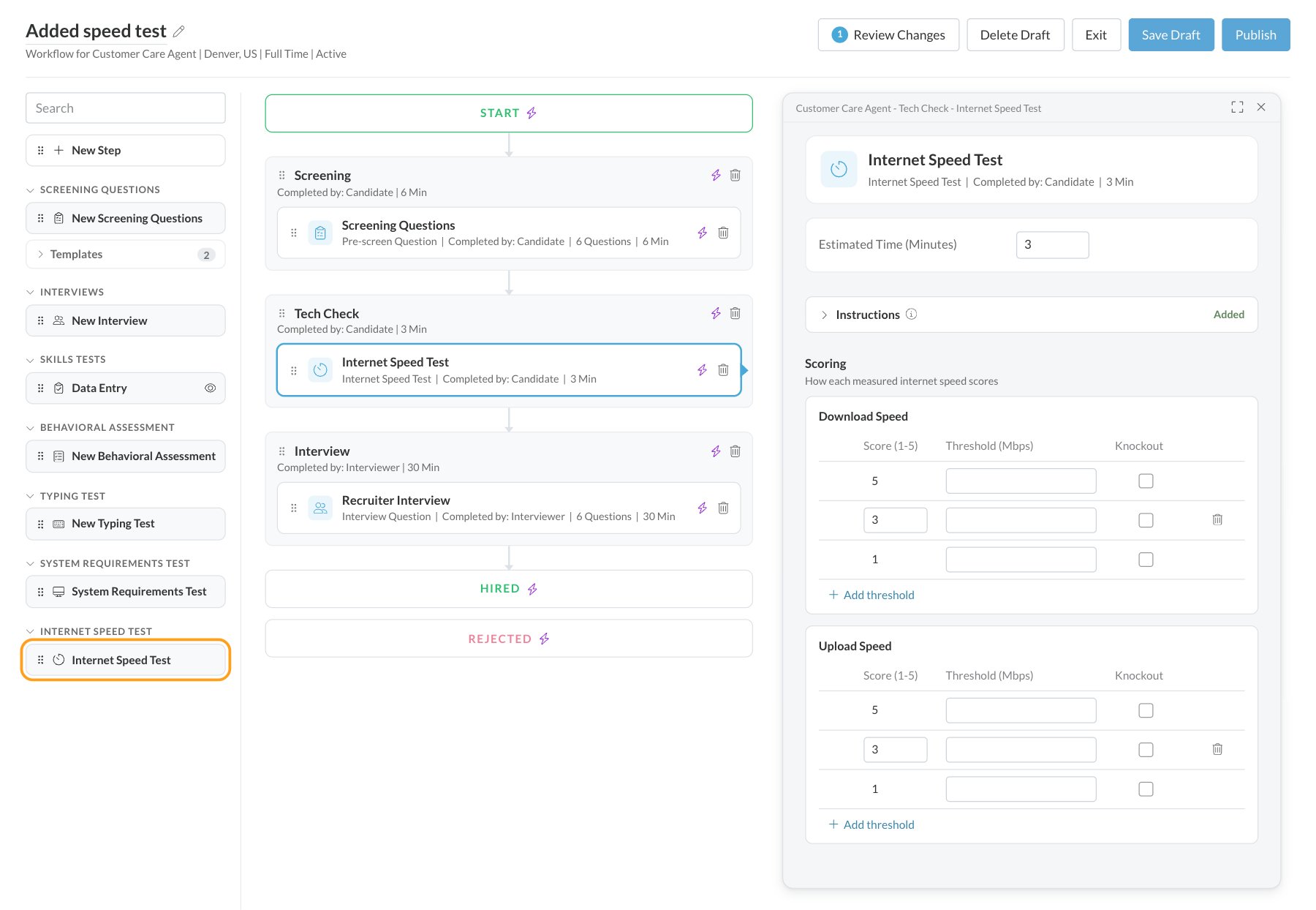
Open the workflow editor
Open the job req and go to Setup, then Workflow. Click Create New Version (or Edit Draft if there’s already a draft).
2
Add the activity
In the building blocks on the left, open INTERNET SPEED TEST and drag Internet Speed Test into the step where candidates should take it.
3
Add instructions (optional)
Click the activity to open its settings on the right. Click Instructions to expand it, then add anything candidates should know first, like testing from the place they’ll work. If you leave it empty, candidates go straight to the test.
4
Check the scoring
Under Scoring, the Download Speed and Upload Speed rows set which speeds earn which 1 to 5 score for this job req, and whether a slow result can knock a candidate out. Adjust them if this job needs a different bar.
5
Save, then publish
Set Estimated Time (Minutes) and click Save Draft; you stay in the editor. When you’re ready for candidates to see it, click Publish. See Publish workflow changes.
What candidates see
- Instructions, if you added them, then Begin Internet Speed Test.
- The speed test. They click GO and the test measures their download and upload speed.
- Submit Speed Test (on a phone, Submit Test) appears at the top once the test finishes. They click it to send their result.
- Completed, then Continue to Next Step.
See the results
Open the candidate’s Candidate Application and select the Steps or Score tab. The speed test shows a score for Download Speed and Upload Speed, with the measured speed in Mbps under each. See Reading a candidate’s scores.Help a candidate whose test won’t submit
The most common problem is that Submit Speed Test never appears after the test runs. Share these steps with the candidate:1
Check the connection
Make sure the internet connection is stable, and turn off any VPN.
2
Run the test again
Open the activity, click Begin Internet Speed Test, then GO, and wait for the download and upload results to finish.
3
Submit
Click Submit Speed Test at the top of the page.
4
Try a private window
If Submit Speed Test still doesn’t appear, open the application link in a private (incognito) browser window, sign in and try again.
5
Contact support
If it still won’t submit, contact Journeyfront support with a link to the candidate’s Candidate Application, the browser and device they’re using, and a screenshot if they have one.
FAQ
How is this different from the System Requirements Test?
How is this different from the System Requirements Test?
The Internet Speed Test only measures download and upload speed, and it’s available on every account. The System Requirements Test is an add-on that checks the whole setup, hardware, software and network, against your requirements. You can use both in the same workflow.
Can candidates take the speed test on a phone?
Can candidates take the speed test on a phone?
Yes, the test runs in any browser. But the result reflects the device and connection they used, so ask them to test from the setup they’ll work on.
A candidate's result looks wrong. Can they take it again?
A candidate's result looks wrong. Can they take it again?
Yes. Someone with Can Delete Scores can delete the speed test’s score on the Steps tab, and the candidate can take it again from their application. See Retakes and resetting scores.
Why did the candidate go straight to the test?
Why did the candidate go straight to the test?
The activity has no instructions. Add Instructions to the activity in the workflow editor if you want candidates to read something first.
Related
System requirements test
Check the whole computer and connection.
Assessments overview
Every assessment and what candidates need.
Retakes and resetting scores
Let a candidate take a test again.
Build a workflow
Add steps and activities to a job req.