

Who can do this: Turning AI scoring on for a question needs the AI Scored Question Control permission. Scoring a single answer needs AI Score Single Question. Editing or deleting AI scores needs Edit AI Scores. See Permissions.Availability: AI-scored questions need to be turned on for your account. Ask your Customer Success Manager.
People stay in control
- AI informs decisions; people make them. An AI score is one input among many. It doesn’t hire or reject anyone on its own.
- Every score shows its reasoning, so your team can see why an answer scored the way it did.
- Your team can change any AI score, with the right permission.
- Permissions decide who does what. You choose which security roles can turn AI scoring on, run it, and edit AI scores.
- Your data stays yours. Candidate data isn’t used to train the AI provider’s models.
Turn on AI scoring for a question
1
Open the question
In the screening question builder, choose the Text, Video Response or Audio Response response type. Score with Ai only appears on screening questions with one of these response types.
2
Turn on Score with Ai
Switch on Score with Ai.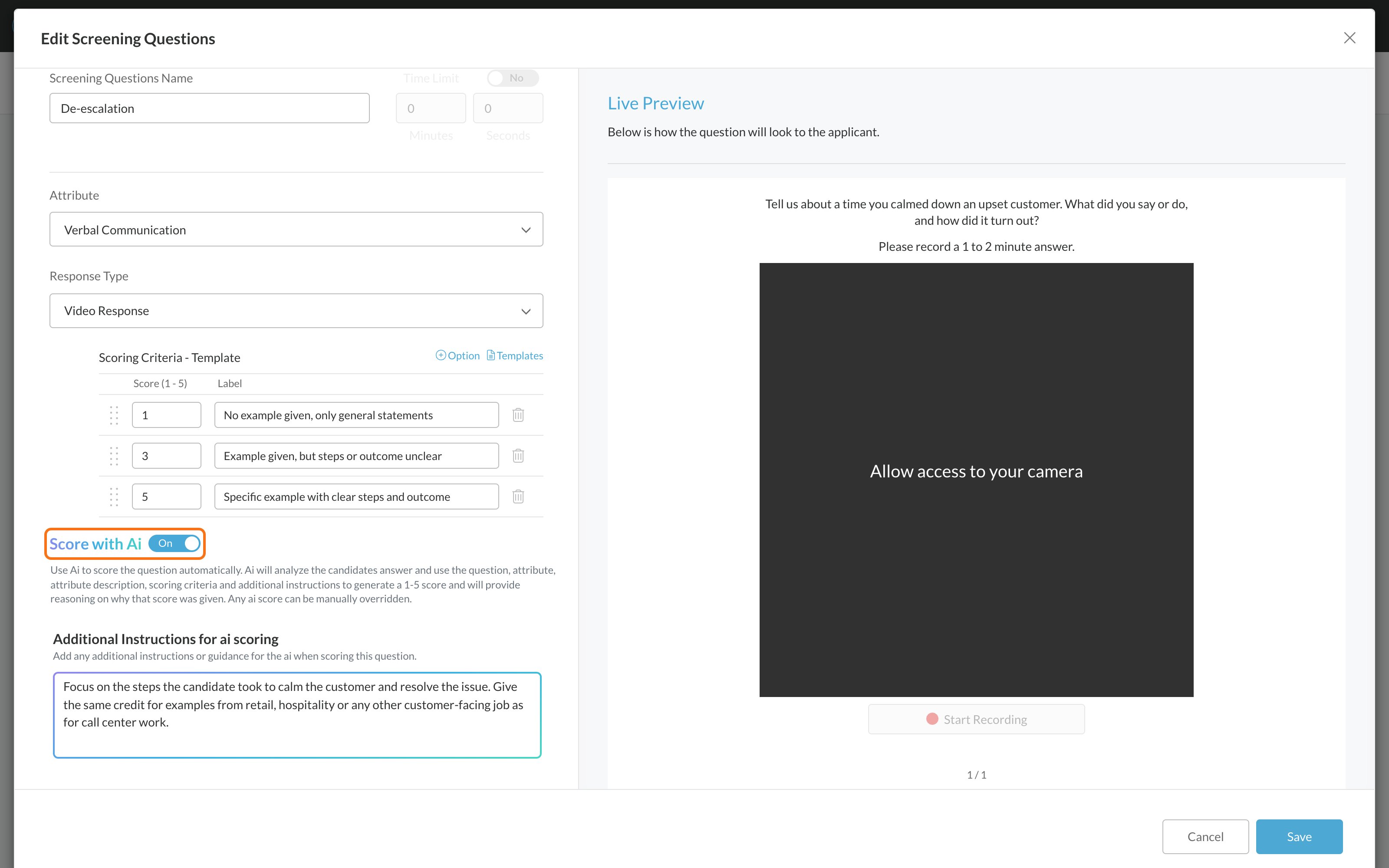
3
Check the scoring criteria
The AI scores answers against the question, the attribute it measures, that attribute’s description and your scoring criteria. Make sure they describe what a weak, average and strong answer look like.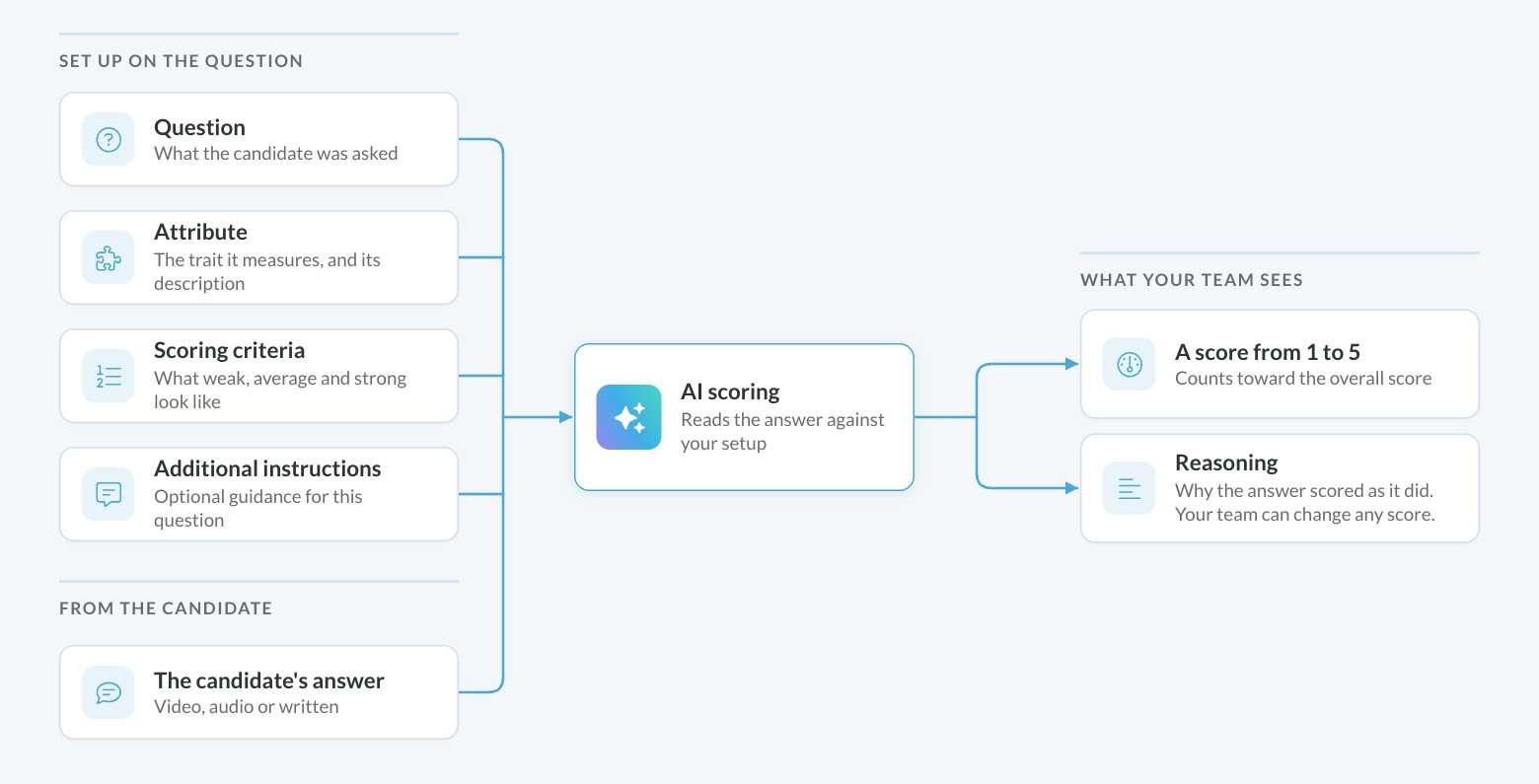
4
Add instructions (optional)
Add any extra guidance for this question in the additional instructions box, then save the question.
Review and edit an AI score
1
Open the Screenings tab
Open the candidate’s Candidate Application and select the Screenings tab.
2
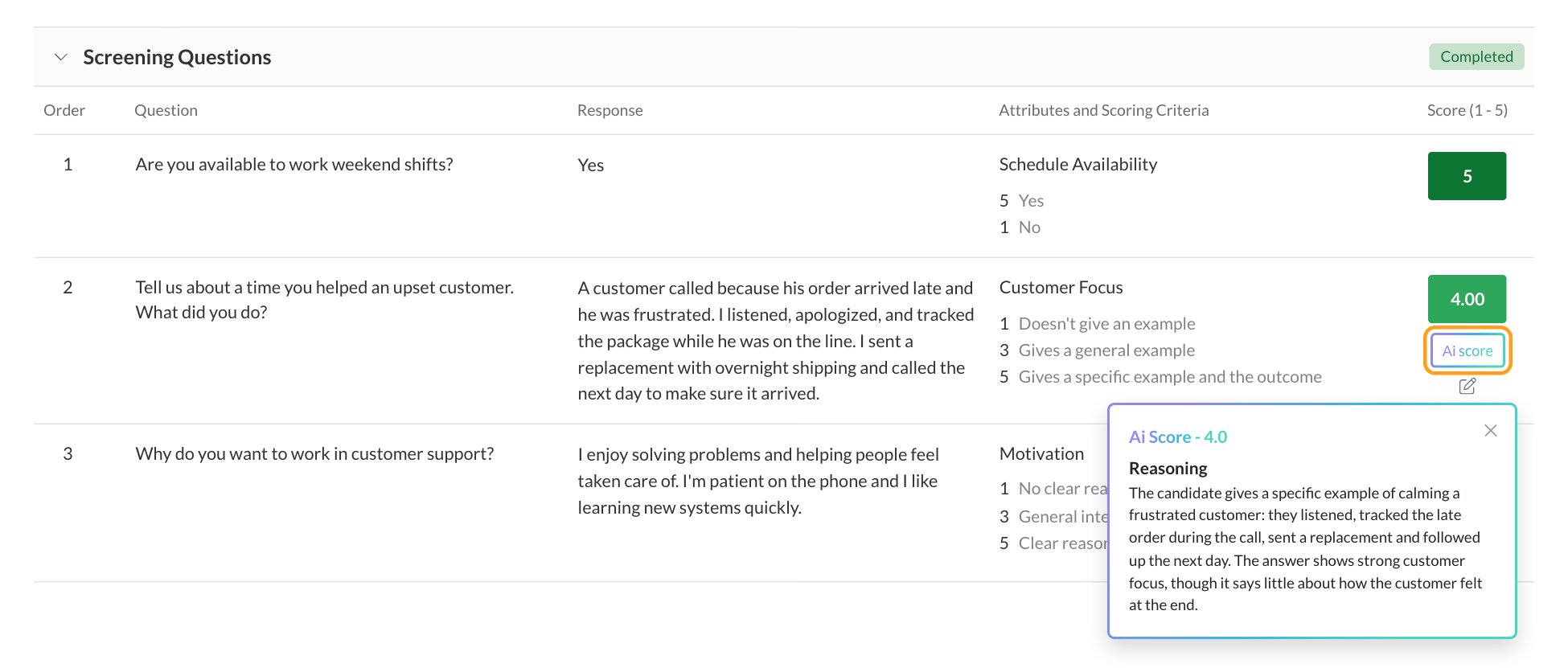
See the reasoning
AI-scored answers show an Ai score label. Click it to see the score and the Reasoning behind it.
3
Change it if you disagree
Edit the answer’s score as you would any other. Editing or deleting AI scores needs the Edit AI Scores permission.
Score a single answer
To score one answer without turning on AI scoring for the whole question, or to score an answer submitted before you turned it on, click Generate under the answer’s score on the Screenings tab. Generate shows on video, audio and text answers that don’t have an AI score yet. The button shows Thinking while it works, and the score appears when it’s ready. This needs the AI Score Single Question permission.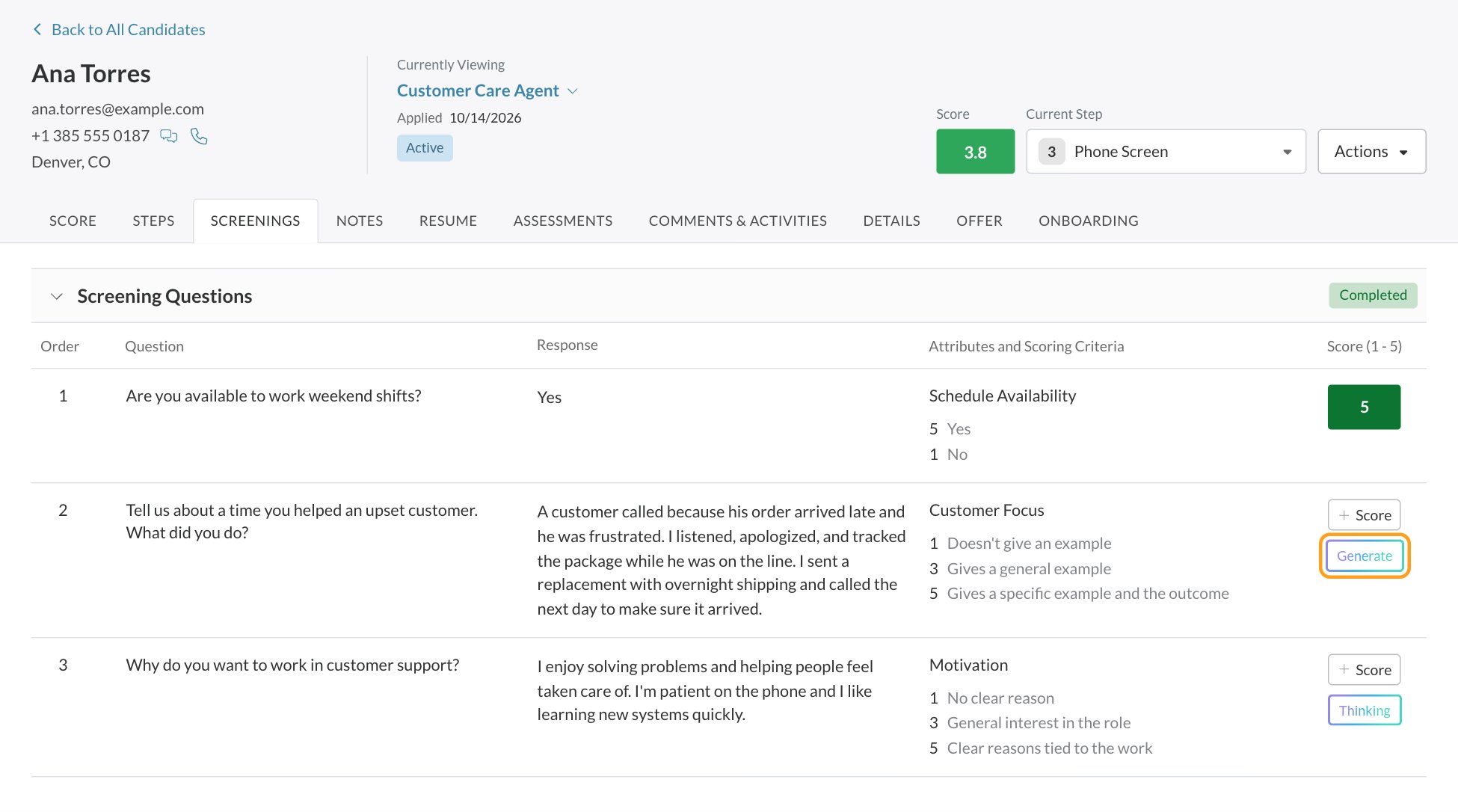
Permissions
To choose who can use AI-scored questions, go to Settings, then Security, and edit a security role.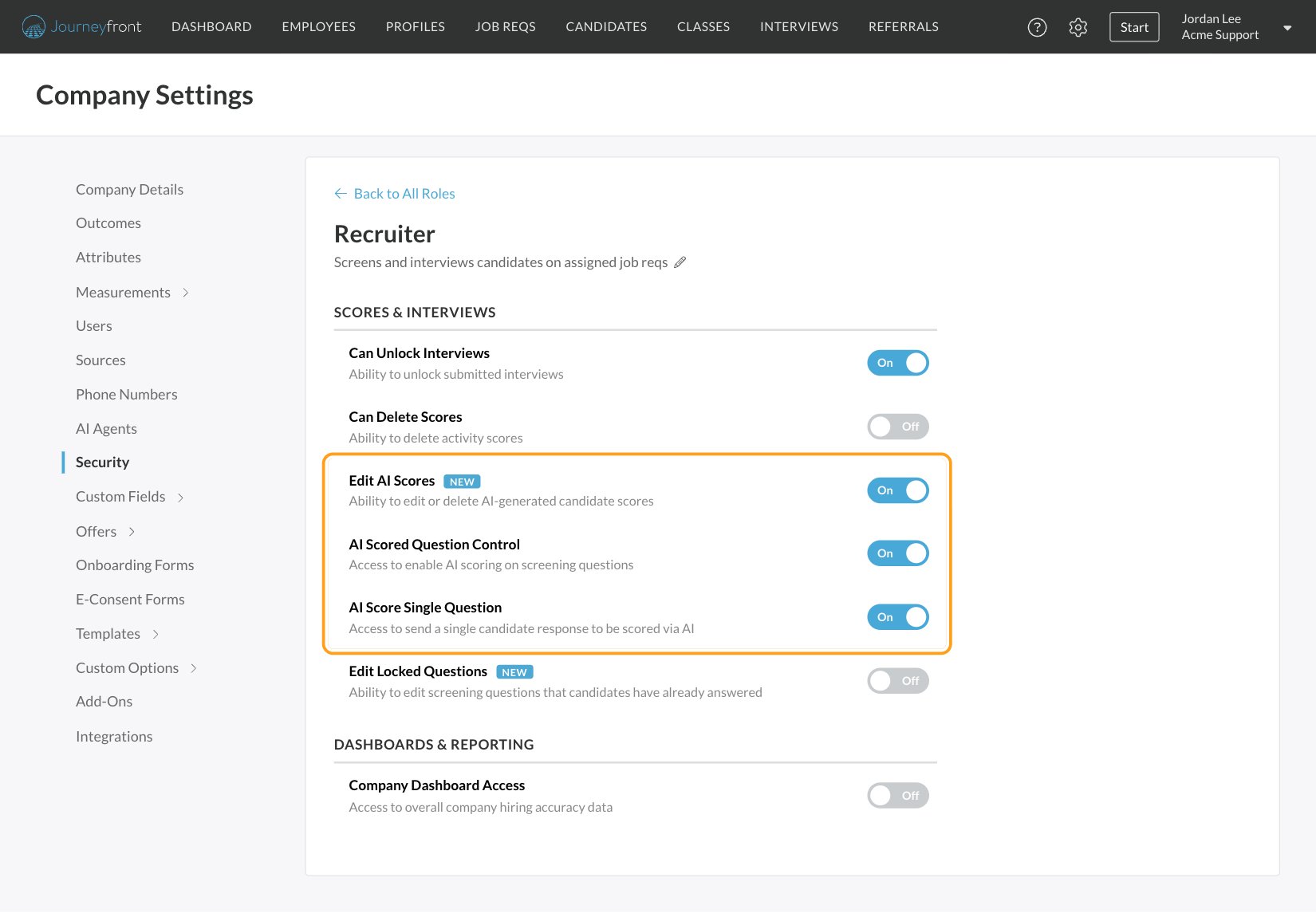
FAQ
Why is an AI-scored answer still pending?
Why is an AI-scored answer still pending?
Scoring for video and audio answers starts a couple of minutes after they’re submitted, so they take longer than text answers. While the AI works, the answer shows Thinking. After you click Generate, the score appears on its own when it’s ready; for answers scored automatically, refresh the page to see it. If you’re still waiting:
- AI scoring wasn’t on when the candidate answered. Answers are only scored automatically if Score with Ai was on when they were submitted. Click Generate to score earlier answers one at a time.
- The answer can’t be AI scored. Only Text, Video Response and Audio Response answers can be AI scored, and an empty answer isn’t scored.
- Generate is grayed out. Generating a score needs the AI Score Single Question permission. If you don’t see Generate at all, AI scoring may not be turned on for your account.
Is the AI making hiring decisions?
Is the AI making hiring decisions?
No. AI scores are decision support. Your team sees the reasoning, can change any score, and makes the call.
If I change the scoring criteria, are past answers re-scored?
If I change the scoring criteria, are past answers re-scored?
No. Answers keep the score they got when they were scored, and an answer that already has an AI score can’t be sent to the AI again. If you disagree with a score, change it by hand (this needs Edit AI Scores).
Does the AI watch or listen to the answer?
Does the AI watch or listen to the answer?
Yes. For video and audio answers, the AI reviews the recording itself.
What can't the AI see?
What can't the AI see?
It only judges what’s in the answer. It can’t confirm that a claim is true. Treat a low score as a prompt to look closer, not a verdict.
Is our candidate data used to train AI models?
Is our candidate data used to train AI models?
No. Customer data is not used to train the AI provider’s models.
Related
AI resume scoring
Score resumes against the job’s attributes.
Screening questions
Build the questions candidates answer.
Attributes
What each question measures.
How scoring works
Raw scores, the Job Adaptive Score and how scores roll up.