

Who can do this: Anyone with access to the candidate’s job req. Fields marked private only show to users whose security role has Private Data Access.
Edit on the Details tab
1
Open the Details tab
Open the Candidate Application and click the Details tab.
2
Click the value you want to change
The value turns into a box, a dropdown or a date picker.
3
Make your change
Type or pick the new value, then press Enter or click away. The change saves on its own.
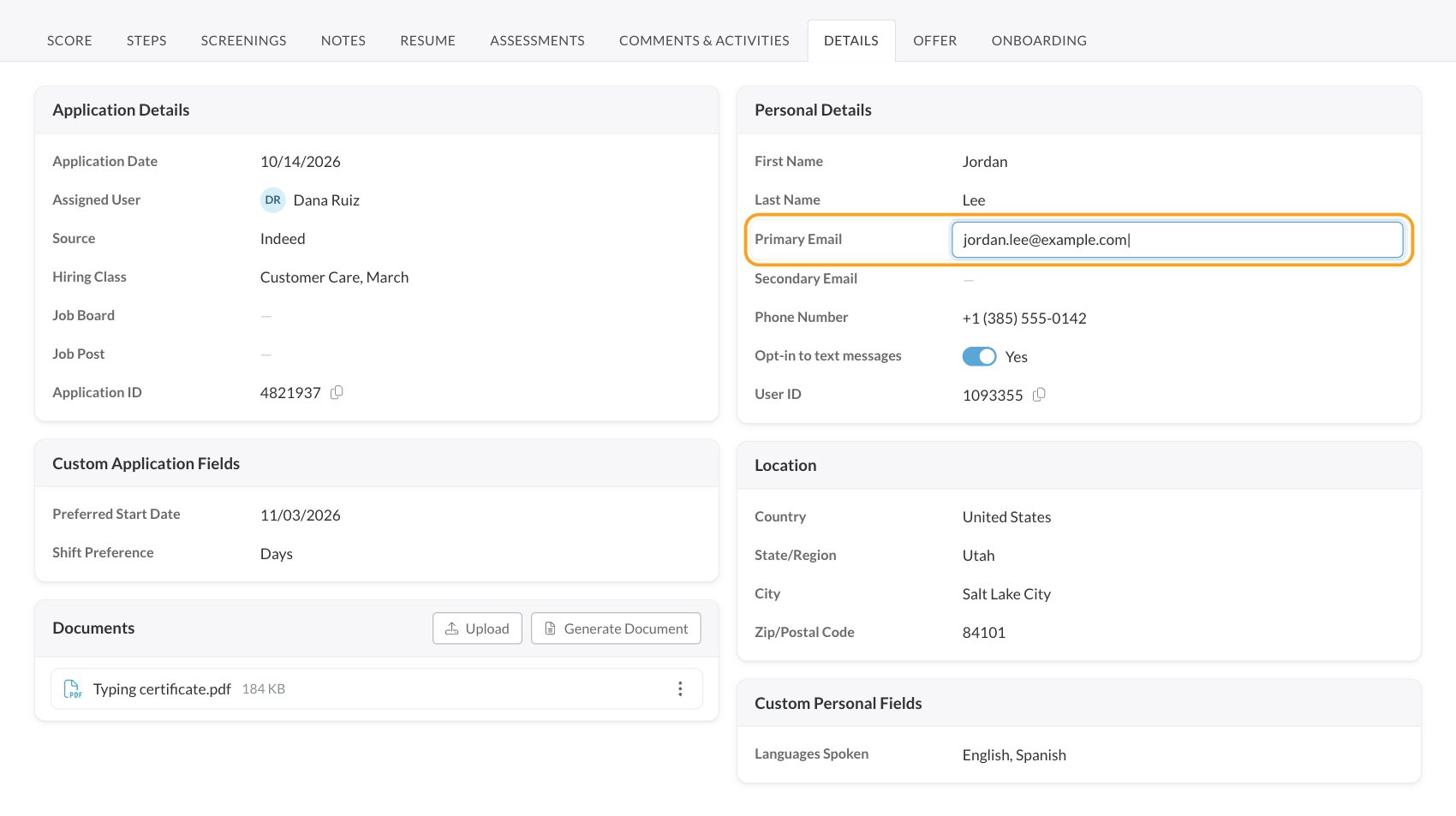
What’s on the Details tab
Anything that belongs to the person, like contact details and personal fields, is the same on every one of their Candidate Applications and on their Candidate Profile. Change it once and it changes everywhere. Application fields only change for this application. See Candidate Profiles and Candidate Applications.
You can also edit personal details on the Candidate Profile’s Details tab. Admins set up custom fields under account settings. See Custom fields.
Edit from the Candidates list
On the Candidates page or a job req’s Candidates tab, click a cell to edit it without opening the candidate. This works for Phone Number, Source, Hiring Class, Step, the location columns and most custom field columns. Name and Email can only be changed on the Details tab. See The Candidates page.Documents
- Upload: add a file up to 15 MB, such as a PDF, Word or Excel file, or an image.
- Generate Document: pick a Document Template, check the merge keys it fills in, and give the file a name. See Offer and document templates.
- Each document’s menu lets you Download or Delete it. Users with Private Data Access can also Change to Private so only users with that permission can see it, or Change to Public.
FAQ
Why won't a new email address save?
Why won't a new email address save?
An email address can only belong to one person in Journeyfront. If the address is already used by another candidate record, the change can’t be saved and the old email comes back. That usually means the person has a duplicate record: merge the two instead. See Compare and merge candidates.Also check the format. A primary or secondary email that isn’t a valid address shows an error and isn’t saved.
Why won't a name change save?
Why won't a name change save?
First and last names need at least two letters or numbers. If the field shows an error, fix the name and click away again.
Why can't I edit this candidate's details at all?
Why can't I edit this candidate's details at all?
If the candidate is also a member of your team in Journeyfront, only users whose security role has All Employee Access can change their details. You also need access to the candidate’s job req.
Does changing the email change how the candidate signs in?
Does changing the email change how the candidate signs in?
Yes. The Primary Email is the address the candidate uses to sign in to Journeyfront. Let them know when you change it.
Can I opt a candidate in to text messages?
Can I opt a candidate in to text messages?
Yes. Turn on Opt-in to text messages in Personal Details. Journeyfront asks you to confirm that you received the candidate’s consent first. See Text messages.
Why can't I change the Source?
Why can't I change the Source?
Sources set by an integration, like a job board, can’t be changed by hand.
Why can't I see some custom fields?
Why can't I see some custom fields?
Fields marked private only show to users whose security role has Private Data Access.
Do my changes carry over to the employee record after the candidate is hired?
Do my changes carry over to the employee record after the candidate is hired?
Yes. Contact details and personal fields belong to the person, so their employee record shows the same values.
Related
The Candidate Application
Every tab, explained.
Custom fields
Set up personal and application fields.
Candidate Profiles and Candidate Applications
What belongs to the person and what belongs to one application.
Compare and merge candidates
Fix duplicate records.