

Who can do this: Anyone who can open the Candidate Application. The people you share with need a Journeyfront login and access to the job req.
Share by email
1
Open Actions, then Share
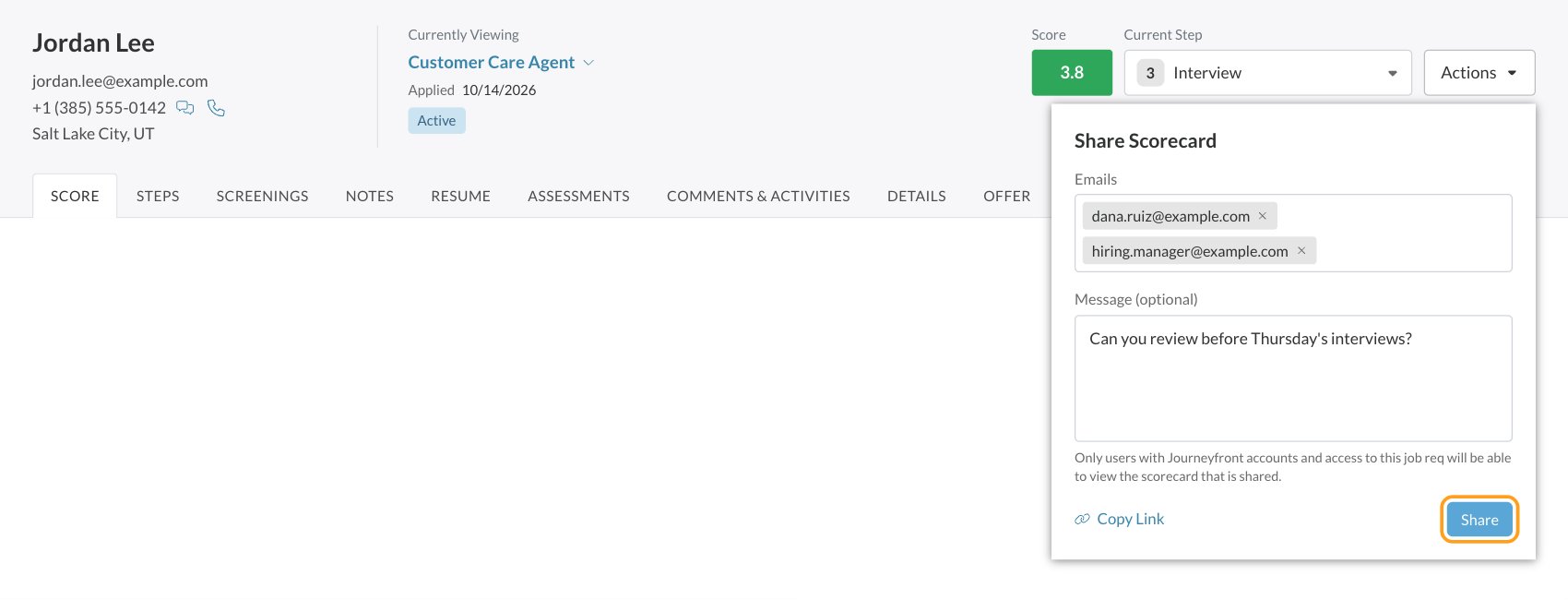
On the Candidate Application, click Actions, then Share. The share panel opens under the header.
2
Add recipients
Type each teammate’s email address under Emails. Press Enter, Space or a comma after each one. An address that isn’t valid is highlighted.
3
Add a message
Under Message (optional), tell them what you need, for example “Can you review before Thursday’s interviews?”
4
Click Share
Each recipient gets an email with the candidate’s name, the job req, your message and a link to the Candidate Application.
Copy the link instead
In the share panel, click Copy Link to copy the address of the Candidate Application. Paste it into a chat or a calendar invite. The same access rules apply: only signed-in teammates with access to the job req can open it.Print everything
Click Actions, then Print All Data. Journeyfront loads every tab it prints and opens your browser’s print window with:- Score, Steps and Screenings
- Notes (all interviews, expanded)
- Resume
- Assessments, and Language when the candidate has language results
Print one tab
On the Score, Steps, Screenings, Notes, Assessments or Language tab, click the print icon at the top right of the tab. Only that tab prints. There are two more print buttons:- Resume tab: click the print icon next to Download to print just the resume.
- Notes tab: click the print icon on an interview’s row to print only that interview.
FAQ
Why aren't comments in my printout?
Why aren't comments in my printout?
Print All Data prints the candidate’s results, notes and resume. It leaves out Comments & Activities, Details and the offer. Open those tabs to review them on screen.
Related
The Candidate Application
Every tab, explained.
Comments and activity
Discuss a candidate with your team.
Hiring team
Give teammates access to a job req.
Compare and merge candidates
Review candidates side by side.