

Who can do this: Anyone who can see the candidates on the Candidates page or a job req’s Candidates tab. You can only compare or merge candidates on job reqs you have access to.
Compare candidates
1
Select the candidates
On the Candidates page or a job req’s Candidates tab, tick the boxes next to two to five candidates on the same job req.
2
Click Compare
Compare appears in the actions bar above the list.
3
Review the comparison
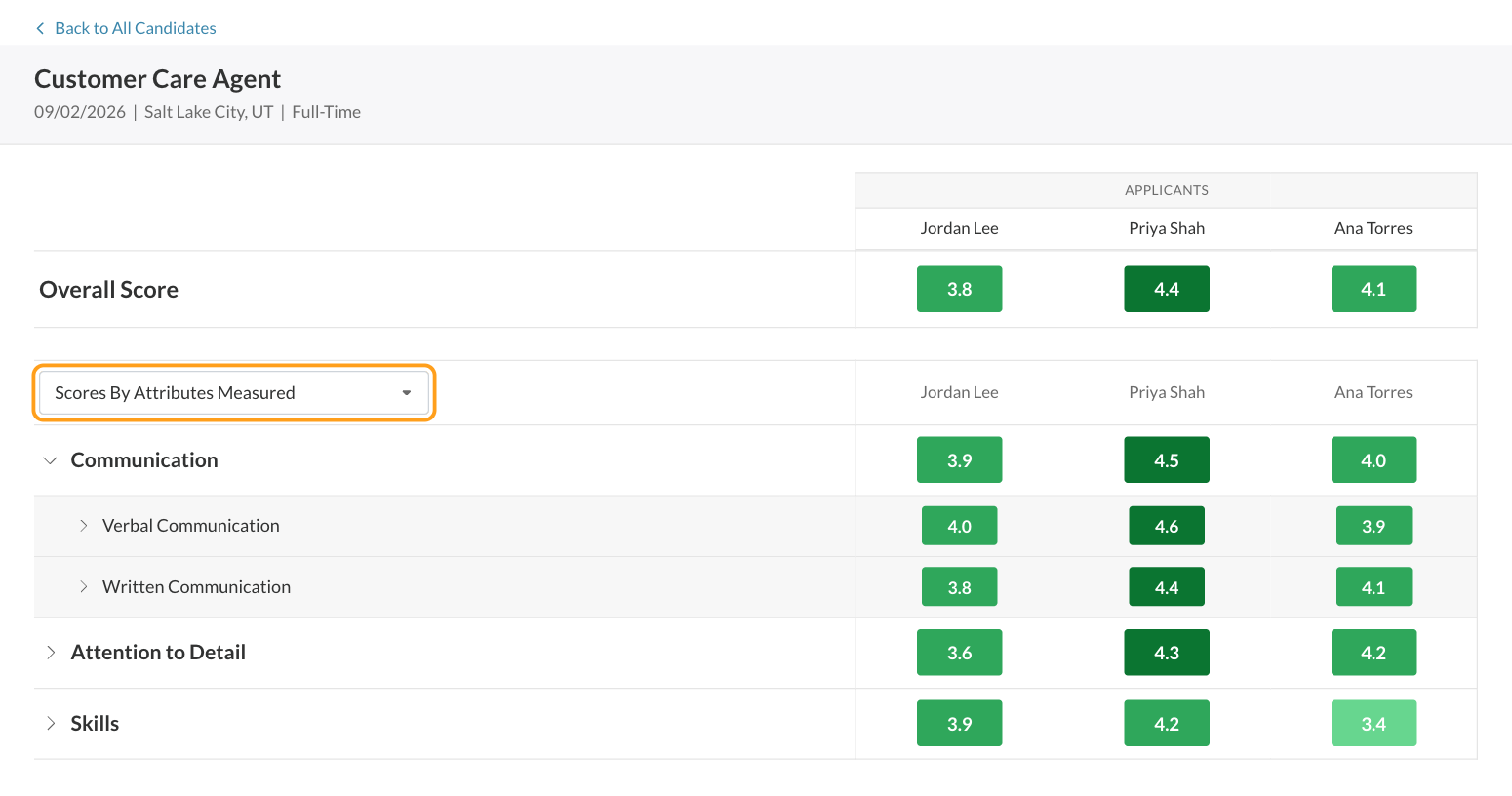
The comparison shows each candidate’s Overall Score, then a table of scores. Use the dropdown above the table to switch between Scores By Attributes Measured and Scores By Screening Steps, and expand a row for more detail.
- You’ve selected at least two and no more than five candidates.
- They’re all on the same job req.
- They’re all on the same version of the job req’s workflow. If the workflow changed after some candidates applied, they may be on an older version. Add the Job Version column with Edit Columns to check.
Merge duplicate candidates
1
Select the two records
On the Candidates page, search by name or phone number to find both records, then tick one row for each. Each row is a Candidate Application, so make sure the two rows come from the two different records, not two applications of the same record.
2
Click Merge
Merge appears in the actions bar when exactly two candidates are selected.
3
Read the warning and click I understand
The Merge Users window explains what will happen.
4
Choose the primary record
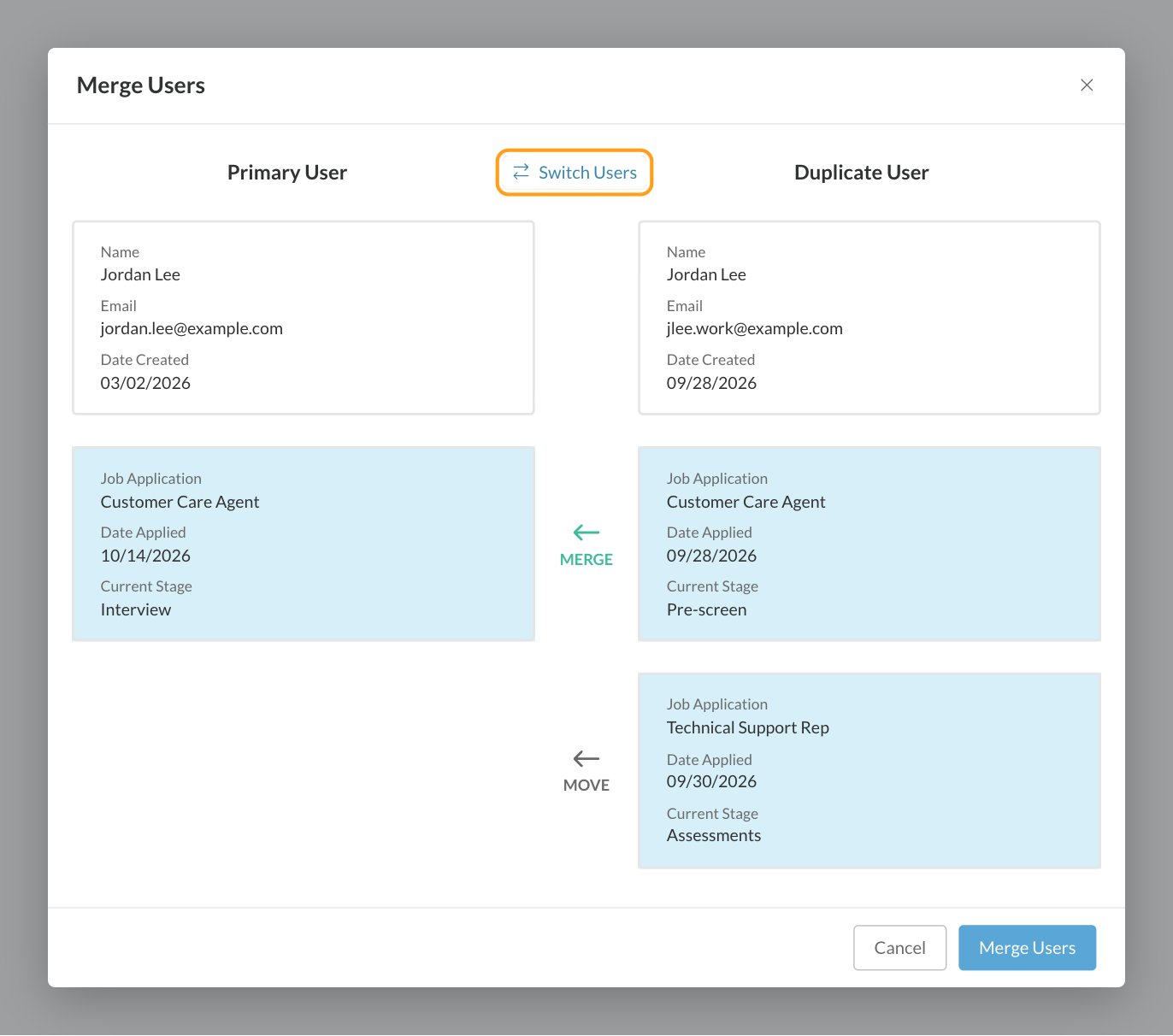
The Primary User column is the record you keep. The Duplicate User column is merged into it. Click Switch Users if they’re the wrong way round. The primary record’s email address is the one that stays.
5
Review each application and job
Each row shows how a job req application or employee job will be handled:
- MERGE: both records have one for the same job req or job, so they’re combined into the primary’s.
- MOVE: only the duplicate has one, so it moves to the primary as it is.
6
Click Merge Users
Journeyfront merges the records and recalculates the primary’s scores.
What a merge keeps
Only records in your account are merged. Anything the person has with another company that uses Journeyfront isn’t touched.
Merge employee records
You can also merge two employee records:1
Open the job profile
Click Profiles in the top navigation and open the job profile. The Employees tab lists its employees.
2
Select the two records and click Merge
Tick the boxes next to the two records, then click Merge.
3
Follow the same steps
Read the warning, click I understand, check the Primary User and Duplicate User, and click Merge Users.
FAQ
Why don't I see Compare?
Why don't I see Compare?
Compare needs two to five candidates, all on the same job req and the same version of its workflow. Check how many you selected, and add the Job Req and Job Version columns to spot the odd one out.
Why don't I see Merge?
Why don't I see Merge?
Select exactly two candidates. Merge doesn’t appear for one, or for three or more.
Can I undo a merge?
Can I undo a merge?
No. Merging is permanent, so check both records carefully before you click Merge Users.
How do duplicates happen?
How do duplicates happen?
Most often a candidate applies again with a different email address, or a teammate adds or imports someone who’s already in Journeyfront under another email. Searching by phone number is a quick way to find them.
What if both records have an interview for the same job req?
What if both records have an interview for the same job req?
If both have the same interview, only the primary’s is kept. Interviews only the duplicate has are copied to the primary’s application.
Does merging affect the candidate's applications at other companies?
Does merging affect the candidate's applications at other companies?
No. Only records in your account are merged.
Related
Candidate Profiles and Candidate Applications
One person, many applications.
The Candidates page
Find, select and act on candidates.
Bulk actions
Every action you can take on a group of candidates.
How scoring works
What the scores in a comparison mean.