

Who can do this: Anyone on the job req’s hiring team, or with All Job Req Access. The interview activity must already be set up with interviewers. See Set up an interview activity.
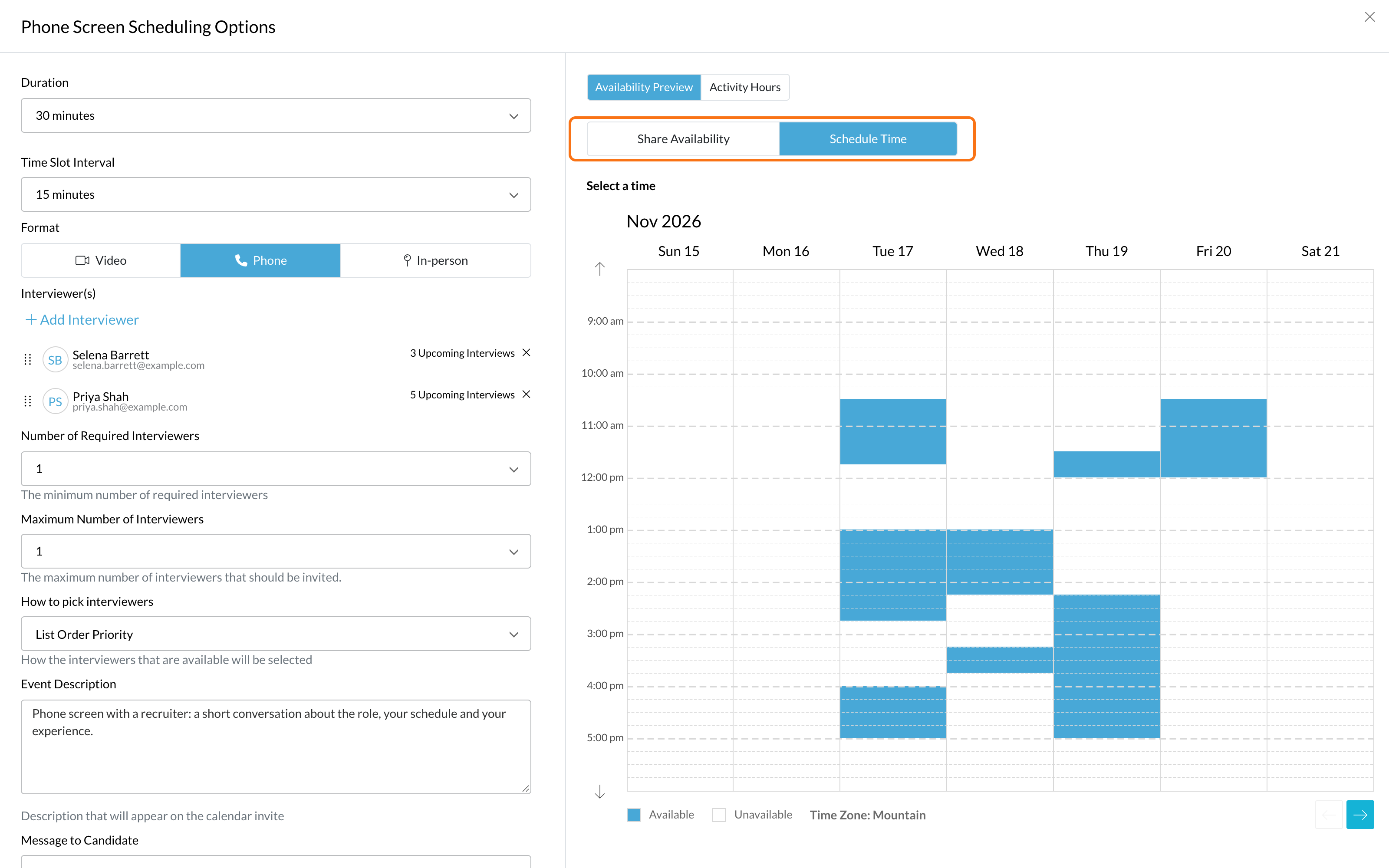
- Share Availability emails the candidate a link so they pick a time themselves.
- Schedule Time lets you pick the time and book it for them.
Open the candidate’s interviews
1
Open the Candidate Application
Click the candidate’s name in a candidate list to open their Candidate Application.
2
Open Interviews
Click Actions at the top right, then Interview. The Interviews window lists each interview in the candidate’s workflow with its step and status.
3
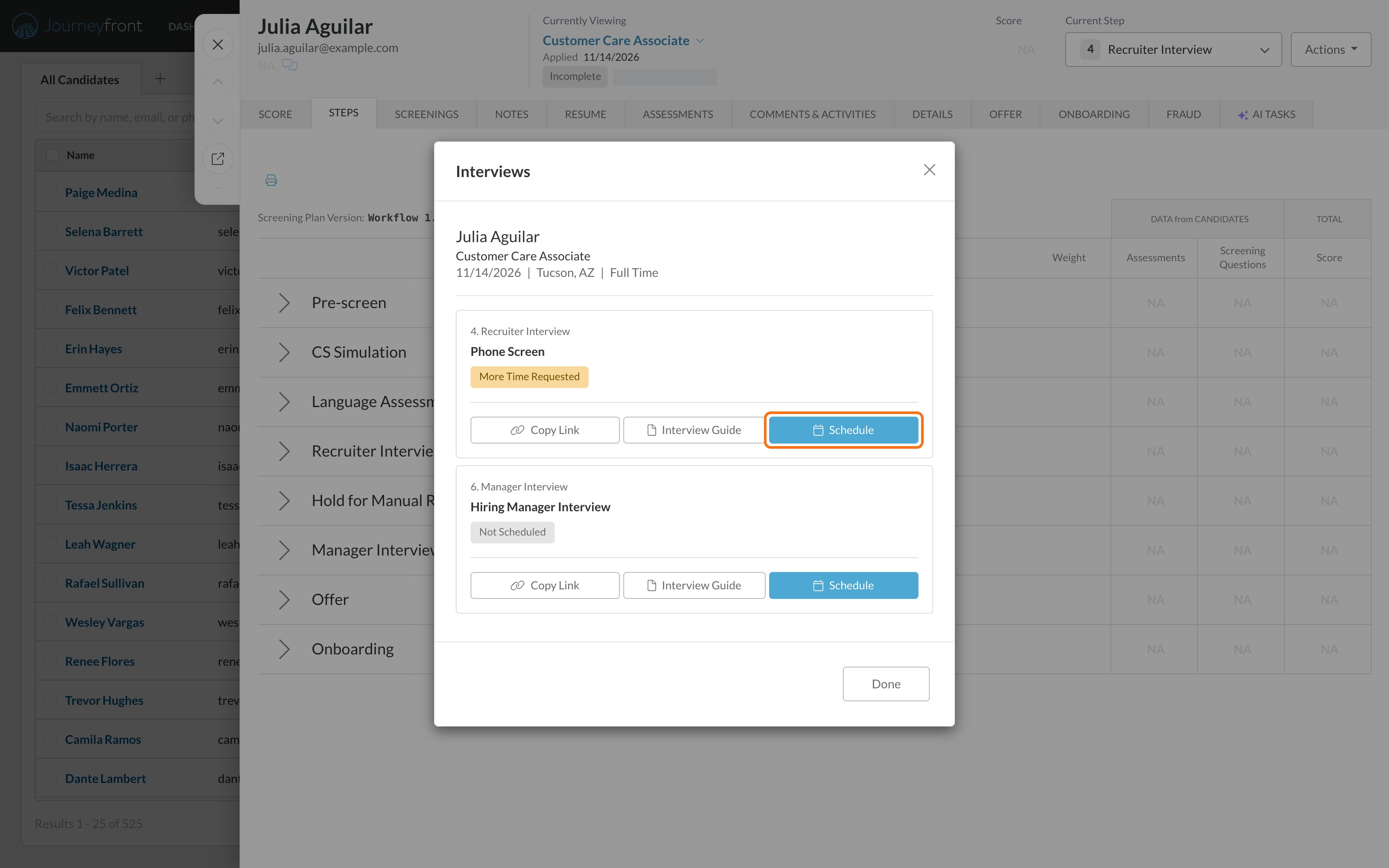
Click Schedule
Find the interview and click Schedule. The Scheduling Options window opens.
Send a scheduling link
1
Choose Share Availability
Check the availability preview to make sure there are enough open times, then click Next.
2
Review the email
Check the Subject and Body. You can insert variable fields or attach a file.
3
Send it
Click Invite candidate to self schedule. The candidate gets the email with their link.
Book a time for the candidate
1
Choose Schedule Time
Click Schedule Time. Under Select a time, click an open (blue) time in the calendar.
2
Review the booking
Check the Date, Time and Selected Interviewers. To pick a different time, click Select Other Time to Reschedule.
3
Book it
Click Schedule Interview. The interview goes on the interviewers’ calendars and the candidate is sent the details.
FAQ
Why don't I see any open times?
Why don't I see any open times?
None of the interviewers in the pool are free for an interview of this length, or they haven’t connected their calendar. Add interviewers to the interview activity, or ask interviewers to open up their availability. See Your availability and calendar.
Can I give one candidate different hours?
Can I give one candidate different hours?
Yes. In the Scheduling Options window, open Activity Hours to change the hours for this candidate only. See Customize hours for one candidate.
How do I find every candidate who still needs an interview booked?
How do I find every candidate who still needs an interview booked?
Build a saved view of candidates whose interview isn’t booked yet. See See who hasn’t booked.
Related
Set up an interview activity
Interviewers, scheduling settings and calendar invites.
Candidate self-scheduling
Scheduling links, activity hours and what candidates see.
See who hasn't booked
Find candidates who haven’t picked a time and help them book.
Interview guides
What interviewers follow and score during the interview.