

Who can do this: Anyone on your team can start a review from Start, then Performance Review. Finding employees in that list needs the All Employee Access permission. Reviewing from an employee’s record, and seeing their scores, needs Performance Access.
Before you start
Performance reviews use two things that are set up for each job profile:- The questions. Your performance questions live in Settings, then Measurements, then Employee Performance. Each one measures one or more of your company outcomes (Settings, then Outcomes). See Job profiles.
- The review periods. How often employees in a profile are reviewed is part of the profile’s measurement plan, under Outcome Measurement Plan.
Review an employee
1
Click Start, then Performance Review
Start is at the top right of every page. Who are you reviewing? lists your employees with their email, Job Title, Start Date and Last Performance Date. Use Search to find someone.
2
Click the employee
The review period window opens.
3
Choose the period
Under Which performance period would you like to evaluate?, pick an Evaluation Period. Each period shows who completed the last review for it and when. Periods you’ve already reviewed for this employee are greyed out. Click Next.
4
Score each question
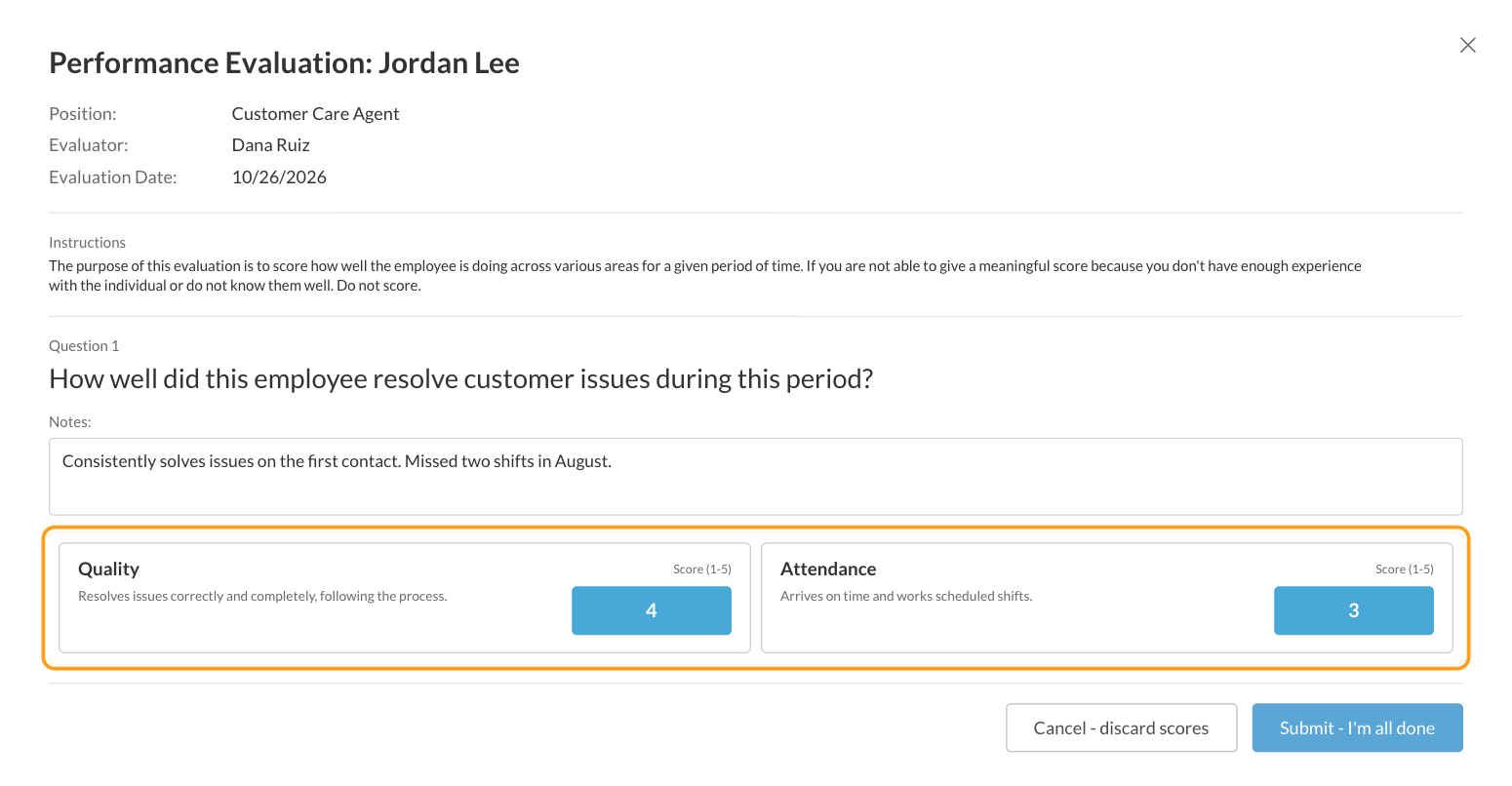
The Performance Evaluation opens with the employee’s name, Position, you as the Evaluator and today’s Evaluation Date. For each question, add Notes if you like (up to 4,000 characters) and enter a score from 1 to 5 in each Score (1-5) box.
5
Click Submit - I'm all done
You’ll see Performance Evaluation Saved.
Scoring rules
- Score a whole question or skip it. If you score anything on a question, score every box on it. If you can’t judge a question, leave all of its boxes empty.
- Notes need scores. A question with a note but no scores can’t be submitted.
- If something’s missing, the question is marked in red. Fix it and click Submit - I’m all done again.
See an employee’s scores
Open the employee’s record and click the Job Performance tab. Performance Scores shows their reviews, with each evaluator’s scores side by side.- Switch between Scores by Review and Scores by Outcome.
- Pick a review period, or All Periods.
- Click Print for a copy.
Where reviews are used
- Job profile dashboards: the Performance view, and the Attributes, Activities, Interview Questions and Interviewers views when compared with Overall Performance. See Job profiles.
- Company dashboards: performance across your account. See Turnover and performance.
- Predictive models: performance outcomes are what Journeyfront learns from when it builds a model for a job profile. See Predictive models.
Bring in reviews from another system
If your reviews happen in another system, admins can upload them in bulk from Settings, then Import Data, on the Employee Performance Data Import tab. See Importing data.FAQ
Why is a review period greyed out?
Why is a review period greyed out?
You’ve already reviewed this employee for that period. Someone else can still review them for it.
Why is the employee list empty under Start, then Performance Review?
Why is the employee list empty under Start, then Performance Review?
Finding employees there needs All Employee Access. You can also review someone from the Job Performance tab of their record, if you can open it from Profiles.
Why don't I see the Job Performance tab?
Why don't I see the Job Performance tab?
It needs Performance Access in your security role. Ask your Journeyfront admin.
Can I save a review and finish later?
Can I save a review and finish later?
No. Fill it in and submit it in one go. Cancel - discard scores throws away what you entered.
Can employees see their reviews?
Can employees see their reviews?
No. Performance reviews are only visible to your team.
Why can't I un-hire someone who has reviews?
Why can't I un-hire someone who has reviews?
Once an employee record has performance data, the hire is part of their employment history and can’t be undone. Record a separation instead. See Employee records.
Related
Employee records
Each employee’s details, job and scores.
Job profiles
Outcomes, review periods and profile dashboards.
Turnover and performance
Connect hiring data to how people perform.
Predictive models
Learn which candidates are likely to perform.