

Who can do this: Admins with Company Settings Access connect Meta. The person who connects must also be a Page admin and a Business admin in Meta. Recruiters don’t need any Meta access.Availability: Meta Lead Ads needs to be turned on for your account. Ask your Customer Success Manager.
Before you start
- Your lead forms live in Meta. Create them in Meta Ads Manager. Journeyfront brings in the forms from the Pages you connect, but can’t create forms for you.
- The right Meta access. The person connecting needs to be both a Page admin and a Business admin on your Meta Business account.
- Company Settings access in Journeyfront.
- Leads Access, if your business uses it. If your Meta Business restricts who can access leads, a Business admin also needs to allow Journeyfront as a CRM. See Allow Journeyfront in Leads Access.
Step 1: Connect your Meta Business account
1
Open the Meta Business tile
Go to Settings, then Integrations, and click the Meta Business tile.
2
Connect
Click Connect Meta Business (or Reconnect, if Meta is already connected). A Facebook window opens. Log in to Facebook if it asks.If you’ve connected Journeyfront before, Facebook asks whether to continue with your previous settings. Click Edit settings to review your Pages and Business. Clicking Continue reuses the last choices and skips to the end.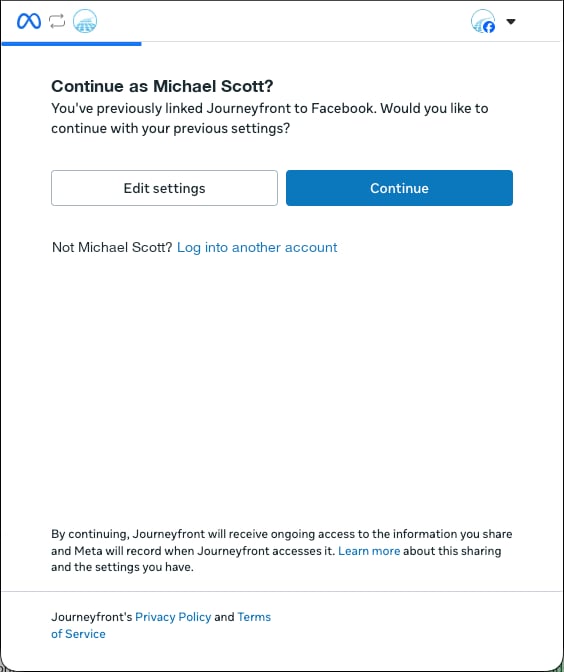
3
Choose your Pages
Choose the Pages your lead forms are on. Select Opt in to current Pages only and check each Page, or select Opt in to all current and future Pages to include Pages you add later. Click Continue.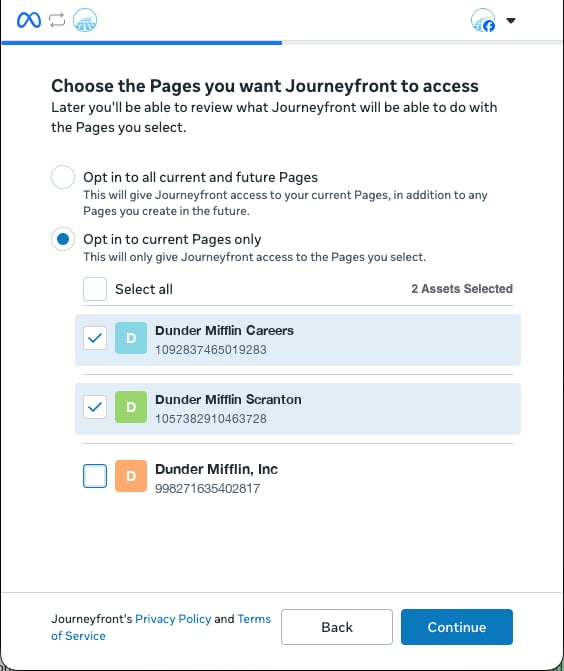
4
Choose your Business
Choose the Meta Business that owns those Pages and click Continue.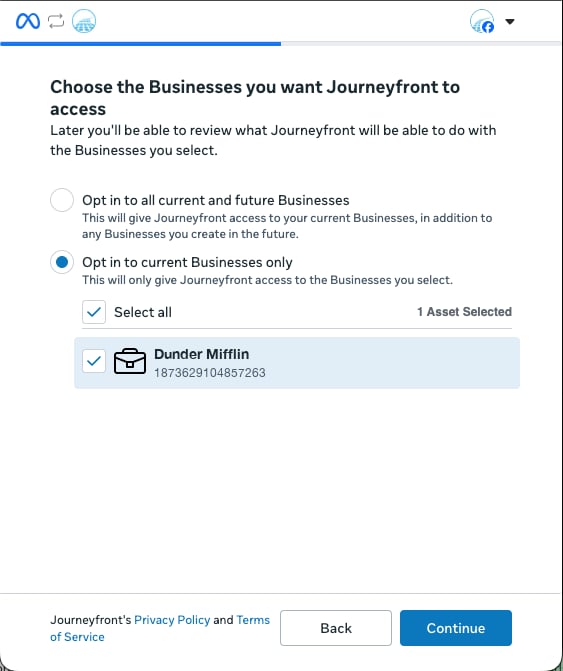
5
Approve the permissions
Facebook lists what Journeyfront is asking for. Approve all six permissions Journeyfront asks for and click Save. Leave every one turned on; if one is missing, Journeyfront asks you to reconnect.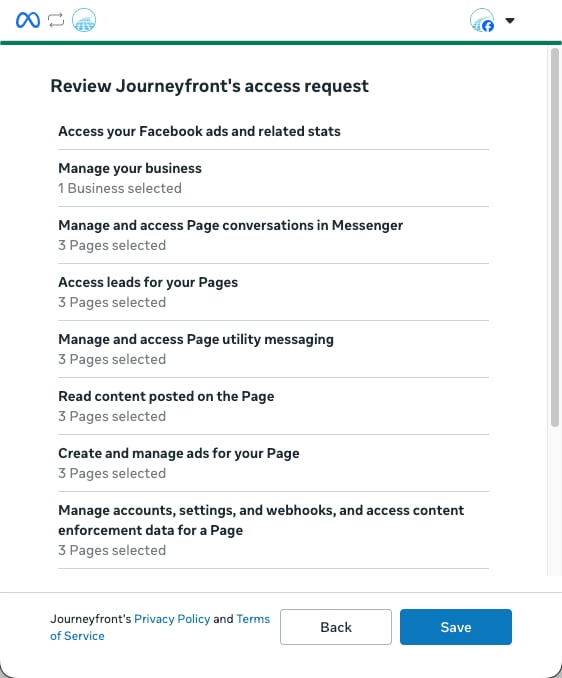
Journeyfront can’t post to your Page, change your ads, or read your Page’s messages.
6
Finish
Facebook confirms the connection. Click Got it to close the window.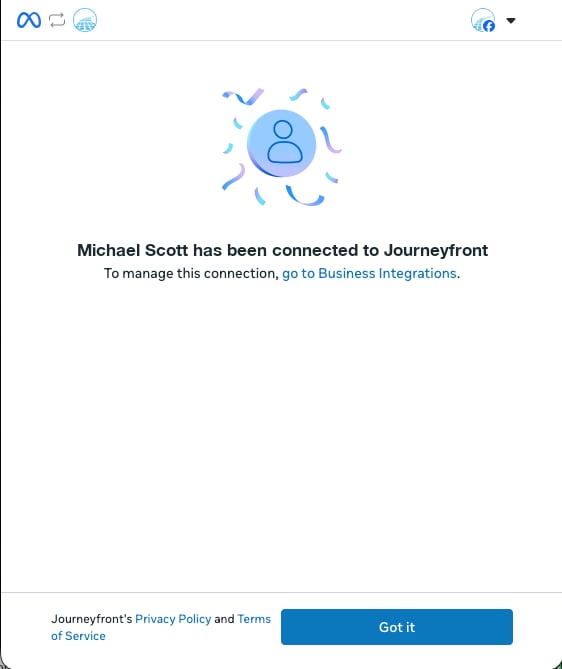
Allow Journeyfront in Leads Access
Meta’s Leads Access setting controls which people and CRMs can receive leads for a Page. If your business uses it, Meta only sends leads to the CRMs on the list. Until Journeyfront is added, the connection looks healthy, but new leads never reach Journeyfront. You need this step if any of these are true:- Your Meta Business has set up Leads Access for the Page, or you’re not sure whether it has.
- The form’s health check shows leads at Meta marked Never received, even though Page sends lead notifications is OK.
- The Page shows Receiving leads, but the form’s Leads count stays at 0.
1
Open Business Settings
2
Open Leads Access
In the left menu, open Integrations, then Leads Access.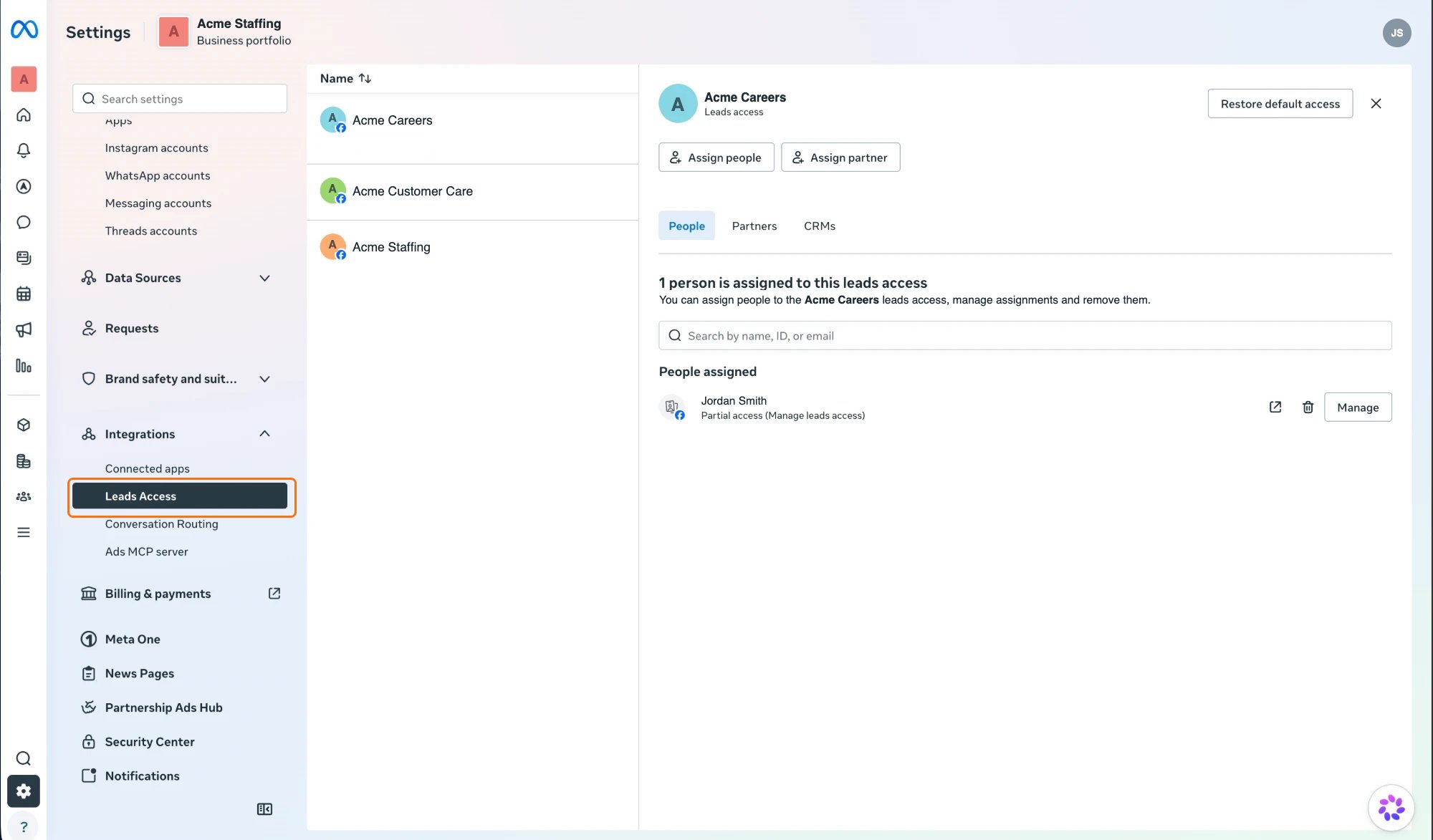
3
Select your Page
Select the Page your lead forms are on.
4
Assign Journeyfront
Open the CRMs tab and click Assign CRM. In Add CRMs and set permissions, paste the Journeyfront app ID into Search: 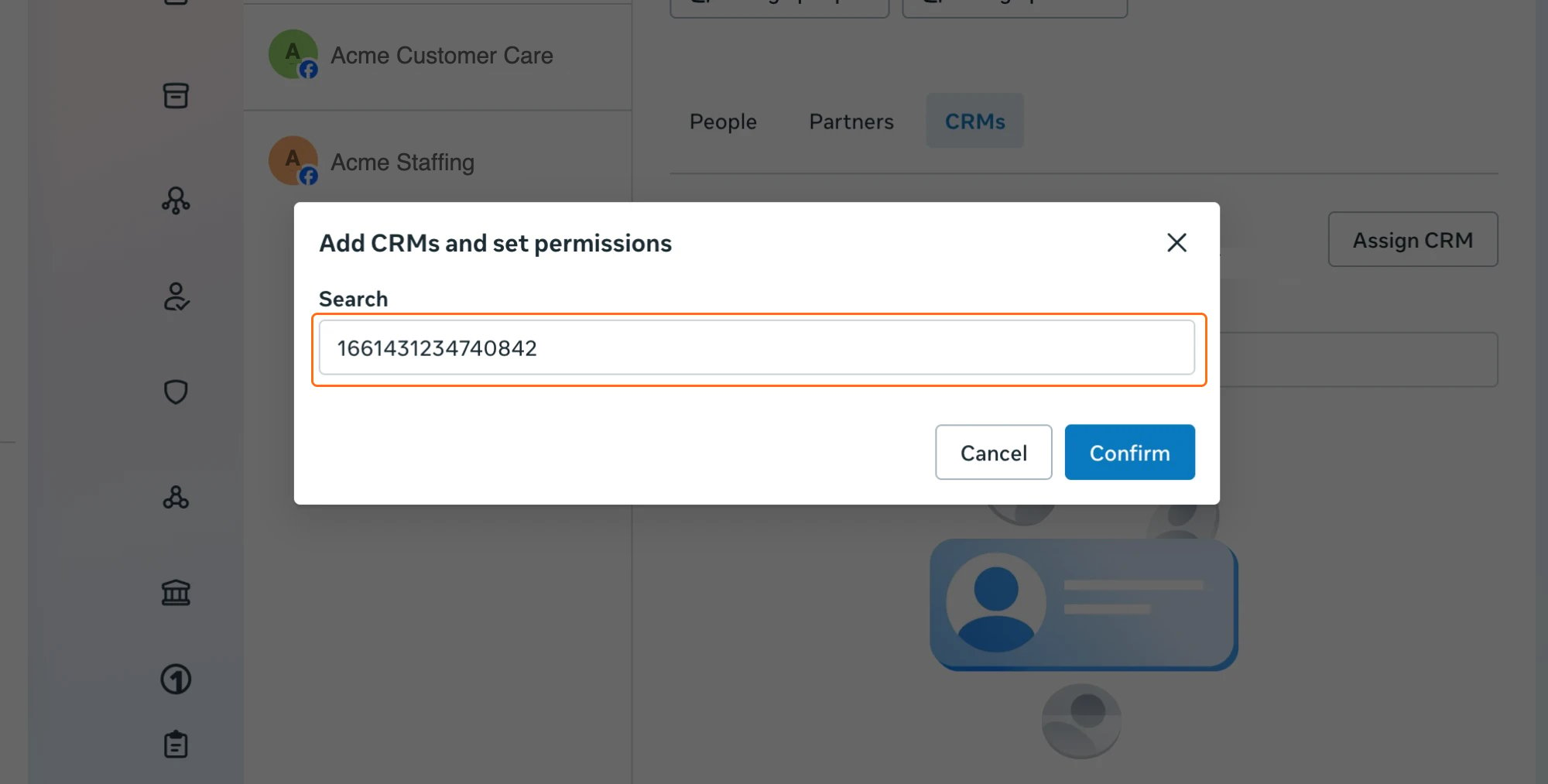
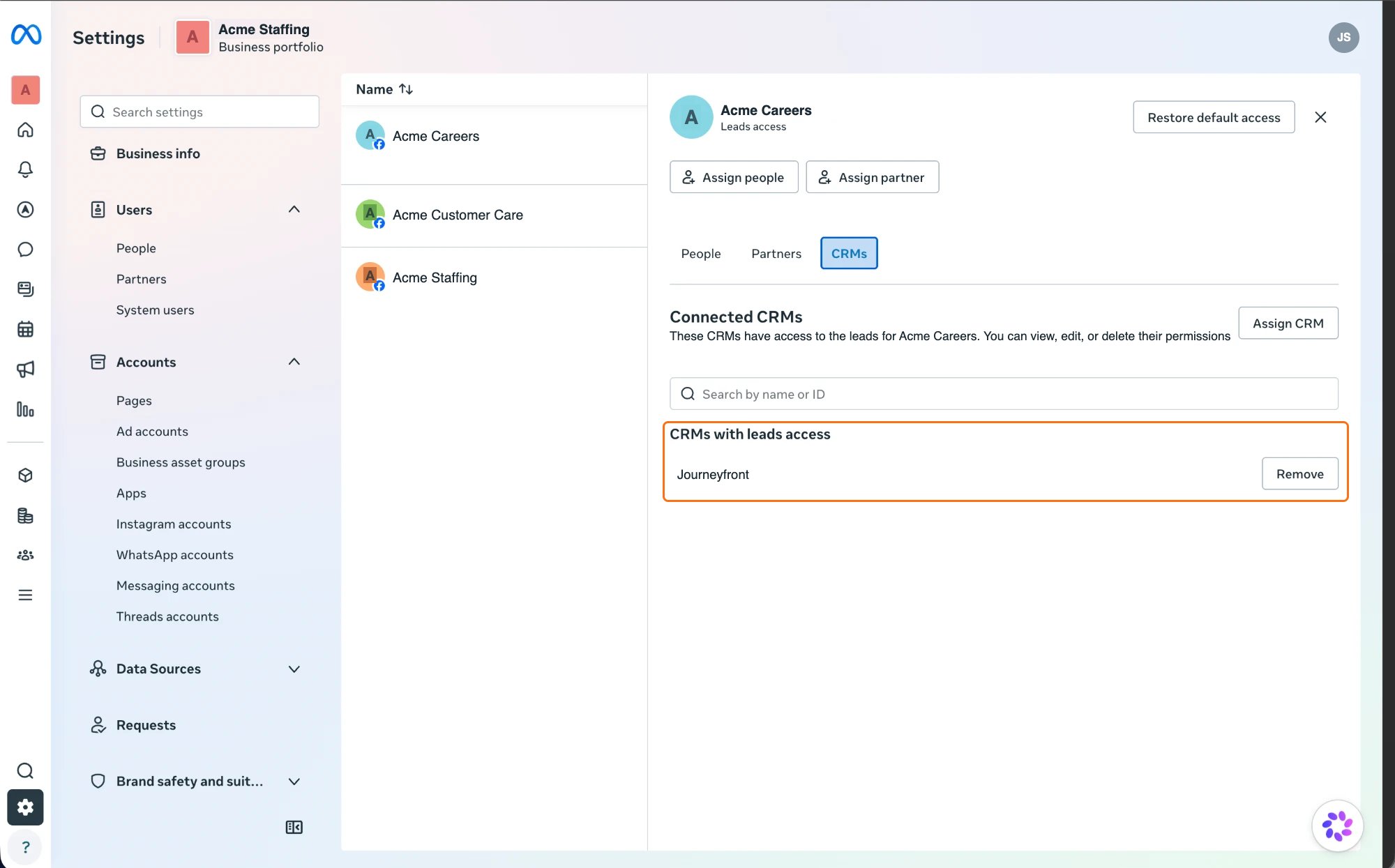
1661431234740842. Searching by name doesn’t find it. Select Journeyfront and click Confirm.Journeyfront only shows up here after the Page is connected in Journeyfront. If the app ID finds nothing, connect the Page first.
If Journeyfront is already on the list, or you don’t see a CRMs tab, Leads Access isn’t the cause. Contact your Customer Success Manager.
Fix connection problems
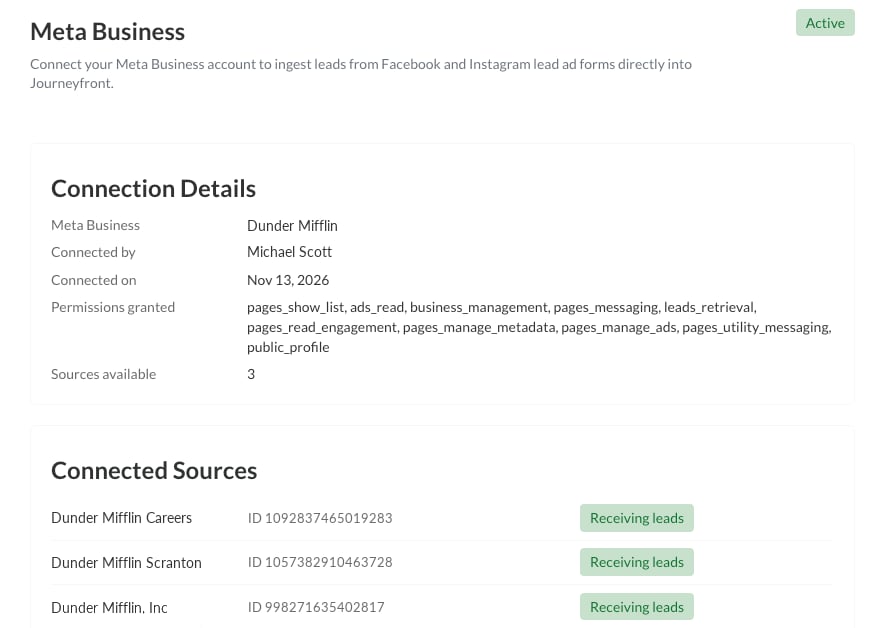
Each Page under Connected Sources on the Meta Business page shows whether Meta is sending its leads to Journeyfront: Receiving leads, Not subscribed or Not checked yet. Hover over the status for details.
For problems with a single form, such as Needs mapping or leads from a form that isn’t linked, see Fix common problems.
Add Pages or disconnect
- To add more Pages later, click Reconnect on the Meta Business page and pick the Pages again.
- To disconnect, click Disconnect. Candidates already in Journeyfront stay; new leads stop coming in.
FAQ
Is candidate data secure?
Is candidate data secure?
Yes. Journeyfront connects through Meta’s official sign-up flow, stores the connection securely, and only asks for the permissions needed to receive leads. You can disconnect at any time from the Meta Business page.
Do recruiters need access to our Meta Business?
Do recruiters need access to our Meta Business?
No. Only the person who connects needs to be a Page admin and a Business admin in Meta. Everyone else works with lead ad candidates in Journeyfront.
Does connecting Meta cover Instagram?
Does connecting Meta cover Instagram?
Yes. Instagram lead forms run on the same Meta lead ads system, so forms on your connected Pages come in the same way, whether the lead was submitted on Facebook, Instagram, Messenger or the Audience Network.
Step 2: Link your lead forms
With Meta connected, your lead forms appear under Settings, then Meta Lead Ads. Link each one to a job req and map its questions so every submission becomes a candidate.Lead ads
Link lead forms to job reqs, map their questions and follow every lead.