

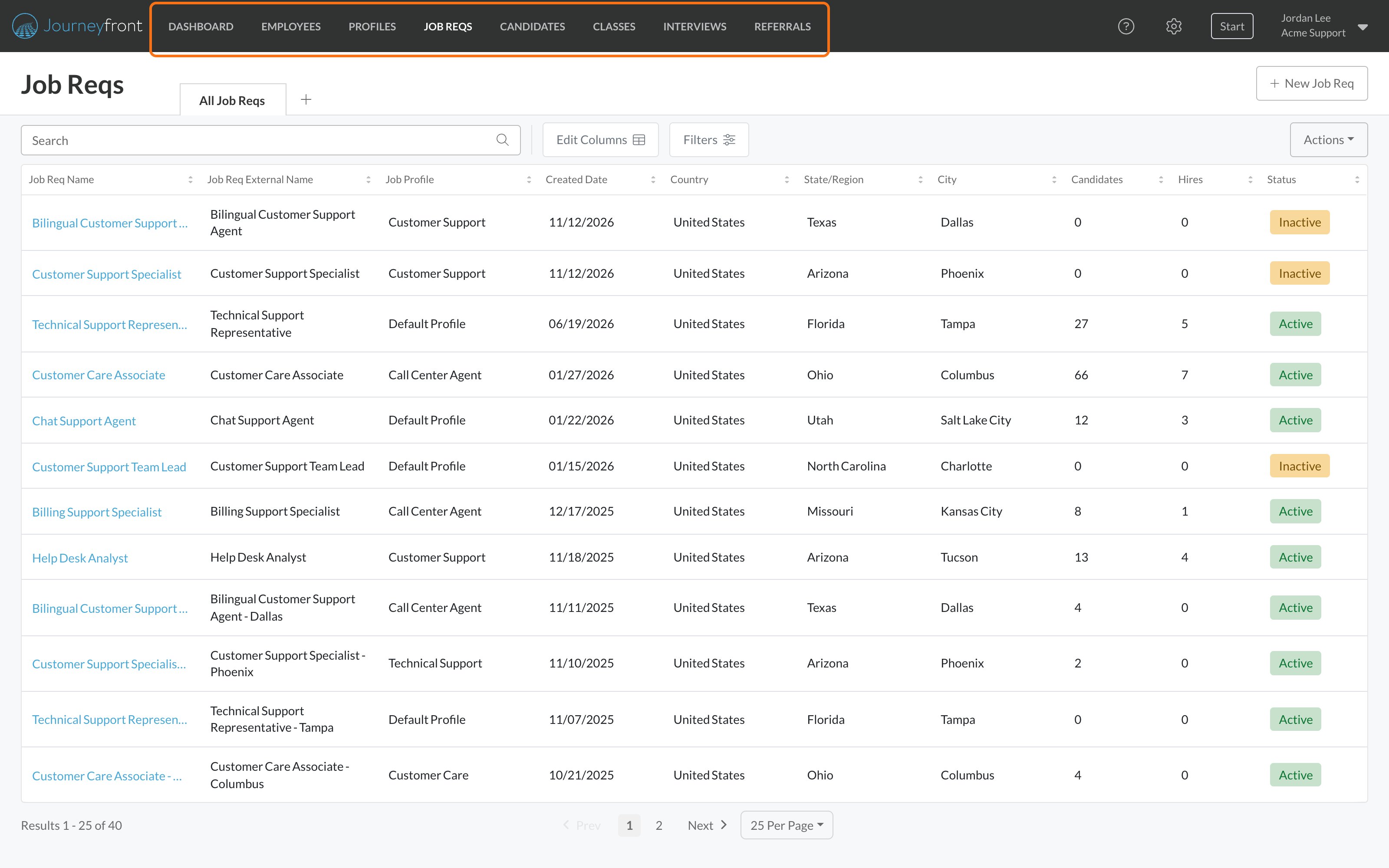
The top navigation
Inside a job req
Open any job req to see its own tabs:- Hiring Classes: the waves of hires for this job req.
- Dashboard: how this job req is performing.
- Candidates: everyone who has applied to this job req.
- Setup: the job req’s details, application form, workflow, team, postings and settings.
- Activity: a log of changes made to the job req.

The job req Actions menu
The Actions button at the top right of a job req holds the things you do to the job req as a whole: Invite Candidates, Add New Candidate, Import Candidates, Export Data, Duplicate Job Req, and the status changes (Deactivate, Close, Archive and Delete Job Req, or Activate and Re-Open when it isn’t active). Which items you see depends on the job req’s status and your security role. See Job req statuses.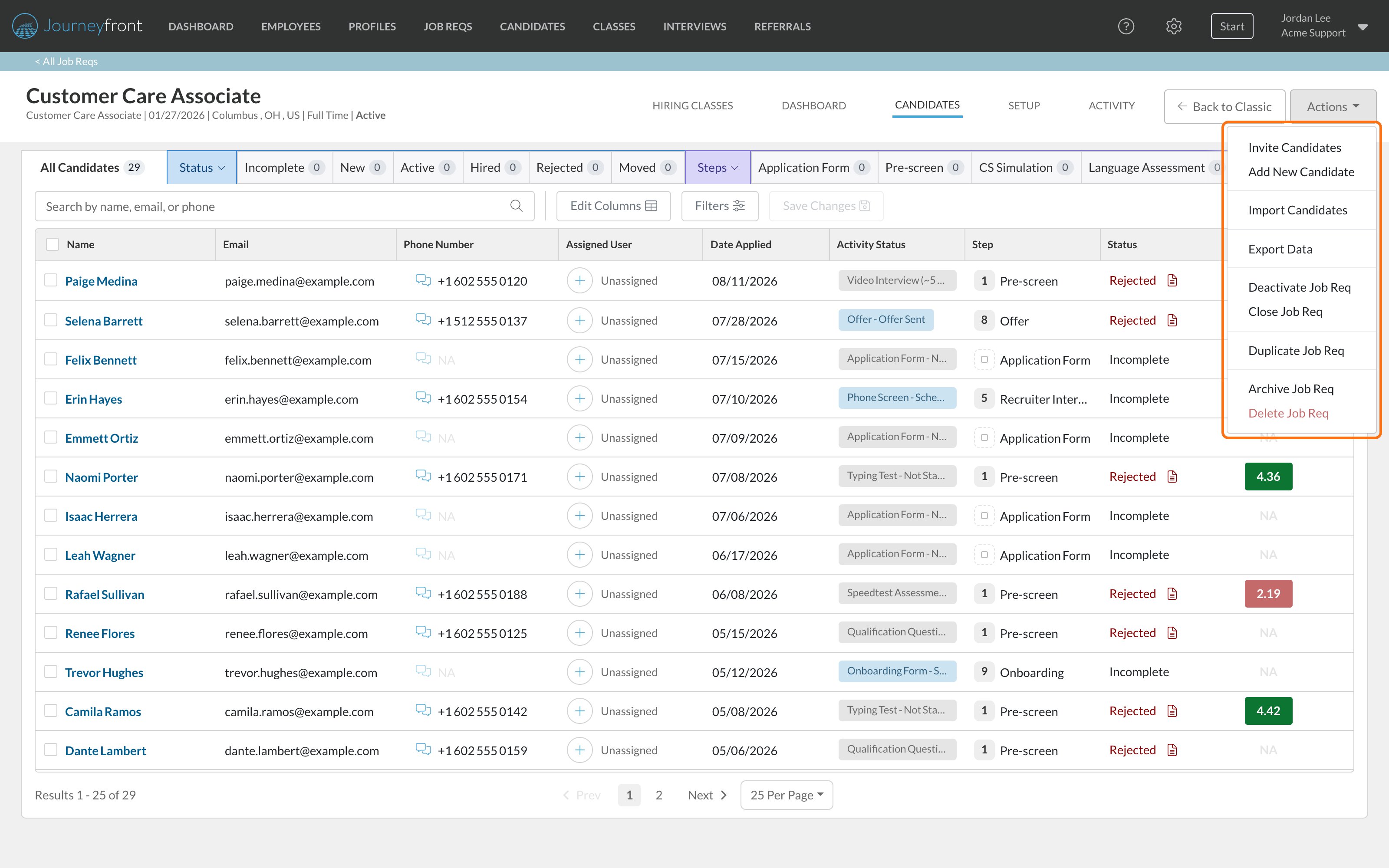
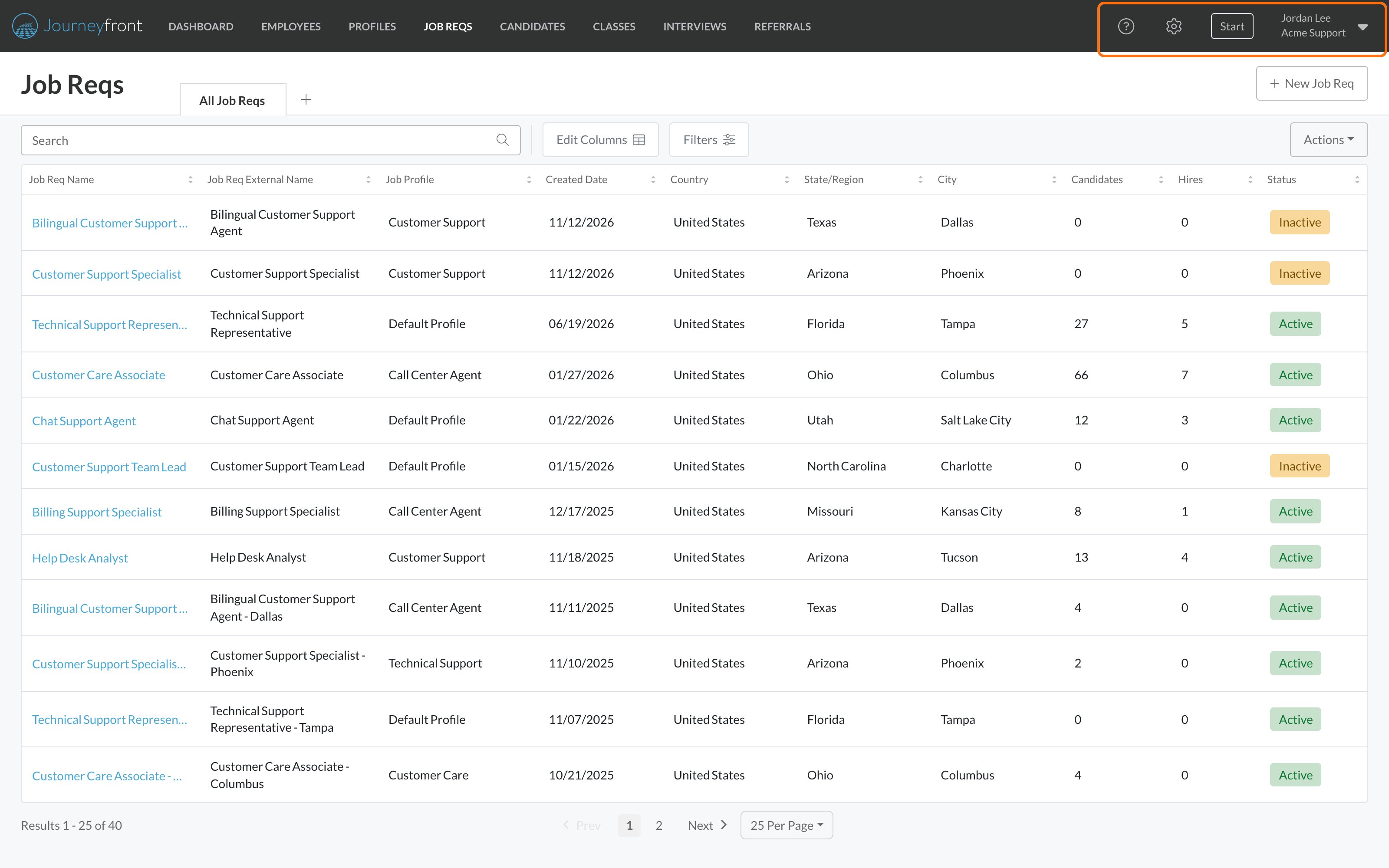
The right side of the header
- Help: opens this Help Center.
- Settings (gear icon): company-wide settings such as users, security roles, templates, custom fields and integrations. Only people with settings access see it.
- Start: quick ways to start an interview or a performance review.
- Your name: Personal Settings, My Profile, My Progress, Change Password and Sign Out. Admins also see Company Settings and Import Data here. See Logging in to change your password.
FAQ
Where do I change my password?
Where do I change my password?
Select your name in the top right, then Change Password.