![jf_logo_on_white_150.png]](https://help.journeyfront.com/hs-fs/hubfs/jf_logo_on_white_150.png?height=29&name=jf_logo_on_white_150.png)
- Sign in at https://app.journeyfront.com/login
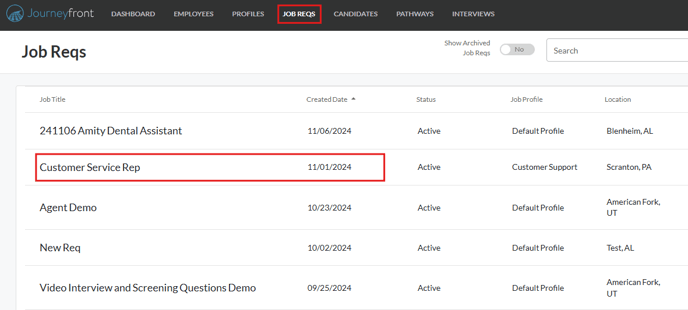
- Click on “Job Reqs” on the main menu bar
- Select the appropriate Job Req
- Click on “SETUP” and then “Screening Plan”
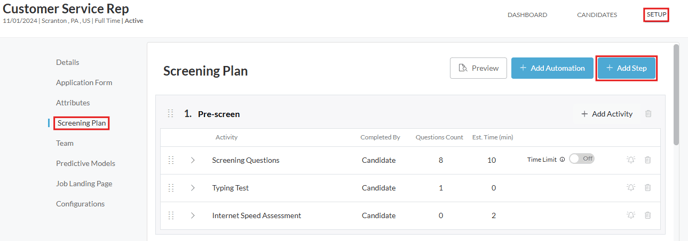
- Scroll through the screening plan. If you don’t see an “Offer” step or activity, we’ll need to add them in order to generate Offer Letters from the candidate scorecard.
- Click on the blue “+ Add Step” button, scroll to the bottom and type in the Step Name (“Offer”) to create the “Offer” step”.
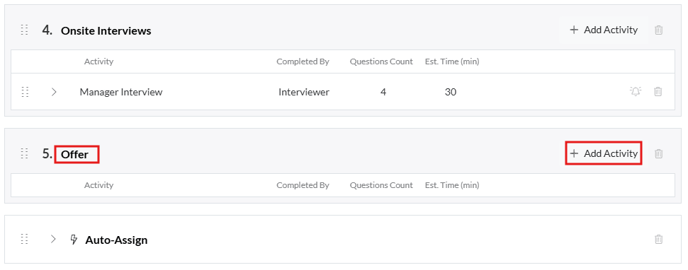
- On the Offer step, click on “+ Add Activity”
- Select “+ Add Offer”
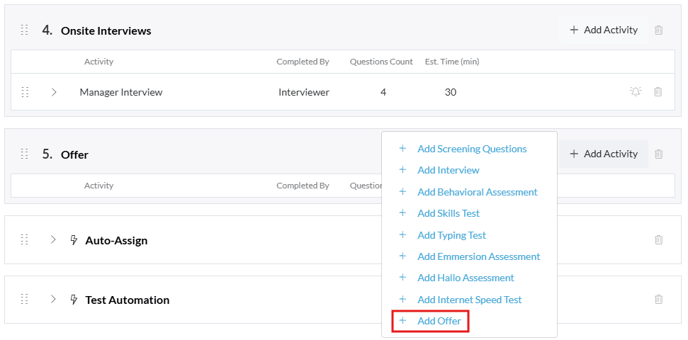
- After a few seconds you will see the new “Offer” activity has been added to the “Offer” step
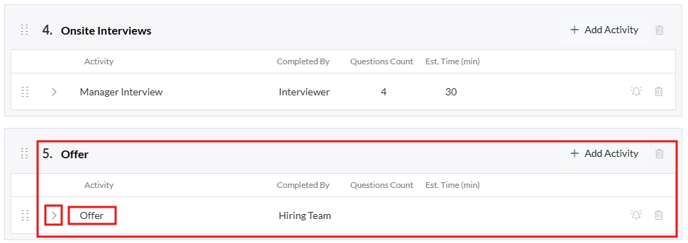
- Let’s look at what we need to configure for this step. Click on the drop down arrow.
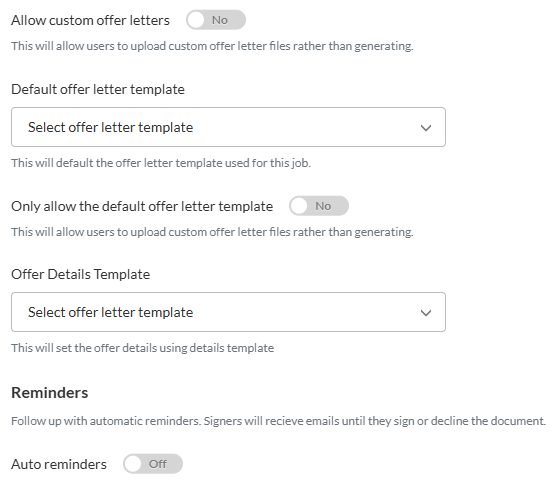
- Allow custom offer letters: This will allow users to upload custom offer letters files rather than generating them in Journeyfront
- Default offer letter template: Select the offer letter template you want to use for this job
- Click this link for more information on “How to set up Offer Letter Templates”
- Only allow the default offer letter template: This locks down the default Offer Letter template so users cannot use a different template
- Toggle to Yes or No
- Offer Details Template: Select the Offer Details Template you want to use for this job
- Click this link for more information on “How to set up Offer Details Templates”
- Reminders: Follow up with automatic reminders. Signers will receive reminder emails until they sign or decline the document
- Toggle to Off or On
- You’re now ready to start generating individual Offers at the candidate level. Click this link to see more information on “How to Generate Offer Letters”
- Select “+ Add Offer”