![jf_logo_on_white_150.png]](https://help.journeyfront.com/hs-fs/hubfs/jf_logo_on_white_150.png?height=29&name=jf_logo_on_white_150.png)
- Sign in at https://app.journeyfront.com/login
- To access "System Emails", navigate to "Company Settings" (click on the gear icon on the right side of the top navigation bar).
- Click on "Templates" in the menu on the left-hand side. This will expand a drop-down menu.
- Click on the "E-mail Template".
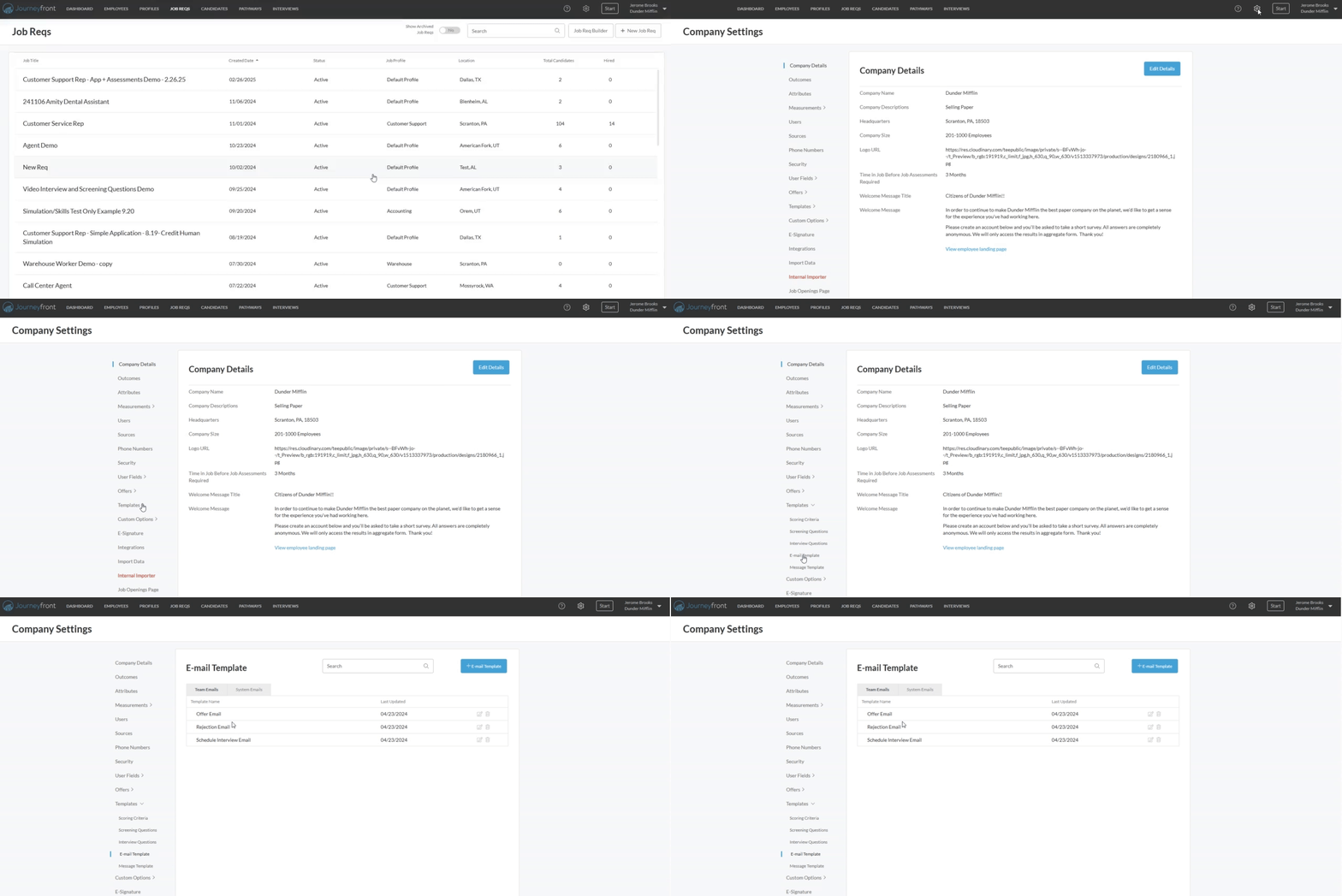
- On the "E-Mail Template" page, click on the "System Emails" tab. This will list all of the System Email Templates
- Select the template you want to edit by clicking on the 'Edit' icon next to the template name.
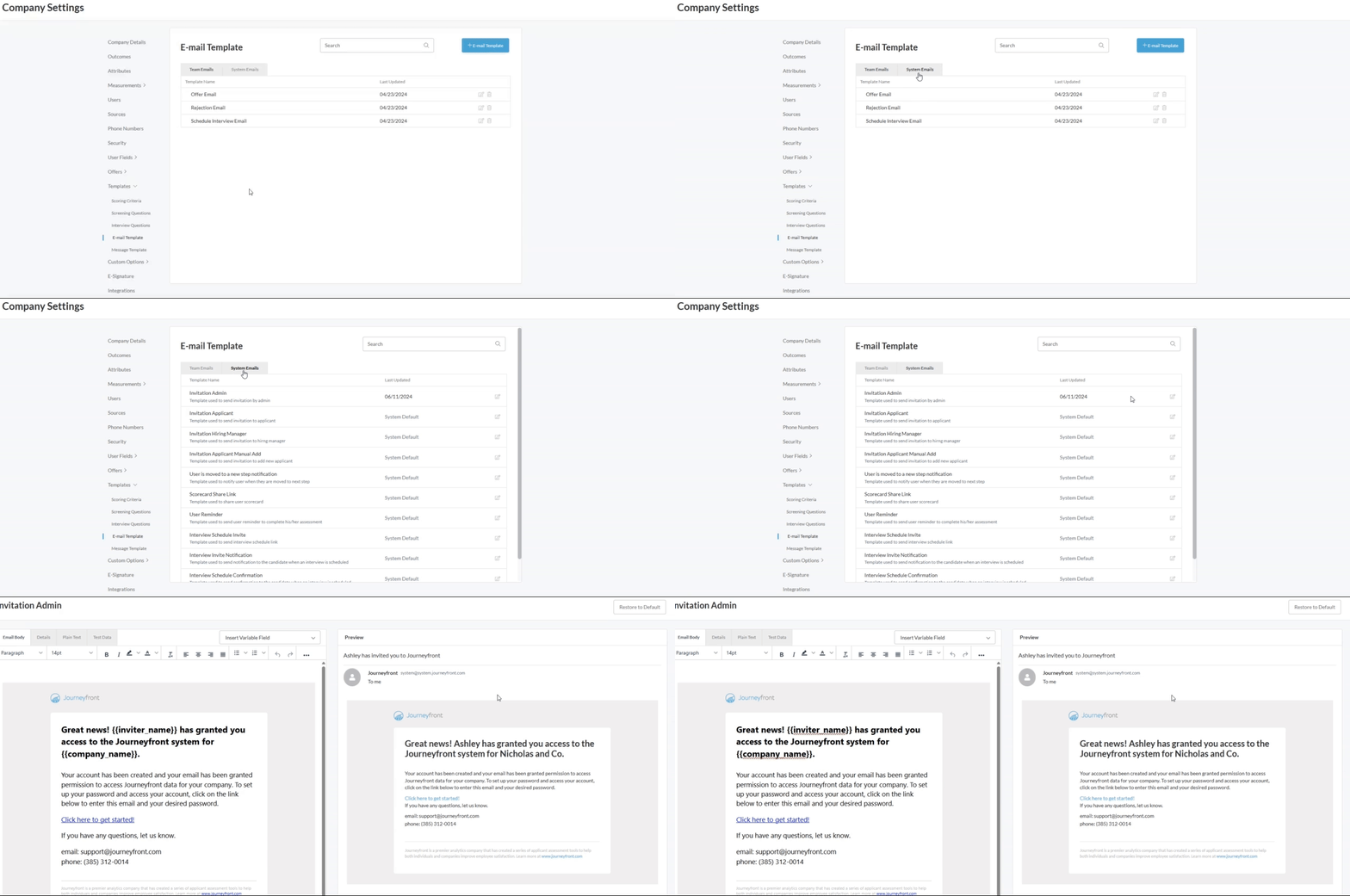
- This will open up the editing tool which will allow you to modify the template. Notice that the left side is the editor and the right side shows a preview of the template you are editing.
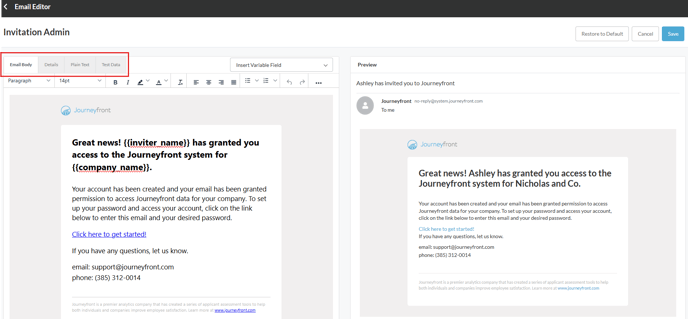
- Let’s take a look at each tab first:
- Email Body: This is where you modify the content of the email template. We'll come back to this to provide more detail
- Details: This is where you can add details to the template such as:
- Template Name: For internal use to name the template. Will not be seen by the recipient.
- Subject: The main subject of the email that the recipient will see.
- From Email: The address that the email is sent from.
- From Name: The recipient will see that this is who the email is from.
- Reply To: The email address that the recipient will send to when they reply to the email.
- Description: For internal use to describe what the email is used for. Will not be seen by the recipient.
- Plan Text: Plain text is a version of the email that is unformatted text without any styling or HTML elements, and it’s needed for accessibility and compatibility with various devices and screen readers.
- Test Data: Test data is used to ensure that your variable fields are working in the previewer. Fill in the fields below to see them in the previewer.
- Let's take a closer look at the editing functions on the "Email Body" page
- Hopefully you're familiar with the basic editing functions like font size, bold, italicize, text color, background color, justification, bullet list, number list, etc.
- If you click on the 3 dots icon, it will open up additional editing features. Let's look at those additional features:
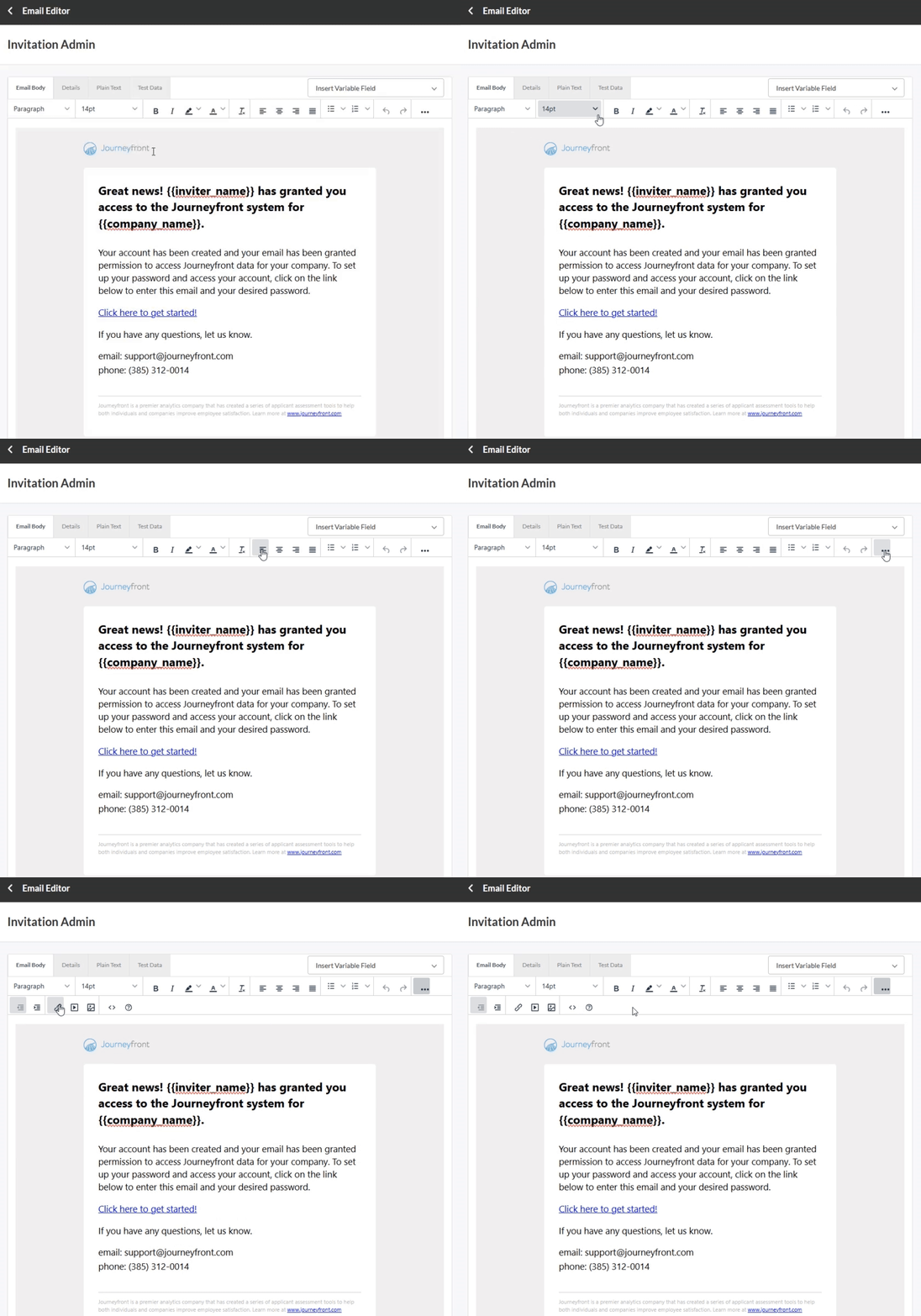
 - Decrease Indent
 - Increase Indent
 - Insert/Edit Link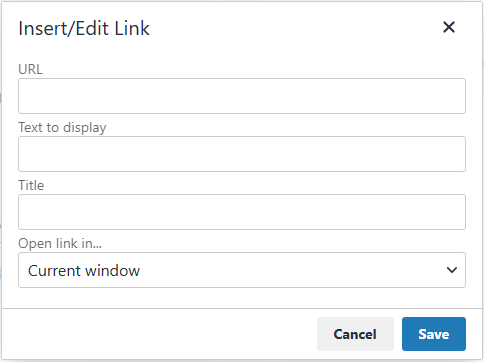
- Enter in the URL of the link
- Enter in the Text to display for the link
- Don't worry about Title
- You can have it open the link in the "Current Window" or "New Window"
- Click "Save"
 - Allows you to Insert/Edit Media
 - Allows you to Insert/Edit Images
 - Allows you to add Source Code: By inserting code into the email, you're able to do some advanced editing.
 - Provides some basic help such as Shortcuts, Keyboard Navigation or Plugins
- When you've finished editing your email masterpiece, don't forget to click "Save"